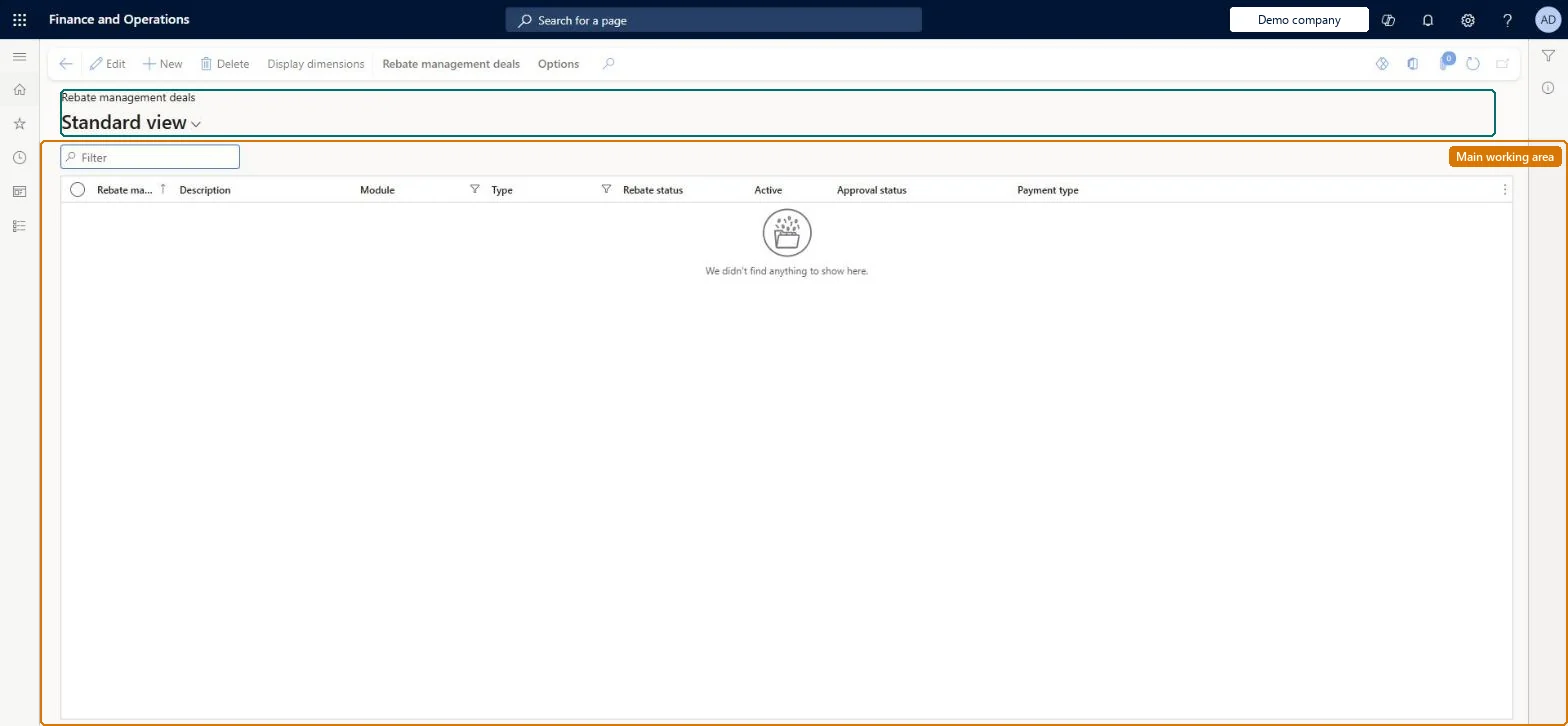
A list page that shows only vendor rebate deals (Module = Vendor, Type = Rebate); it offers the same settings as the All rebate management deals page but is pre-filtered to deals where a vendor pays a rebate to your organisation.
Accounts payable manager, Accounts receivable manager, Purchasing manager and 1 more role
Business process
Manage vendor rebate programs in Dynamics 365 Supply Chain Management
Menu item
TAMRebateDealListPageVendRebate
Main table
TAMRebateDeal
Data entity
TAMRebateAndDeductionsAgreementDealEntity
Show what matters for
PAGE GUIDEWhat the page does and how to use it8 sections. Choose a role to highlight what matters to you.
Everyone
1What it is and why
What it is
A list page that shows only vendor rebate deals (Module = Vendor, Type = Rebate); it offers the same settings as the All rebate management deals page but is pre-filtered to deals where a vendor pays a rebate to your organisation.
What you do here
Use this page to create and maintain deals that calculate the rebates a vendor owes you, based either on what you purchase from the vendor or on what you subsequently sell, using a FIFO, latest, average or sales price basis.
Example
For example, a vendor rebate deal based on sales orders with Price basis FIFO values 1,000 units sold at the FIFO purchase price of $2.00, so the rebate is calculated on $2,000 rather than the $3,000 sales value.
The page in Dynamics 365. page title tab to open what to set or check
About the examples: Examples and screenshots in this guide use BEAT, a demo company in a Dynamics 365 test environment. Use your own company's codes and values instead of copying them.
Steps from Microsoft
Go to Rebate management > Rebate management deals > Vendor rebate deals.
On the Action Pane, select New.
In the Create new deal dialog box, enter the Rebate management deal ID and Description; Module (Vendor) and Type (Rebate) are set automatically.
Set Reconcile by, Posting profile, Rebate output and Rebate currency, then select OK.
Open the deal and, on the Rebate management FastTab, select Add line; set Company, Account code and Account relation (vendor), Item code and Item relation.
On the Rebate management details FastTab, General tab, set Vendor rebate basis (Purchase order or Sales order) and, for Sales order, the Price basis; set the Dates and Lines tabs, then select Save.
On the Action Pane, select Workflow > Submit to activate the deal.
Whether the vendor rebate is based on the purchase order quantity or value, or only on the quantity or value of goods later sold on sales orders.Microsoft Learn
RebateBasisVend
Price basis
For sales-order based vendor rebates, which price values the stock sold: FIFO, Latest Purchase Price, Average Purchase Price or Sales Price.Microsoft Learn
RebatePriceBasis
Number of months
The number of months used for the weighted average when Price basis is Average Purchase Price.Microsoft Learn
AveragePurchPriceNoOfMonths
Account relation
The vendor (or vendor group) the deal line applies to.Microsoft Learn
AccountRelation
Rebate output
Whether the vendor rebate is received financially (AP debit note) or as free items; item output creates a purchase order.Microsoft Learn
RebateOutputType
Calculation method
How the calculation lines combine (Stepped, Cumulative, Rolling or Total).Microsoft Learn
CalculationMethod
Test checklist
Create a vendor rebate deal line with Vendor rebate basis = Sales order and Price basis = FIFO.
Activate it, then receive and sell qualifying stock.
Hard to reverse: An active vendor rebate deal can be deactivated, edited (due dates, new lines, new periods) and resubmitted to workflow; otherwise most setup is locked once active. Microsoft Learn
If you change it later
An active vendor rebate deal can be deactivated, edited (for example to change a due date, add deal lines or add a rebate period) and resubmitted to workflow, provided the resubmission feature is on; otherwise most setup is locked once the deal is active. Microsoft Learn
Technical architect
6Technical
Menu item
TAMRebateDealListPageVendRebateChecked in Dynamics 365
Form
TAMRebateDealChecked in Dynamics 365
Table
TAMRebateDealShown as “REBATE MANAGEMENT DEALS” in Record infoKey field: DealChecked in Dynamics 365
Data entities
TAMRebateAndDeductionsAgreementDealEntityRebate management agreement deal Checked in Dynamics 365GUPRebateAmortizationScheduleDetailEntityRebate amortization schedule detail Checked in Dynamics 365TAMRebateAndDeductionsAgreementDateSetupEntityRebate management agreement date setup Checked in Dynamics 365GUPTAMRebateAndDeductionsAgreementDateSetupCriterionEntityRebate management agreement date setup criterion - Pricing management Checked in Dynamics 365TAMRebateAndDeductionsAgreementHeaderEntityRebate management agreement header Checked in Dynamics 365GUPTAMRebateAndDeductionsAgreementHeaderV2EntityRebate management agreement header V2 - Pricing management Checked in Dynamics 365
Who can open it
PrivilegesMaintain rebate management deals TAMRebateDetailsMaintainView rebate management deals TAMRebateDetailsViewDutiesMaintains customer rebate agreements PdsRebateAgreementMaintainInquire into customer rebate agreements TAMRebateCustomerAgreementsInquireInquire into customer rebates TAMRebateCustomerInquireInquire into vendor rebate agreements TAMVendRebateAgreementInquireMaintain vendor rebate agreements TAMVendRebateAgreementMaintainInquire into vendor rebates TAMVendRebateInquire4 security rolesAccounts receivable manager CustInvoiceAccountsReceivableManagerPurchasing manager TradePurchasingManagerSales manager TradeSalesManagerAccounts payable manager VendInvoiceAccountsPayableManagerChecked in Dynamics 365
Roles to set it up and use it
To set it up or change itSales manager TradeSalesManagerPurchasing manager TradePurchasingManagerTo use itAccounts payable manager VendInvoiceAccountsPayableManagerAccounts receivable manager CustInvoiceAccountsReceivableManagerGive people one of these roles. On this system, 4 roles can open this page.Checked in Dynamics 365
Actions on the page
Rebate management deals: Maintain, Generate, Transactions(Action Pane without tabs): New, Delete, Display dimensionsChecked in Dynamics 365