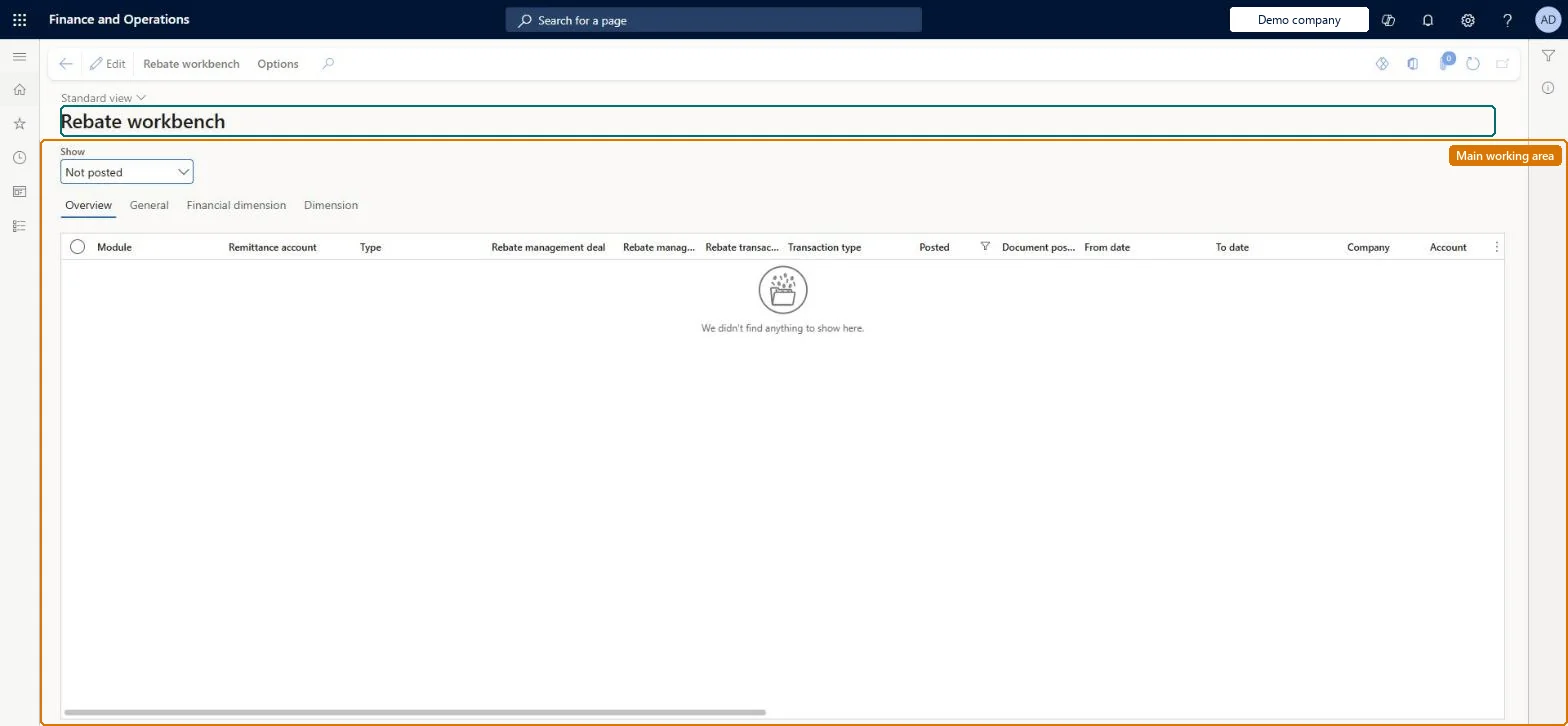
A workbench page that lists provision, rebate and write-off transactions across all rebate management deals, from which you can process deals, review and correct unposted transactions, mark them as claimed, post them, purge them, cancel posted provisions and open the target journals.
Accounts payable clerk, Accounts payable manager, Accounts receivable clerk and 5 more roles
Business process
Manage approved rebates in Dynamics 365 Supply Chain Management
Menu item
TAMRebateWorkbench
Main table
TAMRebateTrans
Show what matters for
PAGE GUIDEWhat the page does and how to use it7 sections. Choose a role to highlight what matters to you.
Everyone
1What it is and why
What it is
A workbench page that lists provision, rebate and write-off transactions across all rebate management deals, from which you can process deals, review and correct unposted transactions, mark them as claimed, post them, purge them, cancel posted provisions and open the target journals.
What you do here
Use this page to work with rebate transactions for many deals at once instead of deal by deal: run Process > Provision, Rebate management or Write off, review the transactions that are generated (filtered by the Show field), adjust amounts, post selected lines, and review or reverse what was posted.
Example
For example, after month-end processing you can set Show to Not posted, mark the customer's claimed transactions, correct an amount, and post the selected provision, rebate and write-off lines in one step.
The page in Dynamics 365. page title tab to open what to set or check
Process > Provision / Rebate management / Write off (periodic tasks) Microsoft Learn Post > Provision / Rebate management / Write off (periodic tasks) Microsoft Learn Rebate management date transactions (per deal) Microsoft Learn Rebate reduction principles Microsoft Learn
End user · Functional consultant
3How to do it
About the examples: Examples and screenshots in this guide use BEAT, a demo company in a Dynamics 365 test environment. Use your own company's codes and values instead of copying them.
Steps from Microsoft
Go to Rebate management > Rebate management deals > Rebate workbench.
To calculate, on the Action Pane, Rebate workbench tab, Processing group, select Process > Provision, Process > Rebate management or Process > Write off; set the Period and Guarantee period dates and select OK.
Set the Show field to Not posted to review the generated transactions.
If you use a claims process, select rows and choose Set claimed or Set unclaimed.
To adjust an amount, edit Corrected amount or select Set correction.
Select the rows to post, then select Post; set the Posting date and select OK.
Set Show to Posted and select Target transactions to review the journals, documents or orders created.
One-way: Warning: Purge permanently deletes the selected unposted transactions, and Post marks transactions as posted and creates the target journals, invoices or orders. Learn describes reversal only for posted provisions, through Cancel provision. Microsoft Learn
If you change it later
Posting from the workbench marks the transactions as posted and creates the target journals, invoices or orders; Purge permanently deletes unposted transactions, and Cancel provision reverses posted provisions, with the reversals visible in the rebate management journals. Microsoft Learn
Technical architect
5Technical
Menu item
TAMRebateWorkbenchChecked in Dynamics 365
Form
TAMRebateWorkbenchChecked in Dynamics 365
Table
TAMRebateTransShown as “REBATE MANAGEMENT INCLUDED TRANSACTIONS” in Record infoChecked in Dynamics 365
Who can open it
PrivilegesMaintain rebate management workbench TAMRebateWorkbenchMaintainView rebate management workbench TAMRebateWorkbenchViewDutiesViews customer rebate agreements PdsRebateAgreementViewProcesses customer rebates PdsRebateProcessViews customer rebates PdsRebateTableViewInquire into product purchase prices and discount master PriceDiscProdPurchPriceDiscMasterInquirInquire into product sales prices and discount master PriceDiscProdSalesPriceDiscMasterInquirInquire into customer rebate agreements TAMRebateCustomerAgreementsInquireInquire into customer rebates TAMRebateCustomerInquireProcesses vendor rebates TAMRebateVendorProcessInquire into vendor rebate agreements TAMVendRebateAgreementInquireMaintain vendor rebate agreements TAMVendRebateAgreementMaintainInquire into vendor rebates TAMVendRebateInquireMaintain purchase rebates TAMVendRebateMaintain9 security rolesAccounts receivable clerk CustInvoiceAccountsReceivableClerkAccounts receivable manager CustInvoiceAccountsReceivableManagerMCRTestUserRoleBuying agent TradeBuyingAgentPurchasing manager TradePurchasingManagerSales clerk TradeSalesClerkSales manager TradeSalesManagerAccounts payable clerk VendInvoiceAccountsPayableClerkAccounts payable manager VendInvoiceAccountsPayableManagerChecked in Dynamics 365
Roles to set it up and use it
To set it up or change itAccounts payable manager VendInvoiceAccountsPayableManagerAccounts receivable clerk CustInvoiceAccountsReceivableClerkAccounts payable clerk VendInvoiceAccountsPayableClerkAccounts receivable manager CustInvoiceAccountsReceivableManagerTo use itPurchasing manager TradePurchasingManagerSales manager TradeSalesManagerBuying agent TradeBuyingAgentSales clerk TradeSalesClerkGive people one of these roles. On this system, 8 roles can open this page.Checked in Dynamics 365
Actions on the page
Rebate workbench: Processing, Post, View, SetChecked in Dynamics 365