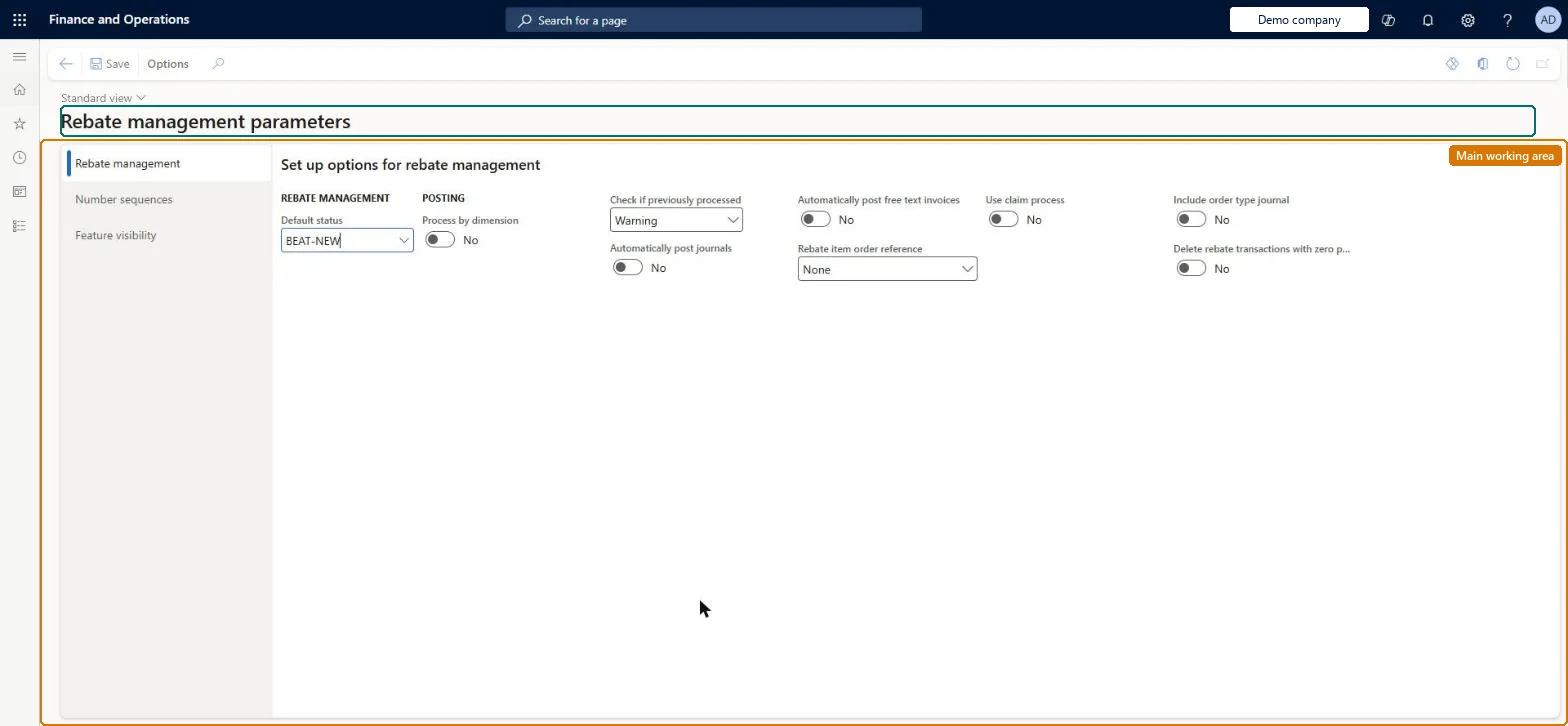
A setup page that holds the settings that apply across the whole Rebate management module, covering posting behaviour, deal status updates, number sequences and feature visibility.
Accounts payable manager, Accounts receivable clerk, Accounts receivable manager and 2 more roles
Business process
Set product prices
Menu item
TAMRebateParameters
Main table
TAMRebateParameters
Data entity
TAMRebateAndDeductionsParameterEntity
Setup steps
1 on this page
Show what matters for
PAGE GUIDEWhat the page does and how to use it8 sections. Choose a role to highlight what matters to you.
Everyone
1What it is and why
What it is
A setup page that holds the settings that apply across the whole Rebate management module, covering posting behaviour, deal status updates, number sequences and feature visibility.
What you do here
Use this page to set the default deal status, decide whether journals and free text invoices post automatically, choose whether a claims process is used, assign the module's number sequences, and make Rebate management features visible on other pages.
Example
For example, set Use claim process to Yes so that transactions created by Rebate management can be marked as claimed or unclaimed and only the claimed transactions are posted.
The page in Dynamics 365. page title tab to open what to set or check
About the examples: Examples and screenshots in this guide use BEAT, a demo company in a Dynamics 365 test environment. Use your own company's codes and values instead of copying them.
Setup steps on this page
Set up Rebate management parameters
Use this page to set the default deal status, decide whether journals and free text invoices post automatically, choose whether a claims process is used, assign the module's number sequences, and make Rebate management features visible on other pages.
Steps from Microsoft
Go to Rebate management > Setup > Rebate management parameters.
On the Rebate management tab, select the Default status for new deals.
Set the posting options (Process by dimension, Check if previously posted, Automatically post journals, Automatically post free text invoices).
Set Rebate item order reference, Use claim process and Include order type journal.
On the Number sequences tab, assign a number sequence code to each reference.
On the Feature visibility tab, set Activate to Yes to show Rebate management features on other pages.
The status given to every new deal; the available values come from the Rebate statuses page.Microsoft Learn
DefaultRebateStatusId
Process by dimension
Whether provision, rebate and write-off transactions are processed by financial dimension, carrying the dimensions of the source transactions into the target transactions.Microsoft Learn
ProcessByDimension
Check if previously posted
Whether the system warns or blocks when unposted rebate transactions are processed again for the same period.Microsoft Learn
Automatically post journals
Whether proposed daily journals (provisions, customer deductions) and vendor tax invoice journals are posted automatically.Microsoft Learn
AutoPostJournal
Automatically post free text invoices
Whether free text invoices are posted automatically; applies only when the payment type is Tax invoice customer deductions.Microsoft Learn
AutoPostFreeTextInvoice
Rebate item order reference
Which rebate reference is written on sales and purchase orders that the rebate process generates.Microsoft Learn
ItemOrderReference
Use claim process
Whether transactions can be marked claimed or unclaimed so that only claimed transactions are posted; when No, all claim transactions are posted.Microsoft Learn
UseClaimProcess
Include order type journal
For deals or lines with transaction type Order, whether sales orders of the Journal type count towards the rebate.Microsoft Learn
IncludeOrderTypeJournal
Test checklist
Set Activate = Yes and check the Rebate management group appears on the customer Action Pane.
Assign number sequences for Rebate management deal, Rebate management number, Rebate transaction number and Tax Invoice.
Set Check if previously posted = Error, process an active deal for a period, then process the same period again.
Check the second run is blocked with an error instead of overwriting the unposted lines.
Activate = Yes on the Feature visibility tab; Check if previously posted = Error; Use claim process = Yes when customers claim rebates per periodRebate management fields and functions on sales and purchase pages only appear when Activate is Yes. Error stops users from overwriting unposted rebate transactions that were already processed for the same period, where Warning only warns.
BEAT uses number sequence BEAT-RBD. Checked in Dynamics 365
Rebate management number
Shared
BEAT uses number sequence Reba_1. Checked in Dynamics 365
Rebate transaction number
Shared
BEAT uses number sequence Reba_2. Checked in Dynamics 365
Invoice
Shared
BEAT uses number sequence Reba_3. Checked in Dynamics 365
Solution architect
5Design impact
Can it be undone
Reversible: All options can be changed at any time and apply to the next processing and posting. Setting Activate to No hides Rebate management on other pages but keeps the module available. Microsoft Learn
If you change it later
Turning the automatic posting options on makes target transactions post as soon as they are generated, and setting Activate to No hides Rebate management fields and functions on pages outside the module (the module itself stays available). Microsoft Learn
Technical architect
6Technical
Menu item
TAMRebateParametersChecked in Dynamics 365
Form
TAMRebateParametersChecked in Dynamics 365
Table
TAMRebateParametersShown as “REBATE MANAGEMENT PARAMETERS” in Record infoChecked in Dynamics 365
Data entities
TAMRebateAndDeductionsParameterEntityRebate management parameters Checked in Dynamics 365
Who can open it
PrivilegesMaintain setup for rebate management module TAMRebateParametersMaintainView set up for rebate management module TAMRebateParametersViewDutiesViews customer rebate agreements PdsRebateAgreementViewMaintain customer rebates PdsRebateTableMaintainInquire into customer rebate agreements TAMRebateCustomerAgreementsInquireInquire into customer rebates TAMRebateCustomerInquireInquire into vendor rebate agreements TAMVendRebateAgreementInquireMaintain vendor rebate agreements TAMVendRebateAgreementMaintainInquire into vendor rebates TAMVendRebateInquireMaintain purchase rebates TAMVendRebateMaintain5 security rolesAccounts receivable clerk CustInvoiceAccountsReceivableClerkAccounts receivable manager CustInvoiceAccountsReceivableManagerPurchasing manager TradePurchasingManagerSales manager TradeSalesManagerAccounts payable manager VendInvoiceAccountsPayableManagerChecked in Dynamics 365
Roles to set it up and use it
To set it up or change itAccounts payable manager VendInvoiceAccountsPayableManagerAccounts receivable clerk CustInvoiceAccountsReceivableClerkSales manager TradeSalesManagerTo use itAccounts receivable manager CustInvoiceAccountsReceivableManagerPurchasing manager TradePurchasingManagerGive people one of these roles. On this system, 5 roles can open this page.Checked in Dynamics 365