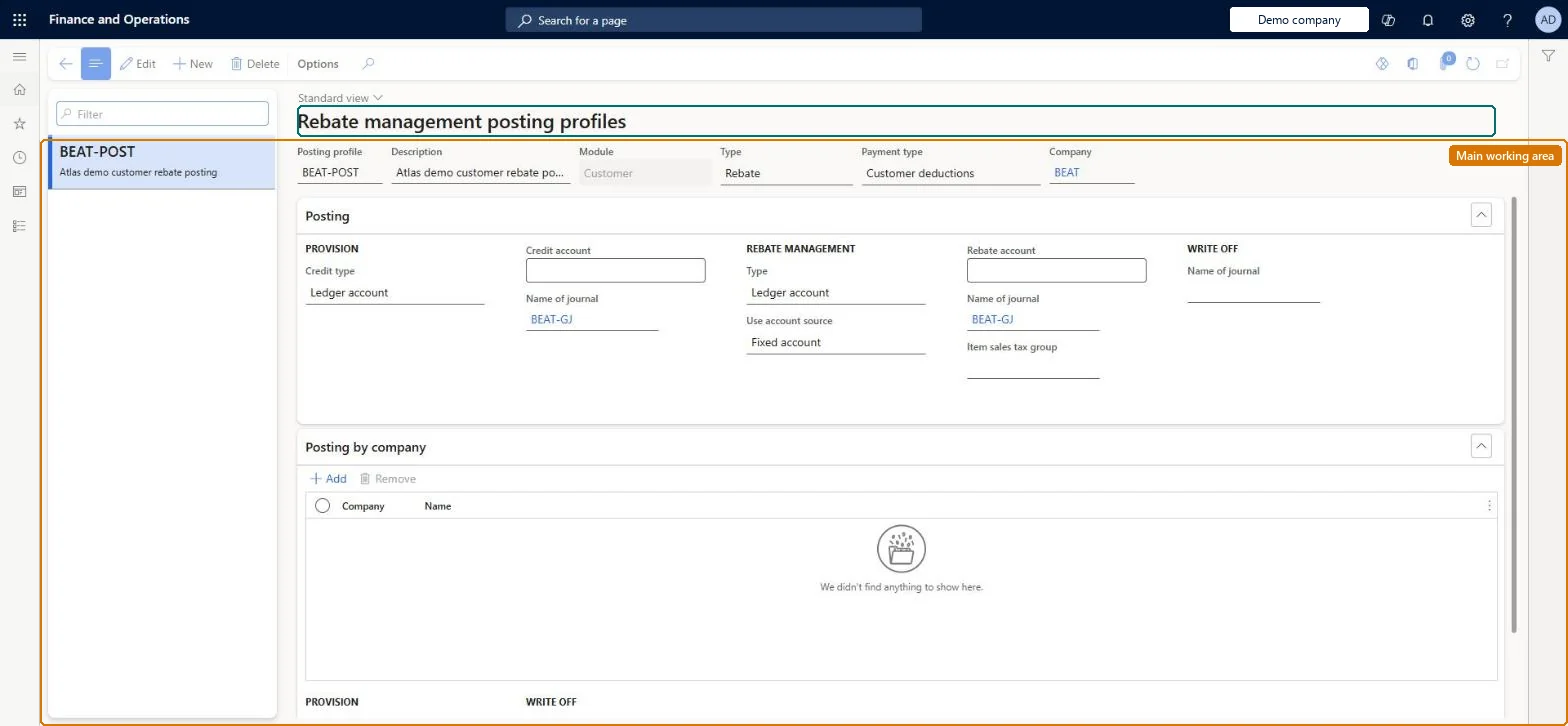
A setup page where you define posting profiles that determine the ledger, customer and vendor posting entries for Rebate management calculation lines (provisions, rebates and write-offs).
Accounts payable manager, Accounts receivable clerk, Accounts receivable manager and 2 more roles
Business process
Set product prices
Menu item
TAMRebatePosting
Main table
TAMRebatePosting
Data entity
GUPTAMRebateAndDeductionsPostingProfileEntity
Setup steps
1 on this page
Show what matters for
PAGE GUIDEWhat the page does and how to use it8 sections. Choose a role to highlight what matters to you.
Everyone
1What it is and why
What it is
A setup page where you define posting profiles that determine the ledger, customer and vendor posting entries for Rebate management calculation lines (provisions, rebates and write-offs).
What you do here
Use this page to create a profile per module (Customer or Vendor) and type (Rebate or Royalty), choose the payment type that decides what document is produced when a rebate posts, and set the credit, rebate, write-off accounts and journal names, including per company.
Example
For example, create a customer rebate profile with payment type Customer deductions so that posting the rebate creates a customer deduction journal for the rebate customer.
The page in Dynamics 365. page title tab to open what to set or check
About the examples: Examples and screenshots in this guide use BEAT, a demo company in a Dynamics 365 test environment. Use your own company's codes and values instead of copying them.
Setup steps on this page
Set up Rebate management posting profiles
Use this page to create a profile per module (Customer or Vendor) and type (Rebate or Royalty), choose the payment type that decides what document is produced when a rebate posts, and set the credit, rebate, write-off accounts and journal names, including per company.
Steps from Microsoft
Go to Rebate management > Rebate management posting setup > Rebate management posting profiles.
Select New on the Action Pane and enter a Posting profile name and Description.
In the header, select Module (Customer or Vendor), Type (Rebate or Royalty), Payment type and Company.
On the Posting FastTab, set Credit type, Credit account and the provision journal name.
Set Type, Use account source, Rebate account, the rebate journal name, Item sales tax group and the write-off journal name.
On the Posting by company FastTab, add each company and set its Debit type, Debit account and Main account for write-offs.
Save, then select the profile on the deal header or deal lines.
One profile per Module, Type and Payment type combination, with a Posting by company row for every company that sources rebate transactionsThe payment type decides the output document (vendor invoice, customer deduction journal or free text invoice), and the Posting by company FastTab sets the provision debit and write-off accounts per source company.
Hard to reverse: You can edit a profile, but it changes the financial output of every deal that uses it from the next posting. Posted provisions, rebates and write-offs stay on their original accounts and must be reconciled separately. Microsoft Learn
If you change it later
The payment type decides which document is created when a rebate posts (vendor invoice, customer deduction journal or free text invoice) and which account it is paid to, so changing a profile changes the financial output of every deal that uses it. Microsoft Learn
Technical architect
6Technical
Menu item
TAMRebatePostingChecked in Dynamics 365
Form
TAMRebatePostingChecked in Dynamics 365
Table
TAMRebatePostingShown as “REBATE MANAGEMENT POSTING PROFILES” in Record infoChecked in Dynamics 365
To set it up or change itAccounts payable manager VendInvoiceAccountsPayableManagerAccounts receivable clerk CustInvoiceAccountsReceivableClerkSales manager TradeSalesManagerTo use itAccounts receivable manager CustInvoiceAccountsReceivableManagerPurchasing manager TradePurchasingManagerGive people one of these roles. On this system, 5 roles can open this page.Checked in Dynamics 365
Developer
7Developer
Open it by URL
https://<your-environment>/?mi=TAMRebatePosting
Integrate with
GUPTAMRebateAndDeductionsPostingProfileEntity data entity Checked in Dynamics 365