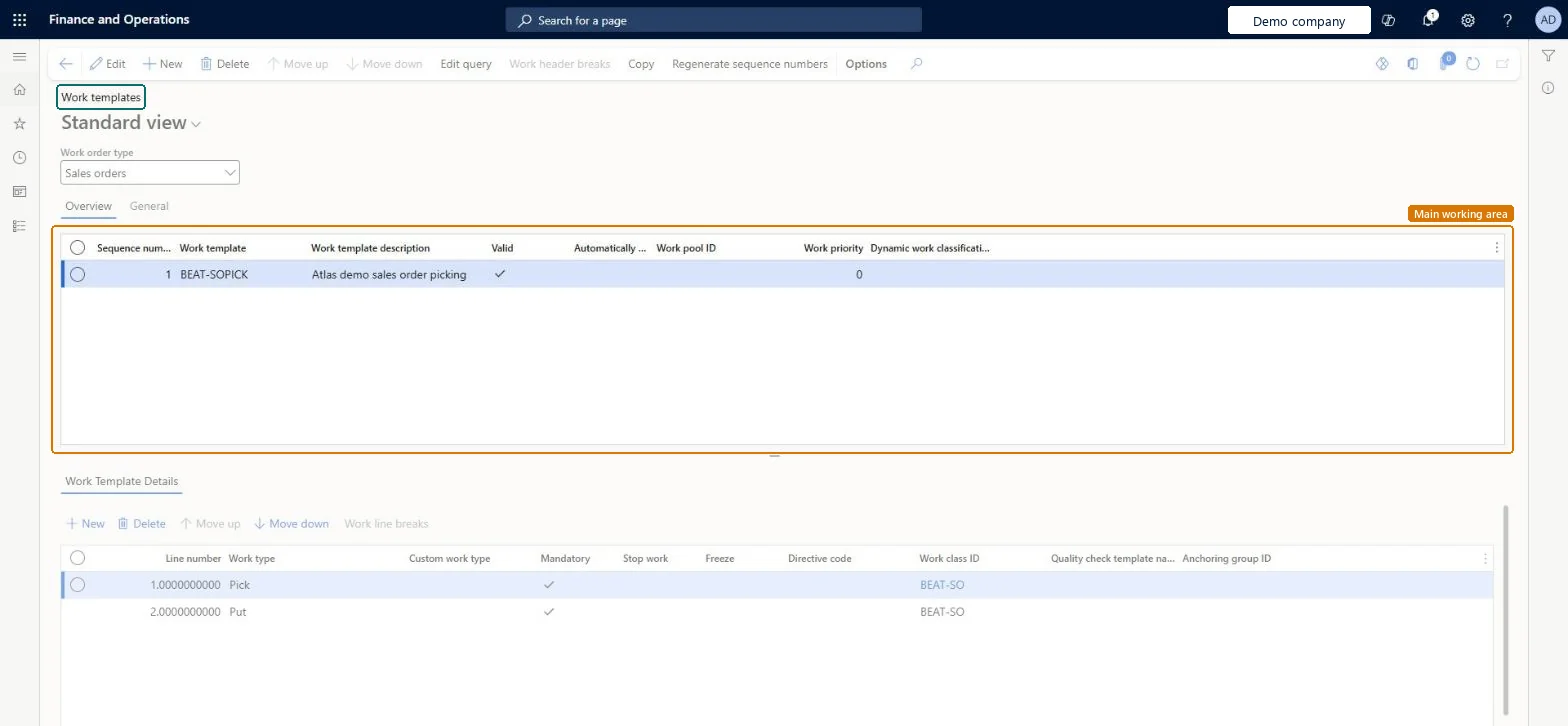
About the examples: Examples and screenshots in this guide use BEAT, a demo company in a Dynamics 365 test environment. Use your own company's codes and values instead of copying them.
Setup steps on this page
Set up Work templates
Use this page to define what work is performed and how it is done for each work order type.
Steps from Microsoft
Go to Warehouse management > Setup > Work > Work templates.
In the Work order type field, select the work order type.
Select New to add a template, then enter a sequence number, a work template name and a description.
Set the Work pool ID and the Work priority.
Select Save, then select Edit query to limit when the template is used.
In the Work Template Details section, select New to add the pick line and the put line, each with a work class ID.
Give specific templates (narrow query) low sequence numbers and general ones higher numbers; use Work header breaks, for example by order number, and maximum pick lines or pick time to split large workTemplates are assessed in sequence order, so a specific query must be evaluated before general ones; header breaks and limits decide when a new work record is created.
Selecting Inventory status change as the work type on a template line; it's reserved for system processes and is rejected.
PrivilegesMaintain work templates WHSWorkTemplateTableMaintainView work templates WHSWorkTemplateTableViewDutiesInquire into warehouse planning master data WHSWarehousePlanningMasterInquireRecord warehouse planning masters WHSWarehousePlanningMasterMaintain2 security rolesWarehouse planner WHSWarehousePlannerWarehouse manager WMSWarehouseManagerChecked in Dynamics 365
Roles to set it up and use it
To set it up or change itWarehouse manager WMSWarehouseManagerWarehouse planner WHSWarehousePlannerGive people one of these roles. On this system, 2 roles can open this page.Checked in Dynamics 365
Actions on the page
(Action Pane without tabs): Move up, Move down, Edit query, Work header breaks, Copy, Regenerate sequence numbersChecked in Dynamics 365
WHSWarehouseWorkTemplateV2Entity (Warehouse work template V2): loaded for each company, in Microsoft's default template 400 - Warehouse management.Load order: Microsoft's default template 400 - Warehouse management loads Warehouse work template V2 at execution unit 1, level 40, sequence 10. Lower levels load first, and entities at the same level load in sequence order.Load first: Units, Warehouse work pools, the default templates at lower levels (System setup to dependency bands 30 to 90)Microsoft Learn