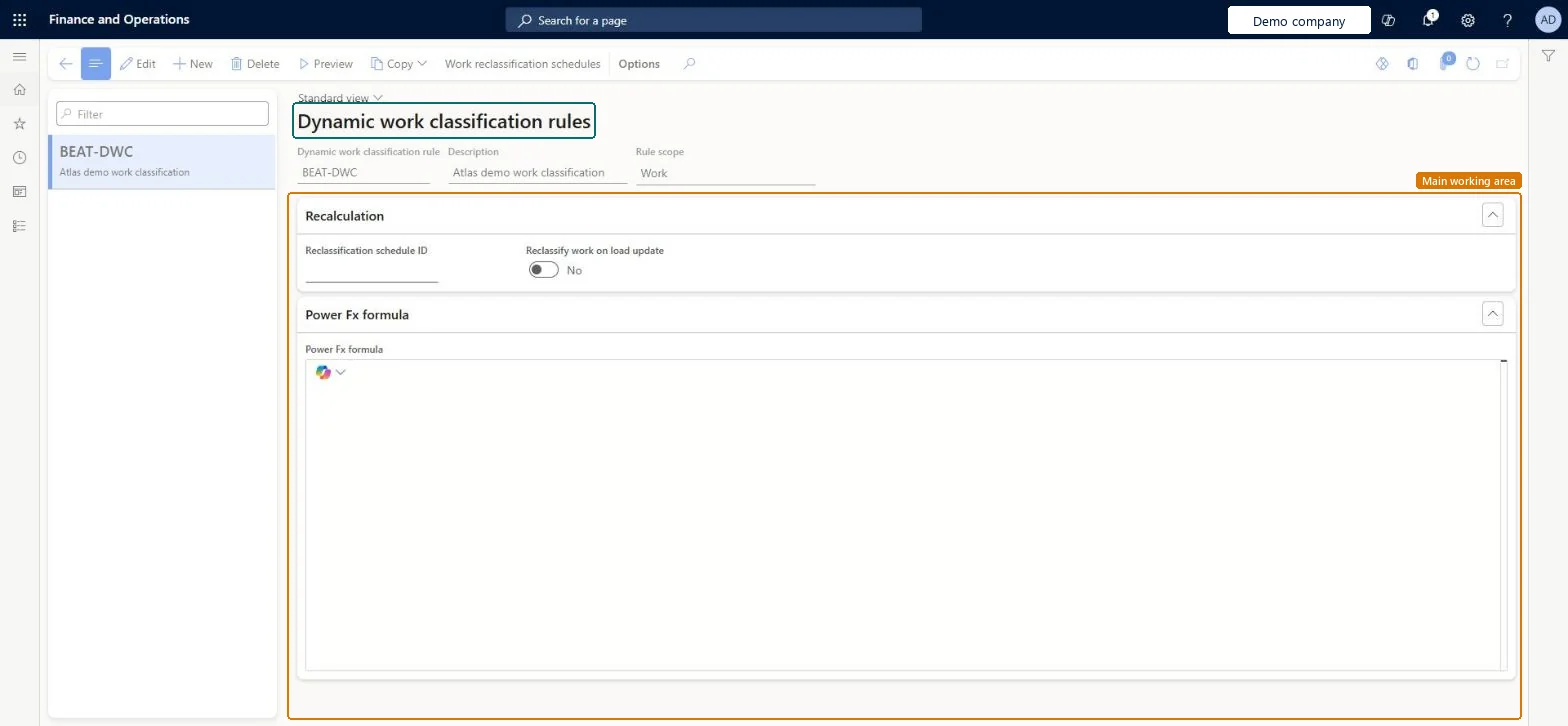
A setup page where you define dynamic work classification rules, which use Power Fx formulas to set the work pool, priority, location directive codes and work classes when work is created.
PAGE GUIDEWhat the page does and how to use it8 sections. Choose a role to highlight what matters to you.
Everyone
1What it is and why
What it is
A setup page where you define dynamic work classification rules, which use Power Fx formulas to set the work pool, priority, location directive codes and work classes when work is created.
What you do here
Use this page to create the rules that classify work at creation and, if you choose, reclassify it when a load changes.
Example
For example, a single work template and one rule can handle the work for three carriers, each with its own work pool and priority.
The page in Dynamics 365. page title tab to open what to set or check
About the examples: Examples and screenshots in this guide use BEAT, a demo company in a Dynamics 365 test environment. Use your own company's codes and values instead of copying them.
Setup steps on this page
Set up Dynamic work classification rules
Use this page to create the rules that classify work at creation and, if you choose, reclassify it when a load changes.
Steps from Microsoft
Go to Warehouse management > Setup > Work > Dynamic work classification rules.
Select New to create a rule.
In the header, enter the rule name and a description, and set the Rule scope.
On the Recalculation FastTab, set Reclassify work on load update as needed.
On the Power Fx formula FastTab, enter a formula that returns a record with the fields you want to override.
To use the rule, set the Dynamic work classification rule field on the relevant work template.
One rule per classification logic (for example by carrier) attached to a single work template, instead of many static templatesA single work template with a classification rule can replace many static templates, which makes the setup simpler to maintain.
Returning an empty string instead of Blank(). Blank() keeps the template's value; an empty string clears it, for example removing the work pool.
Feature management and licence
Feature to turn on
(Production Ready Preview) Dynamic work classification (Mandatory, on by default)
Licence or add-in
Supply Chain Management version 10.0.48 or later; the feature is on by default from 10.0.49
Reversible: Rules can be edited or removed from the work template; work already created keeps its values unless reclassification on load update applies. Microsoft Learn
Technical architect
6Technical
Menu item
WHSWorkTemplateClassificationRuleChecked in Dynamics 365
Form
WHSWorkTemplateClassificationRuleChecked in Dynamics 365
Table
WHSWorkTemplateClassificationRuleShown as “DYNAMIC WORK CLASSIFICATION RULES” in Record infoChecked in Dynamics 365
Who can open it
PrivilegesMaintain dynamic work classification rules WHSWorkTemplateClassificationRuleMaintainView dynamic work classification rules WHSWorkTemplateClassificationRuleViewDutiesInquire into warehouse planning master data WHSWarehousePlanningMasterInquireRecord warehouse planning masters WHSWarehousePlanningMasterMaintain2 security rolesWarehouse planner WHSWarehousePlannerWarehouse manager WMSWarehouseManagerChecked in Dynamics 365
Roles to set it up and use it
To set it up or change itWarehouse manager WMSWarehouseManagerWarehouse planner WHSWarehousePlannerGive people one of these roles. On this system, 2 roles can open this page.Checked in Dynamics 365
Actions on the page
(Action Pane without tabs): Preview, Copy, Work reclassification schedulesChecked in Dynamics 365