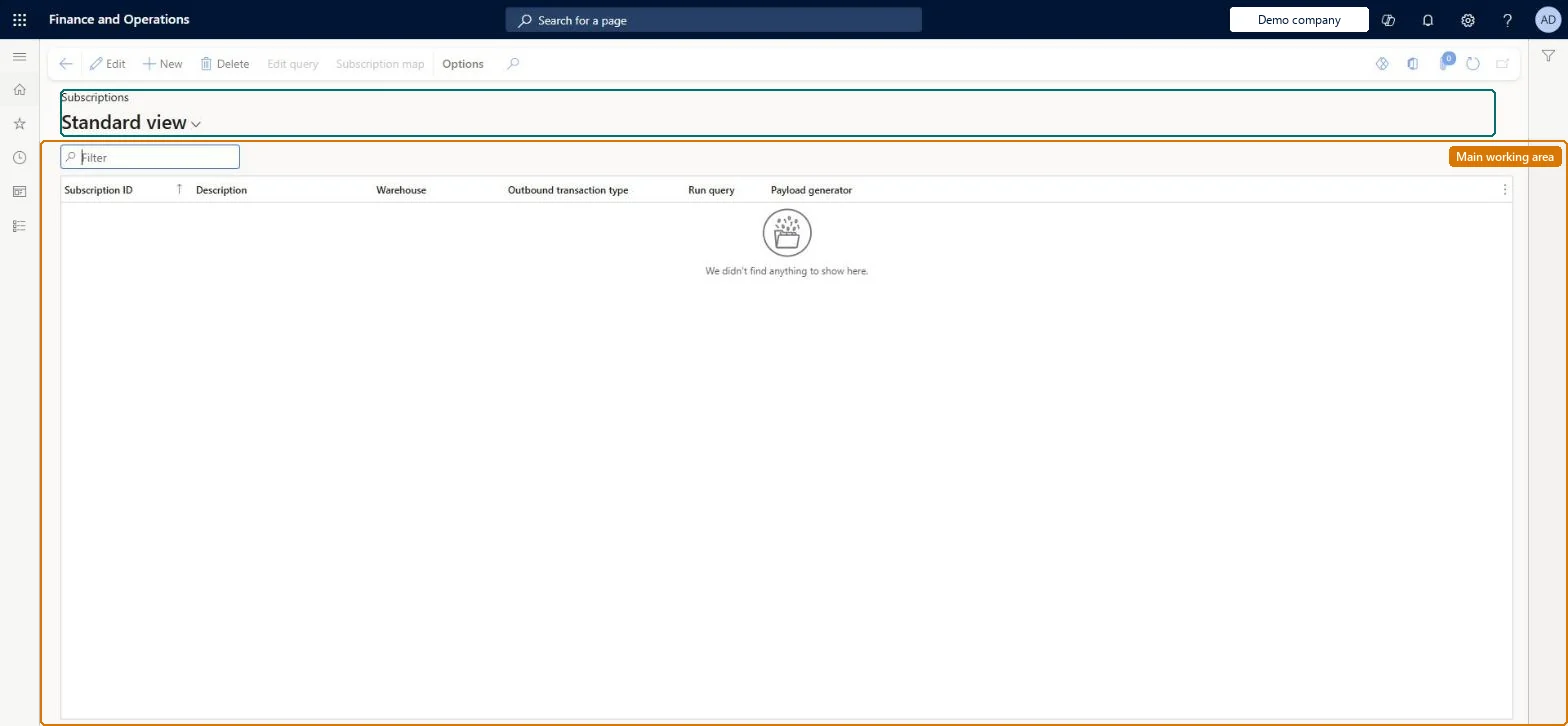
Setup step on the Subscriptions page · Material handling equipment interface
Set up Subscriptions
Use this page to create a subscription per warehouse and event type, optionally limit it with a query, map work header and work line fields to the event data fields, and choose a payload generator.
SETUP GUIDEHow to set it up8 sections. Choose a role to highlight what matters to you.
Everyone
1What it is and why
What it is
A setup page where you define subscriptions that tell the system whether and how to generate outbound events for a material handling system.
What you do here
Use this page to create a subscription per warehouse and event type, optionally limit it with a query, map work header and work line fields to the event data fields, and choose a payload generator.
Example
For example, warehouse 24 has a conveyor and a shuttle system: subscription CONV-01 (WorkCreation, warehouse 24, query on the conveyor zone) maps the work line pair ID to data01 and the item to data02, and subscription SHUT-01 does the same for the shuttle zone, so each system reads only its own events.
The page in Dynamics 365. page title tab to open what to set or check
About the examples: Examples and screenshots in this guide use BEAT, a demo company in a Dynamics 365 test environment. Use your own company's codes and values instead of copying them.
Setup steps on this page
Set up Subscriptions
Use this page to create a subscription per warehouse and event type, optionally limit it with a query, map work header and work line fields to the event data fields, and choose a payload generator.
Steps from Microsoft
Go to Material handling equipment interface > Setup > Subscriptions.
Create a subscription and enter a Subscription ID and Description.
Select the Warehouse, Outbound transaction type and, if needed, a Payload generator.
To filter work, select the Run query check box, and then select Edit query on the Action Pane.
Select Subscription map on the Action Pane and assign a table and field to each data field you need.
Optional custom X++ code (a payload generator) that fills the Payload field of the outbound event; the list shows the generators deployed in the environment.Microsoft Learn
PayloadGenerator
Run query
Turns on a query that further limits which work generates events.Microsoft Learn
RunQuery
Subscription map
Assigns a table and field from the work header or work line to each of data01 to data10 of the outbound event. Include the work line pair ID or the work line record ID so the material handling system can confirm the work.Microsoft Learn
data01 = work line pair ID
Common errors and fixes
Message
What to do
No outbound events are created
There is no subscription for the warehouse and outbound transaction type, or Run query is selected and the query excludes the work. Microsoft Learn
The material handling system can't report the work back
The subscription map has no work line pair ID or work line record ID. Add one to a data field. Microsoft Learn
Two material handling systems read each other's events
They share a subscription. Give each system its own subscription and read by subscription ID. Microsoft Learn
Test checklist
Create a subscription for one warehouse with Outbound transaction type WorkCreation.
Open Subscription map and map the work line pair ID and the work line record ID to data01 and data02.
Optionally select Run query, then Edit query to limit it to one work order type.
Create work in that warehouse and check on Outbound queue that an event with the subscription ID and the mapped data fields is created.
Create work in another warehouse (or outside the query) and check that no event is created for this subscription.
One subscription per material handling system, warehouse and outbound transaction type, with the work line pair ID (or work line record ID) mapped to a data field in the subscription mapEvents are tagged with the subscription ID, so separate subscriptions let several material handling systems share one warehouse system and keep their events apart. The material handling system needs the work line pair ID or record ID to report work back in a WorkConfirm event.
Per company: the subscriptions entity is not shared across companies in Data management; each subscription filters on a warehouse of the company. Checked in Dynamics 365
Can it be undone
Reversible: The system checks the subscriptions each time it reaches a point in work creation or execution, so a change applies to events generated from then on. Events already in the outbound queue keep the data they were created with.
If you change it later
Outbound events are generated according to the subscriptions set up here, so changing a subscription changes which events the material handling system receives. Microsoft Learn
Technical architect
6Technical
Menu item
WMHESubscriptionChecked in Dynamics 365
Form
WMHESubscriptionChecked in Dynamics 365
Table
WMHESubscriptionShown as “MATERIAL HANDLING SUBSCRIPTION” in Record infoKey field: SubscriptionIdChecked in Dynamics 365
Data entities
WMHESubscriptionEntitySubscriptions (The subscription header (ID, warehouse, transaction type, payload generator); confirm in a test environment whether the query and the subscription map are included.)
Who can open it
PrivilegesMaintain material handling subscriptions WMHEMaterialHandlingSubscriptionsMaintainView material handling subscriptions WMHEMaterialHandlingSubscriptionsViewDutiesInquire into material handling setup WMHEInquireIntoMaterialHandlingSetupMaintain material handling setup WMHEMaintainMaterialHandlingSetup1 security roleMaterial handling manager WMHEMaterialHandlingManagerChecked in Dynamics 365
Roles to set it up and use it
To set it up or change itMaterial handling manager WMHEMaterialHandlingManagerGive people one of these roles. On this system, 1 role can open this page.Checked in Dynamics 365
Actions on the page
(Action Pane without tabs): Edit query, Subscription mapChecked in Dynamics 365
Developer
7Developer
Open it by URL
https://<your-environment>/?mi=WMHESubscription
Data migration
WMHESubscriptionEntity The subscriptions.Load order: Load after the parameters and the warehouses. Recreate the query and check the subscription map in each environment.Load first: Material handling equipment interface parameters, WarehousesMicrosoft Learn