Human resource manager, Payroll administrator, Production manager and 1 more role
Business process
Manage time and attendance
Menu item
JmgProfileTable
Main table
JmgProfileTable
Data entity
JmgTimeAndAttendanceTimeProfileEntity
Setup steps
1 on this page
Show what matters for
SETUP GUIDEHow to set it up8 sections. Choose a role to highlight what matters to you.
Everyone
1What it is and why
What it is
A setup page where you define work time profiles: templates for a work day that divide each 24-hour period into profile types such as clock-in, standard time, breaks, flex and overtime.
What you do here
Use this page to set the planned working day that workers' registrations are calculated against, which determines absence, flex time and overtime.
Example
For example, you set a tolerance of 5 minutes on the clock-in line so that a worker is asked for an absence code only if they clock in after 07:05.
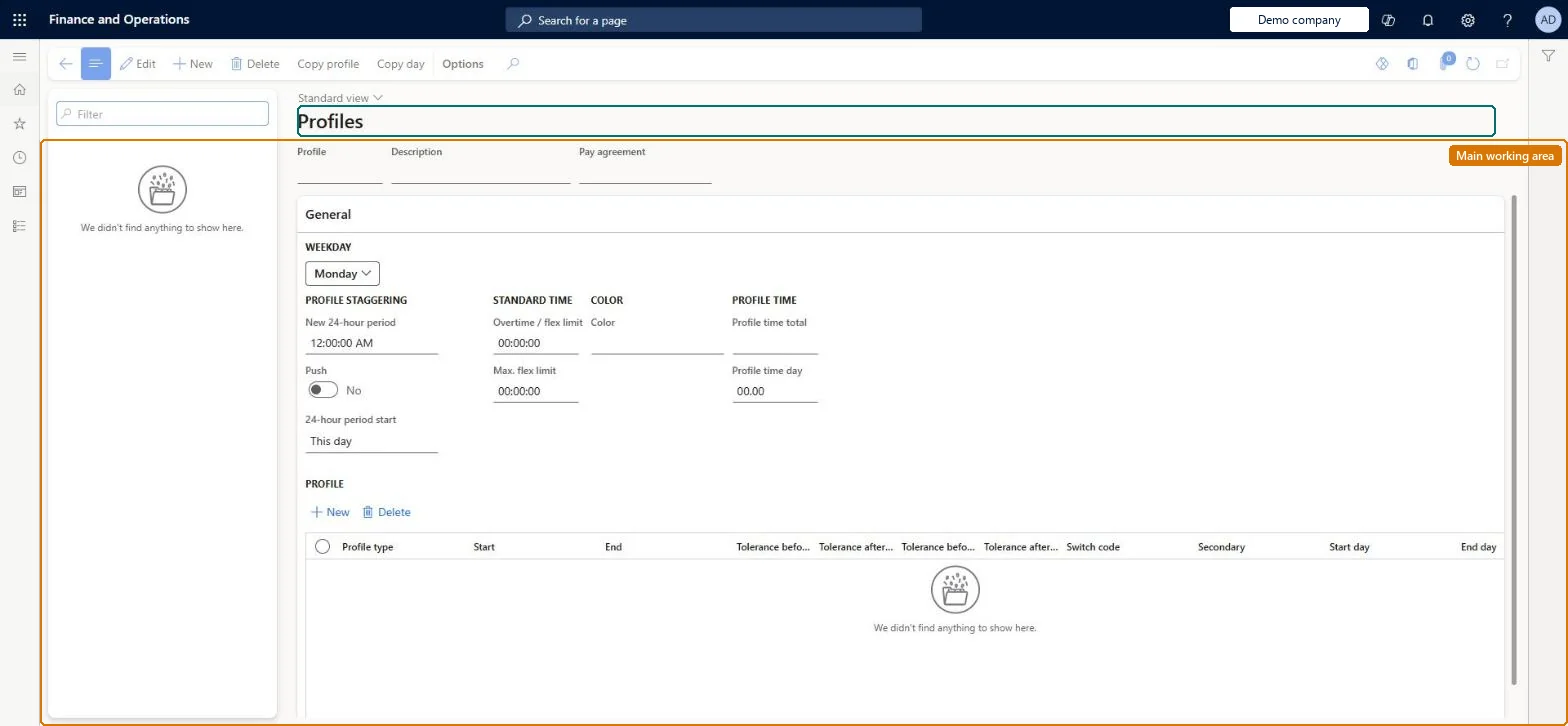
The page in Dynamics 365. page title tab to open what to set or check
About the examples: Examples and screenshots in this guide use BEAT, a demo company in a Dynamics 365 test environment. Use your own company's codes and values instead of copying them.
Setup steps on this page
Set up Profiles
Use this page to set the planned working day that workers' registrations are calculated against, which determines absence, flex time and overtime.
Steps from Microsoft
Go to Time and attendance > Setup > Time profiles > Profiles.
Select New.
Enter a name in the Profile field and a description.
On the General FastTab, add a profile line and select the Profile type.
Enter the Start and End times for the line.
Add tolerances, a switch code or a secondary profile type where needed.
Use Copy > Copy day to copy the weekday to other weekdays.
One profile per shift pattern that covers the full 24 hours with Clock in, Standard time, planned breaks, Flex+/Flex- zones and Overtime; a Tolerance on Clock in (for example 5 minutes) so slight lateness doesn't prompt an absence codeRegistrations are calculated against the profile, which decides absence, flex and overtime; a clock-in tolerance stops the absence prompt for small delays, and fixed breaks can be planned in the profile instead of registered.
How many profiles?Not overriding the profile for a worker who works a different shift. A day-shift worker on an agreed night shift is then calculated as overtime instead of standard time.Test: Flex zones calculate Flex+ and Flex-
Feature management and licence
Licence or add-in
Time and attendance roles come from the security read in the Technical section. On this system the page is opened with roles such as Human resource manager, Payroll administrator, Production manager and 1 more. The Microsoft Learn article for this page names no Feature management feature to turn on.
Per company: each legal entity has its own profiles. Checked in Dynamics 365
Can it be undone
Hard to reverse: Profile changes apply to later calculations. Days already calculated or approved must be reversed (clear Calculated or Approved) and recalculated, which is possible only until payroll data is exported.
If you change it later
Registrations are calculated against the worker's profile, so a worker whose day differs from their standard profile needs an override, or the calculation treats the time differently (for example as overtime). Microsoft Learn
Technical architect
6Technical
Menu item
JmgProfileTableChecked in Dynamics 365
Form
JmgProfileTableChecked in Dynamics 365
Table
JmgProfileTableShown as “PROFILE TABLE” in Record infoKey field: ProfileChecked in Dynamics 365
Data entities
JmgTimeAndAttendanceTimeProfileEntityTime and attendance time profiles Checked in Dynamics 365
Who can open it
PrivilegesMaintain work time profiles JmgProfileTableMaintainView work time profiles JmgProfileTableViewDutiesInquire into manufacturing execution policies JmgManufacturingExecutionPoliciesInquirInquire into time and attendance policies JmgTimeAttendancePoliciesInquireEnable time and attendance process JmgTimeAttendanceProcessEnableMaintain time and attendance profiles JmgTimeAttendenceProfilesMaintain4 security rolesHuman resource manager HcmHumanResourceManagerPayroll administrator HcmPayrollAdministratorProduction manager ProdProductionManagerProduction supervisor ProdProductionSupervisorChecked in Dynamics 365
Roles to set it up and use it
To set it up or change itPayroll administrator HcmPayrollAdministratorProduction manager ProdProductionManagerProduction supervisor ProdProductionSupervisorTo use itHuman resource manager HcmHumanResourceManagerGive people one of these roles. On this system, 4 roles can open this page.Checked in Dynamics 365
Actions on the page
(Action Pane without tabs): Copy profile, Copy dayChecked in Dynamics 365
Developer
7Developer
Open it by URL
https://<your-environment>/?mi=JmgProfileTable
Integrate with
JmgTimeAndAttendanceTimeProfileEntity data entity Checked in Dynamics 365
Data migration
JmgTimeAndAttendanceTimeProfileEntity (Time and attendance time profiles): per company.JmgTimeAndAttendanceTimeProfileLineV2Entity (Time and attendance time profile lines V2): per company; load after the profiles.Load order: Load profile types, indirect activities, then profiles and their lines.Load first: JmgTimeAndAttendanceProfileTypeEntity, JmgIndirectTimeAndAttendanceActivityEntityChecked in Dynamics 365