About the examples: Examples and screenshots in this guide use BEAT, a demo company in a Dynamics 365 test environment. Use your own company's codes and values instead of copying them.
Setup steps on this page
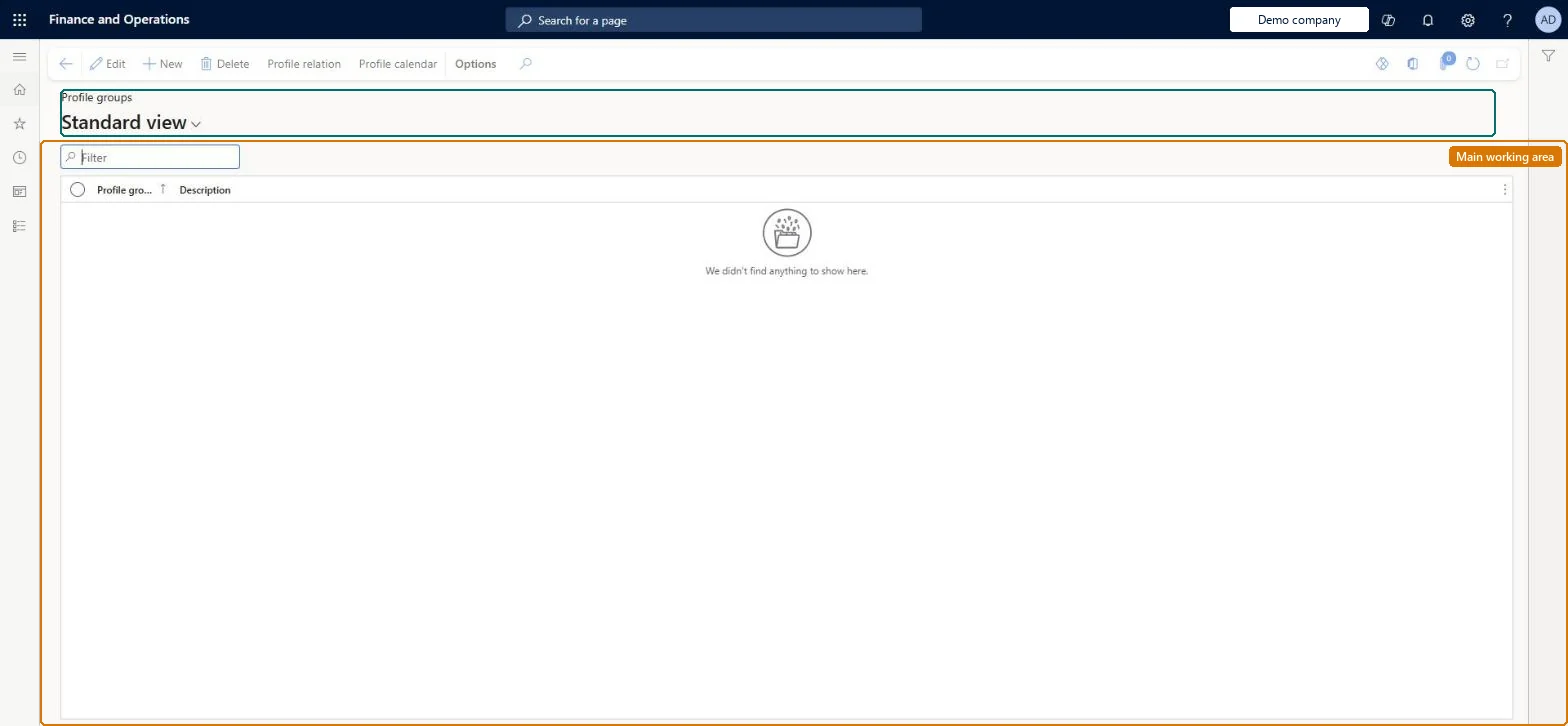
Set up Profile groups
Use this page to make the right profile, such as a day or night shift, apply automatically based on when the worker clocks in.
Steps from Microsoft
Go to Time and attendance > Setup > Time profiles > Profile groups.
Select New.
Enter a name in the Profile group field and a description.
Select Profile relation.
Select New and select a profile in the Profile field.
Enter the From time and To time for applying the profile.
Profile groups only for workers whose shift is decided by their clock-in time, with windows that don't overlap.The profile applied at clock-in depends on the group's windows.
Time and attendance roles come from the security read in the Technical section. On this system the page is opened with roles such as Manager, Payroll administrator, Production manager and 1 more. The Microsoft Learn article for this page names no Feature management feature to turn on.
Per company: each legal entity has its own profile groups. Checked in Dynamics 365
Can it be undone
Reversible: Changes apply from the next clock-in.
If you change it later
The profile group decides which profile applies when the worker clocks in, so changes reach every worker in the group from the next clock-in. Microsoft Learn
Technical architect
6Technical
Menu item
JmgProfileGroupChecked in Dynamics 365
Form
JmgProfileGroupChecked in Dynamics 365
Table
JmgProfileGroupShown as “PROFILE GROUP” in Record infoChecked in Dynamics 365
Data entities
JmgTimeAndAttendanceProfileGroupEntityTime and attendance profile groups Microsoft data model
Who can open it
PrivilegesMaintain work time profile groups JmgProfileGroupMaintainView work time profile groups JmgProfileGroupViewDutiesInquire into manufacturing execution policies JmgManufacturingExecutionPoliciesInquirEnable time and attendance process JmgTimeAttendanceProcessEnableInquire into time and attendance progress JmgTimeAttendanceProgressInquireMaintain time and attendance profiles JmgTimeAttendenceProfilesMaintain4 security rolesManager HcmManagerPayroll administrator HcmPayrollAdministratorProduction manager ProdProductionManagerProduction supervisor ProdProductionSupervisorChecked in Dynamics 365
Roles to set it up and use it
To set it up or change itPayroll administrator HcmPayrollAdministratorProduction manager ProdProductionManagerProduction supervisor ProdProductionSupervisorTo use itManager HcmManagerGive people one of these roles. On this system, 4 roles can open this page.Checked in Dynamics 365
Actions on the page
(Action Pane without tabs): Profile relation, Profile calendarChecked in Dynamics 365
JmgTimeAndAttendanceProfileGroupEntity (Time and attendance profile groups): loaded for each company, in Microsoft's default template 410 - Production control.Load order: Microsoft's default template 410 - Production control loads Time and attendance profile groups at execution unit 1, level 30, sequence 10. Lower levels load first, and entities at the same level load in sequence order.Load first: the default templates at lower levels (System setup to General ledger)Microsoft Learn