About the examples: Examples and screenshots in this guide use BEAT, a demo company in a Dynamics 365 test environment. Use your own company's codes and values instead of copying them.
Setup steps on this page
Set up Profile types
Use this page to define the kinds of work time that divide a profile day, so that registrations can be calculated and paid by period type.
How to use it
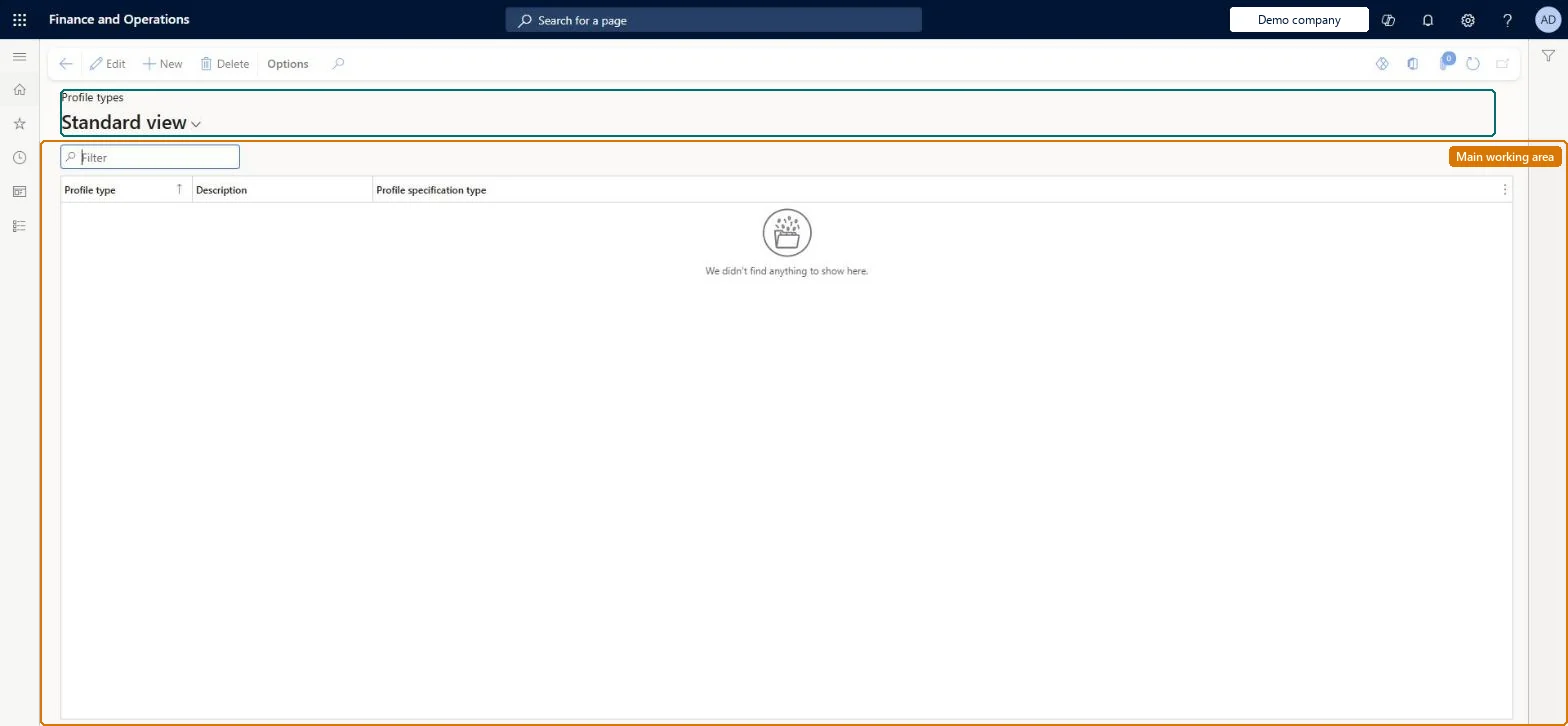
Go to Time and attendance > Setup > Time profiles > Profile types.
Use the Filter box to find a profile type.
Select New and enter the Profile type, Description and Profile specification type.
Select Edit to change a selected row, or Delete to remove it.
Source: Checked in Dynamics 365
Fields on the page
Field
What it means
Table column
Profile specification type
Links the profile type to a standard type used in calculation; it can be left blank for a type with no standard meaning.Microsoft Learn
ProfileSpecType
Common errors and fixes
Message
What to do
Time in a new profile zone isn't counted
Give the profile type a specification type and a calculation parameter. Microsoft Learn
Test checklist
Add a profile type for supplement pay.
Use it on a profile line and a pay agreement line.
Calculate a day and check the pay item on its pay type.
Use the standard profile types and add one only for a separate pay rule, such as supplement pay.Pay agreements and calculation parameters work per profile type, so a new type is how a separate pay rule is reached.
Time and attendance roles come from the security read in the Technical section. On this system the page is opened with roles such as Human resource manager, Payroll administrator, Production manager and 1 more. The Microsoft Learn article for this page names no Feature management feature to turn on.
Per company: each legal entity has its own profile types. Checked in Dynamics 365
Can it be undone
Reversible: Changes apply to later calculations.
If you change it later
Profile types are what profiles, pay agreements and calculation parameters refer to; changing one changes how its time is paid from the next calculation. Microsoft Learn
Technical architect
6Technical
Menu item
JmgProfileTypeTableChecked in Dynamics 365
Form
JmgProfileTypeTableChecked in Dynamics 365
Table
JmgProfileTypeTableShown as “PROFILE TYPES” in Record infoKey field: ProfileTypeIdChecked in Dynamics 365
Data entities
JmgTimeAndAttendanceProfileTypeEntityTime and attendance profile types Microsoft data model
Who can open it
PrivilegesManage profile types JmgProfileTypeTableMaintainView profile types JmgProfileTypeTableViewDutiesInquire into manufacturing execution policies JmgManufacturingExecutionPoliciesInquirInquire into time and attendance policies JmgTimeAttendancePoliciesInquireEnable time and attendance process JmgTimeAttendanceProcessEnableInquire into time and attendance reference data JmgTimeAttendanceReferenceDataInquireMaintain time and attendance profiles JmgTimeAttendenceProfilesMaintain4 security rolesHuman resource manager HcmHumanResourceManagerPayroll administrator HcmPayrollAdministratorProduction manager ProdProductionManagerProduction supervisor ProdProductionSupervisorChecked in Dynamics 365
Roles to set it up and use it
To set it up or change itPayroll administrator HcmPayrollAdministratorProduction manager ProdProductionManagerProduction supervisor ProdProductionSupervisorTo use itHuman resource manager HcmHumanResourceManagerGive people one of these roles. On this system, 4 roles can open this page.Checked in Dynamics 365
JmgTimeAndAttendanceProfileTypeEntity (Time and attendance profile types): loaded for each company, in Microsoft's default template 410 - Production control.Load order: Microsoft's default template 410 - Production control loads Time and attendance profile types at execution unit 1, level 30, sequence 20. Lower levels load first, and entities at the same level load in sequence order.Load first: the default templates at lower levels (System setup to General ledger)Microsoft Learn