Manage customer deductions on payments in Dynamics 365 Finance
Menu item
TAMDeduction_TAM
Main table
TAMDeduction
Data entity
BusinessDocumentCustTransV2Entity
Setup steps
1 on this page
Show what matters for
SETUP GUIDEHow to set it up8 sections. Choose a role to highlight what matters to you.
Everyone
1What it is and why
What it is
A workbench where you process customer payments that include deductions, by matching, splitting, denying or writing off each deduction.
What you do here
Use this page to settle customer short-pays against the credit amounts that are due to the customer, such as approved rebate claims.
Example
For example, customer BEAT-000123 pays invoice INV-004512 of 12,400.00 short by 400.00 because its rebate is due. The 400.00 deduction is matched on the workbench to the 400.00 rebate credit note, and the remaining amount becomes 0.00.
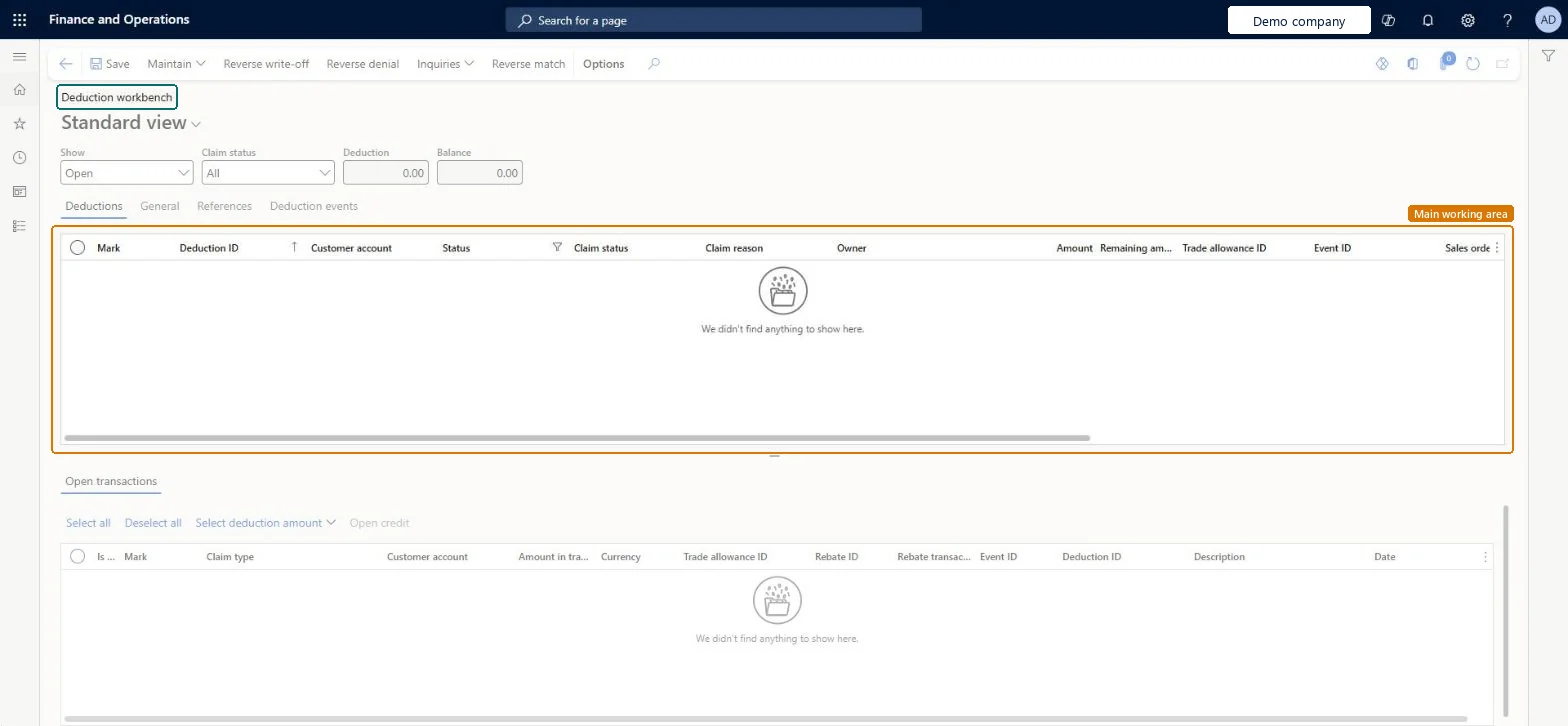
The page in Dynamics 365. page title tab to open what to set or check
About the examples: Examples and screenshots in this guide use BEAT, a demo company in a Dynamics 365 test environment. Use your own company's codes and values instead of copying them.
Setup steps on this page
Match, split, deny or write off deductions
Use this page to settle customer short-pays against the credits due to the customer, such as approved rebate claims.
Steps from Microsoft
Go to Sales and marketing > Trade allowances > Deductions > Deduction workbench.
In the upper section, select the Mark checkbox for the customer's deduction.
In the Open transactions section, mark the credit or credits to match, or use Select deduction amount.
On the Action Pane, select Maintain > Match.
Check the Remaining amount on the Deductions tab, and split, deny or write off any balance that is left.
Sets whether a claim journal is created at the same time as the deduction.Microsoft Learn
Common errors and fixes
Message
What to do
Claim is not attached to an invoice. Update has been canceled.
A quantity-based claim was approved with no invoice while Creation without attached invoice is set to Error in Accounts receivable parameters (Deductions tab). Attach the invoice with Maintain > Attach invoice, or change that setting to Accept or Warning if claims without invoices are allowed. Microsoft Learn
Test checklist
Check that Accounts receivable parameters has a Claim journal name on the Deductions tab and that Allow multiple transactions within one voucher is Yes in General ledger parameters.
Select Maintain > New deduction with a customer, Claim amount, Claim basis Price based, a Claim reason and Create claim journal Yes; check the claim journal on the References tab.
Attach the invoice with Maintain > Attach invoice, post the settlement, and check that the invoice balance drops by the claim amount.
Approve the deduction, post the draft free text credit note, then mark the deduction and the credit and select Maintain > Match.
On a second deduction select Maintain > Deny, set Show to Closed, and check that Remaining amount is 0.00 and Claim status is Rejected.
Register each short-pay as a deduction when the payment is recorded, then match it on the workbench to the open credit; deny or write off a remaining balance with a reason code.The deduction workbench matches deductions to open credit transactions, splits, denies and writes off deductions, so the customer's short-pay and the credit due are settled against each other.
Approving a deduction too early: after Approve deduction no further changes can be made, and the credit (free text invoice, sales order or return order) is created.Test: A deduction is matched to the rebate credit
Number sequences
Reference
Shared or per company
Note
Deduction ID
New deductions created with Maintain > New deduction take their Deduction ID from the number sequence set on Trade allowance management parameters. Microsoft Learn
Feature management and licence
Licence or add-in
On the live system, Collections manager use this page.
Hard to reverse: Approve deduction can't be changed afterwards; Deny and Write-off can be reversed.
If you change it later
Denying a deduction closes it and sets its remaining amount to 0.00. Microsoft Learn
Technical architect
6Technical
Menu item
TAMDeduction_TAMChecked in Dynamics 365
Form
TAMDeductionChecked in Dynamics 365
Table
TAMDeductionShown as “Deductions” in Record infoKey field: TAMPromotionID, MCRMerchandisingEventID, SalesId, CustInvoiceId, NotesChecked in Dynamics 365
Data entities
BusinessDocumentCustTransV2EntityBusiness document customer transactions V2 Checked in Dynamics 365
Who can open it
PrivilegesMaintain deduction workbench TAMDeduction_TAMMaintainDutiesMaintain customer deductions information TAMCustDeductionMaintain1 security roleCollections manager CollectionLetterCollectionsManagerChecked in Dynamics 365
Roles to set it up and use it
To set it up or change itCollections manager CollectionLetterCollectionsManagerGive people one of these roles. On this system, 1 role can open this page.Checked in Dynamics 365
Actions on the page
Options: Personalize, Page options, Edit, ShareChecked in Dynamics 365
Developer
7Developer
Open it by URL
https://<your-environment>/?mi=TAMDeduction_TAM
Integrate with
BusinessDocumentCustTransV2Entity data entity Checked in Dynamics 365
Data migration
BusinessDocumentCustTransV2Entity The entity offered by the page's Open in Excel list; it is a customer transaction entity.Load order: Set up the claim journal name, deduction types, deduction reasons and denial and write-off reasons first; deductions are then created from customer payment journals or with Maintain > New deduction.Load first: Deduction types, Deduction reasons, Deduction denial reasons, Deduction write-off reasons, Accounts receivable parameters (Claim journal name)Microsoft Learn
Checked in a working Dynamics 365 system, version 10.0.49: the menu item, form, table and security, the page.
To cite this step: SM-TRD-180, Match, split, deny or write off deductions. Beyond ERP Atlas Hub, 2026-11-11. https://www.beyonderp.cloud/atlas/step/SM-TRD-180