Manage customer deductions on payments in Dynamics 365 Finance
Menu item
TAMDeductionDenyReason
Main table
TAMDeductionDenyReasonTable
Data entity
TAMPaymentDeductionDenyReasonEntity
Setup steps
1 on this page
Show what matters for
PAGE GUIDEWhat the page does and how to use it8 sections. Choose a role to highlight what matters to you.
Everyone
1What it is and why
What it is
A setup page where you create reason codes that explain why a deduction is denied on the deduction workbench.
What you do here
Use this page to give users a reason code to select when they deny a deduction.
Example
For example, BEAT's collections manager denies a 120.00 deduction from BEAT-000123 that has no proof of delivery with reason code NOPROOF; the deduction closes with Claim status Rejected and the invoice balance is restored.
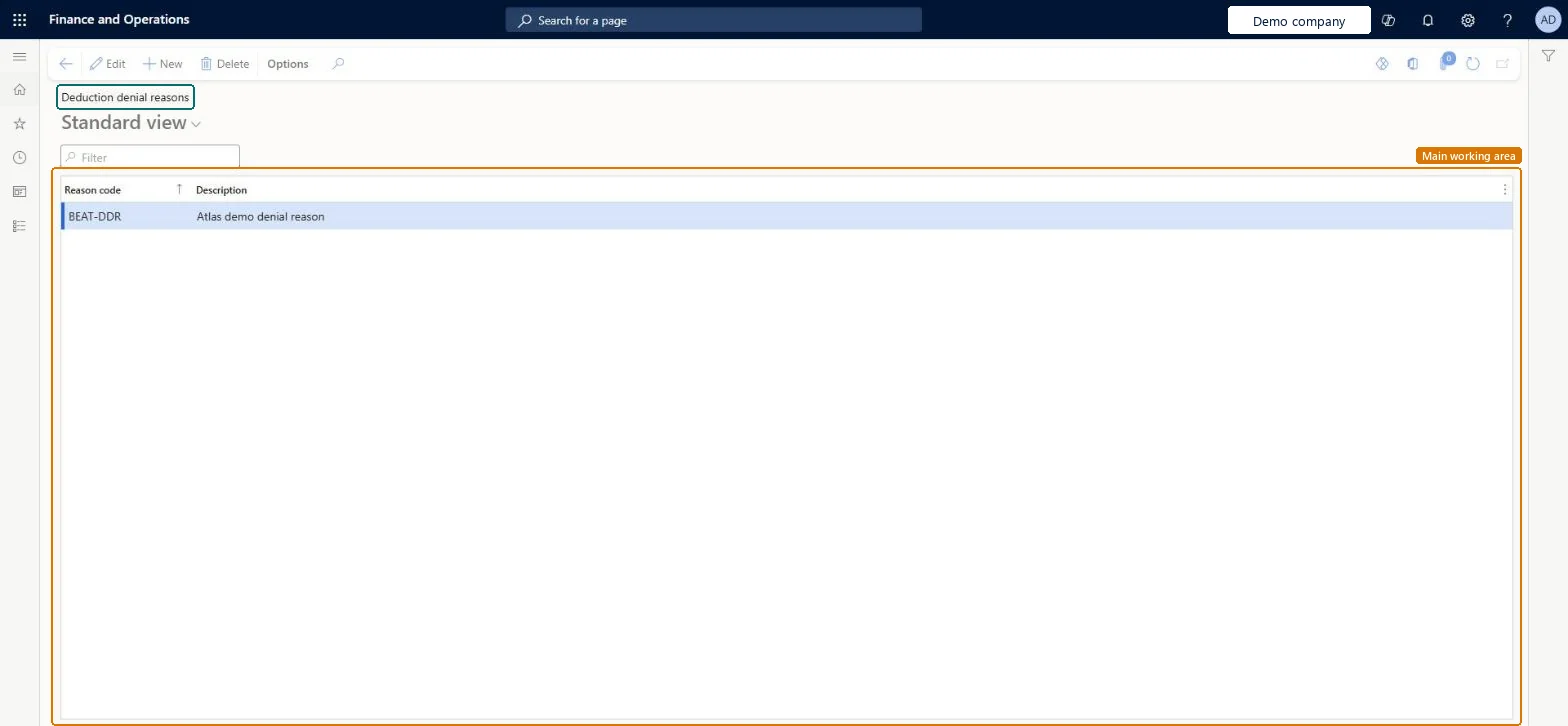
The page in Dynamics 365. page title tab to open what to set or check
About the examples: Examples and screenshots in this guide use BEAT, a demo company in a Dynamics 365 test environment. Use your own company's codes and values instead of copying them.
Step by step, with screenshots
Set up Deduction denial reasons1 screen
Use this page to give users a reason code to select when they deny a deduction.
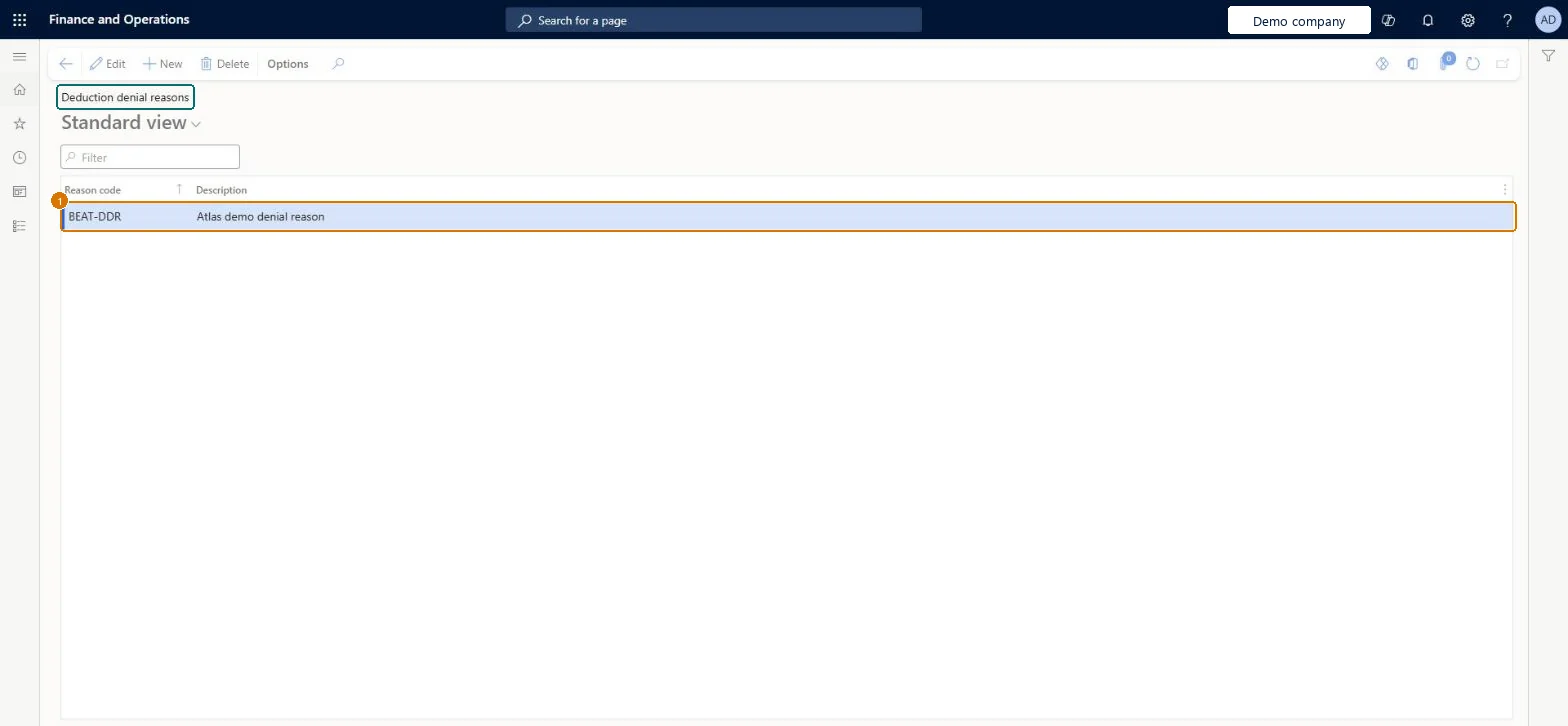
Screen 1
Create a deduction denial reason
Go to Sales and marketing > Trade allowances > Deductions > Deduction denial reasons
Select New
Enter the reason code and description
Select Save
Select the reason when you deny a deduction
1Reason code
BEAT-DDR
Description
Denial reason
Show the full screen page title tab to open what to set or check
Steps from Microsoft
Go to Sales and marketing > Trade allowances > Deductions > Deduction denial reasons.
The unique code for the reason a deduction is denied.Checked in Dynamics 365
NOPROOF
TAMDeductionDenyReason
Description
A short description of the reason.Checked in Dynamics 365
Denial reason
Description
Common errors and fixes
Message
What to do
A deduction was denied by mistake.
Select the denied deduction (Show Closed) and select Reverse denial; Status and Claim status return to Open. Microsoft Learn
Test checklist
Create a denial reason code.
On the Deduction workbench, mark an open deduction, select Maintain > Deny and pick the reason code.
Set Show to Closed and check that the deduction's Remaining amount is 0.00, Claim status is Rejected and the Denial section on the References tab is filled in.
Select Reverse denial and check that Status and Claim status return to Open.
A short list of denial reason codes that collections staff agree on, each with a description that says when to use it.Users select a reason code when they deny a deduction, and the reason is kept in the Denial section of the deduction's References tab.
Denying a deduction to correct a wrong amount; denial closes the whole deduction, so split it first and deny only the part that is refused.Test: Deny and reverse a deduction with a reason code
Feature management and licence
Licence or add-in
On the live system, Collections manager use this page.
Reversible: Denying a deduction closes it and sets Remaining amount to 0.00, but Reverse denial reopens it. If an invoice was attached and its balance reduced, the denial detaches it and restores the balance. Microsoft Learn
If you change it later
Denying a deduction closes it with Remaining amount 0.00 and Claim status Rejected; if an attached invoice's balance was reduced, the invoice is detached and its balance increased again. Microsoft Learn
Technical architect
6Technical
Menu item
TAMDeductionDenyReasonChecked in Dynamics 365
Form
TAMDeductionDenyReasonChecked in Dynamics 365
Table
TAMDeductionDenyReasonTableShown as “Deduction denial reasons” in Record infoKey field: TAMDeductionDenyReasonChecked in Dynamics 365
Data entities
TAMPaymentDeductionDenyReasonEntityPromotion management payment deduction denial reasons Microsoft data model
Who can open it
PrivilegesMaintain deduction denial reasons TAMDeductionDenyReasonMaintainDutiesMaintain customer deductions information TAMCustDeductionMaintain1 security roleCollections manager CollectionLetterCollectionsManagerChecked in Dynamics 365
Roles to set it up and use it
To set it up or change itCollections manager CollectionLetterCollectionsManagerGive people one of these roles. On this system, 1 role can open this page.Checked in Dynamics 365
Actions on the page
Options: Personalize, Page options, ShareChecked in Dynamics 365
TAMPaymentDeductionDenyReasonEntity (Promotion management payment deduction denial reasons): loaded for each company.Load order: No default configuration template places this entity. Load the denial reasons before deductions are processed on the deduction workbench; they depend on no other setup.Microsoft Learn
Checked in a working Dynamics 365 system, version 10.0.49: the menu item, form, table and security, the page, the demo records and the values in the screenshots.