PAGE GUIDEWhat the page does and how to use it8 sections. Choose a role to highlight what matters to you.
Everyone
1What it is and why
What it is
A list page where you record trade allowance agreements, which reward customers for reaching volume or behavior goals.
What you do here
Use this page to plan a promotion by allocating funds, choosing customers and items, and setting goals for each merchandising event.
Example
For example, BEAT sets up agreement TA-000045 for its spring promotion with three supermarket chains: 5,000 base units, a 20 percent lift, financed 100 percent from fund FND-2027-01, and a bill back of 0.50 per unit cumulated by month and paid as a customer deduction.
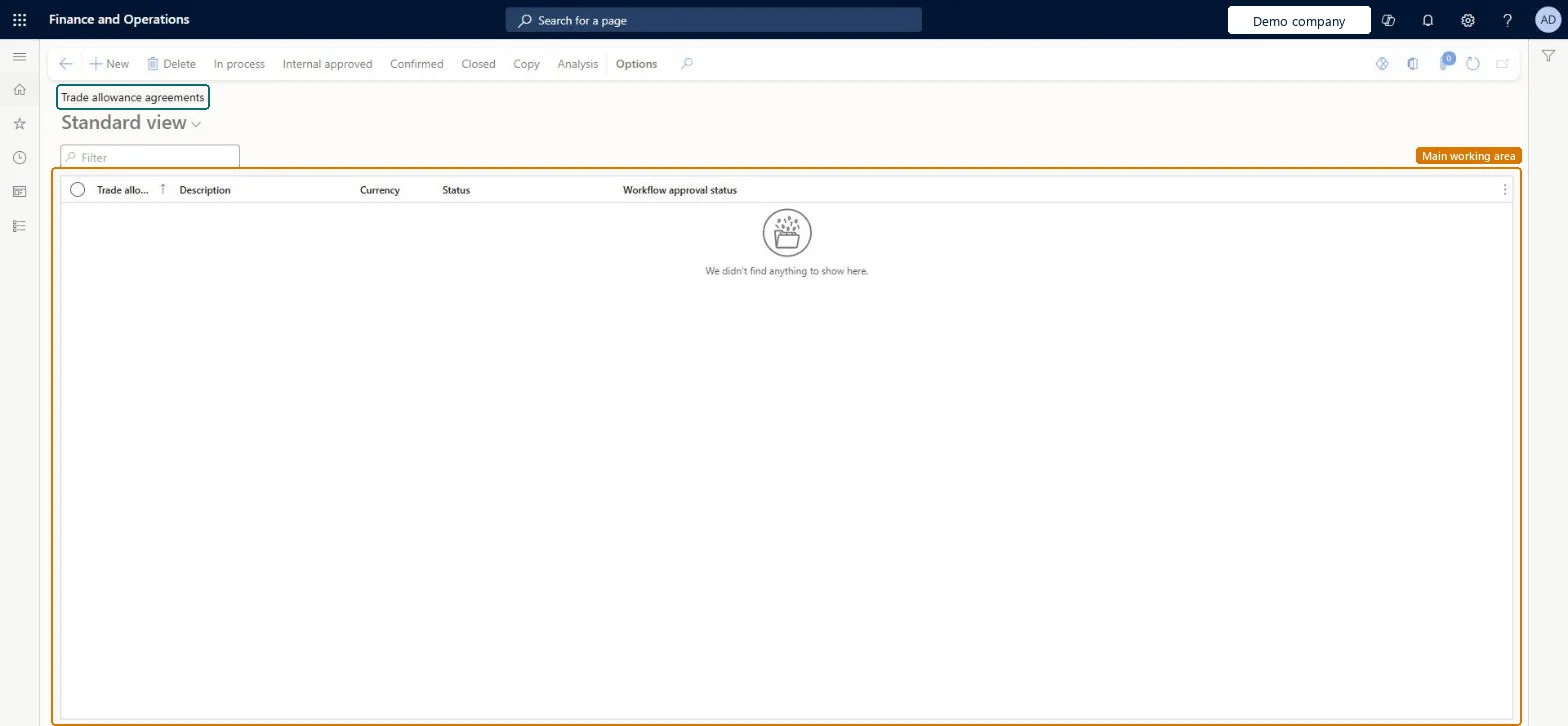
The page in Dynamics 365. page title tab to open what to set or check
About the examples: Examples and screenshots in this guide use BEAT, a demo company in a Dynamics 365 test environment. Use your own company's codes and values instead of copying them.
Setup steps on this page
Set up and confirm trade allowance agreements
Use this page to plan a promotion by allocating funds, choosing customers and items, and setting goals for each merchandising event.
Steps from Microsoft
Go to Sales and marketing > Trade allowances > Trade allowance agreements and create a new agreement.
On the General FastTab, enter the Order from and Order to dates, and in the Analysis section the Base units and Lift percent.
On the Customers FastTab, select the customer hierarchy and the accounts the allowance targets.
On the Items FastTab, add the products of the promotion.
On the Funds FastTab, add the approved fund and the event cost allocation percentage.
Switch to Lines view, add the merchandising events, and on the Amounts tab set the rules and quantity or amount ranges.
Set the agreement's status to Confirmed so that it applies to sales orders.
The agreement isn't applied to sales orders that meet its conditions.
Set the agreement's status to Confirmed; with Internal approved the agreement isn't valid yet. Check the order date is between Order from and Order to. Microsoft Learn
Test checklist
Create a fund with Status Approved, then a trade allowance agreement with customers, items, the fund and a Bill back merchandising event.
Set the agreement to Confirmed.
Create a sales order line that meets the conditions and check Price details > Rebates shows the bill back and rebate program ID (Enable price details must be on).
Post the invoice and check a bill-back claim is created on the Bill back workbench.
Allocate only approved funds with event cost allocations that total 100 percent, settle the bill back rules on the Amounts tab, and set the status to Confirmed only when the promotion is agreed.An agreement applies to sales orders only once it is Confirmed, and from then on each posted invoice line under it generates a bill-back claim.
Hard to reverse: While the status is Internal approved the agreement isn't valid and can still be reworked. Once it's Confirmed it applies to qualifying sales orders, and each posted sales invoice line generates a bill-back claim. Approve the funds (Status Approved) and settle the rules on the Amounts tab before you confirm. Microsoft Learn
If you change it later
An agreement applies to sales orders only once its status is Confirmed. Microsoft Learn
Technical architect
6Technical
Menu item
TAMListPageChecked in Dynamics 365
Form
TAMListPageChecked in Dynamics 365
Table
TAMTradePromotionShown as “Trade allowance” in Record infoChecked in Dynamics 365
Data entities
TAMTradeAllowanceAgreementHeaderEntityTrade allowance agreement headers Microsoft data model
To set it up or change itSales manager TradeSalesManagerMarketing manager CRMMarketingManagerAccounts receivable clerk CustInvoiceAccountsReceivableClerkGive people one of these roles. On this system, 3 roles can open this page.Checked in Dynamics 365
Actions on the page
Options: Personalize, Page options, ShareChecked in Dynamics 365
TAMTradeAllowanceAgreementHeaderEntity (Trade allowance agreement headers): loaded for each company.Load order: No default configuration template places this entity. Load the agreement headers after the funds, customer category hierarchies and products they refer to, then confirm the agreements in the system.Load first: Funds, Customer category hierarchy, Released productsMicrosoft Learn