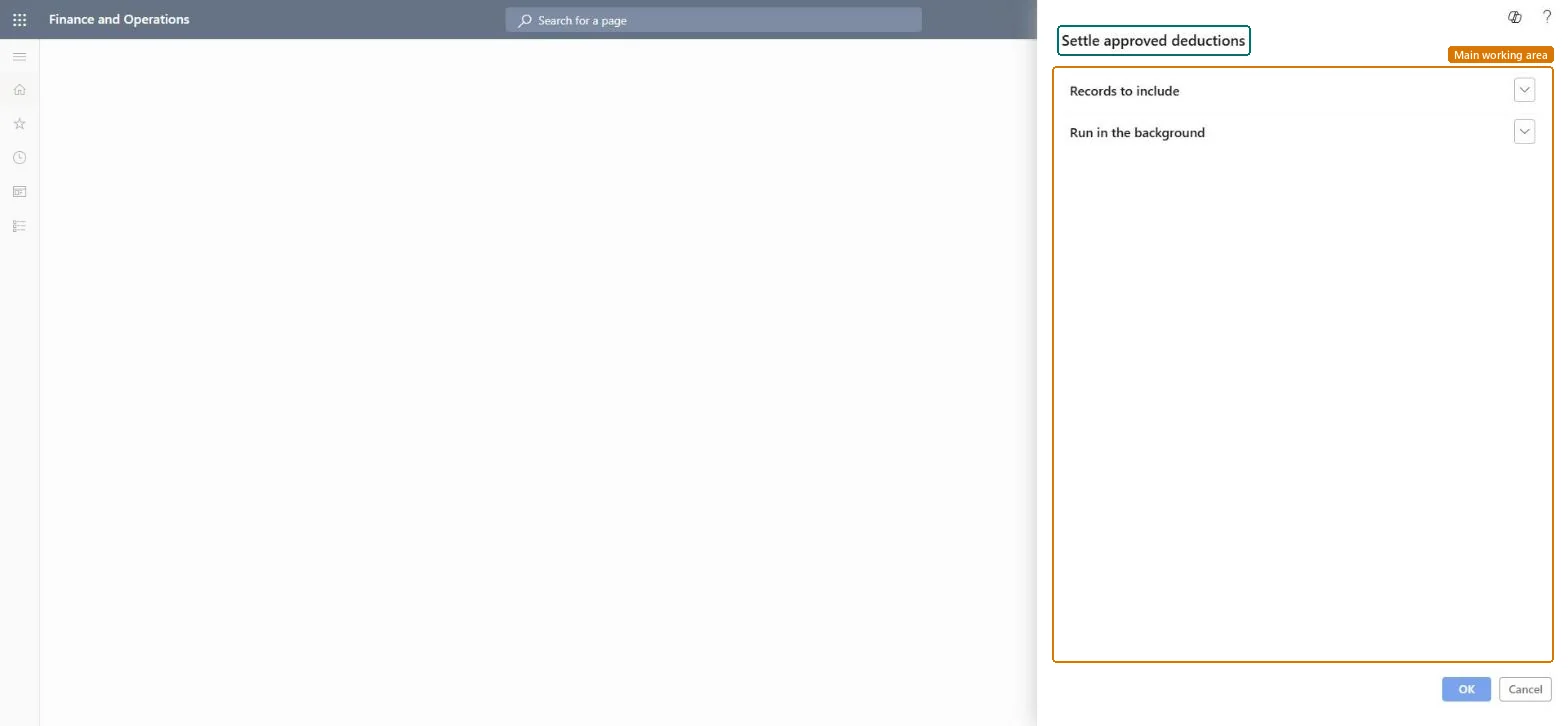
A periodic task that automatically matches deductions with credits that have the same Deduction ID and amount, for deductions created with New deduction.
Manage customer deductions on payments in Dynamics 365 Finance
Menu item
action:TAMDeductionMassMatch
Setup steps
1 on this page
Show what matters for
PAGE GUIDEWhat the page does and how to use it8 sections. Choose a role to highlight what matters to you.
Everyone
1What it is and why
What it is
A periodic task that automatically matches deductions with credits that have the same Deduction ID and amount, for deductions created with New deduction.
What you do here
Use it to settle approved deductions against their invoiced credits on a schedule instead of matching them one by one on the deduction workbench.
Example
For example, BEAT approves deduction DED-000321 of 1,500.00 for customer BEAT-000123; the free text credit note of 1,500.00 with the same Deduction ID is posted, and the nightly run of the task settles the two.
The page in Dynamics 365. page title tab to open what to set or check
About the examples: Examples and screenshots in this guide use BEAT, a demo company in a Dynamics 365 test environment. Use your own company's codes and values instead of copying them.
When to run it
When to run it
After deductions are approved and their credits are invoiced, so that deductions and credits with matching Deduction ID values and amounts are settled without manual matching.
How often
On a recurring schedule while you process deductions, at an interval that suits your deduction volume.
Batch settings
Schedule it as a recurring periodic task so approved deductions are matched without someone selecting Match on the workbench.
What the output shows
Deductions settled against their credits where the Deduction ID and amount match. A deduction left open usually has no invoiced credit yet, a different amount, or wasn't created with New deduction.
Match approved deductions to their credits automatically.
Steps from Microsoft
Go to Sales and marketing > Periodic tasks > Settle approved deductions.
Make sure the deductions were created with New deduction and have a Claim status of Accepted, and that their credits are invoiced; the job only matches deductions and credits with the same Deduction ID and amount.
Check Automatic settlement on the Settlement tab of Accounts receivable parameters; when it's Yes, credits are settled automatically and this job does nothing.
Set the options and filters for the deductions to settle, and set up a schedule as for other periodic tasks.
Afterwards, open the Deduction workbench and check that the matched deductions no longer have open credits in the Open transactions section.
If Automatic settlement is Yes on the Settlement tab of Accounts receivable parameters, the credit is settled automatically and the task does nothing. Microsoft Learn
A deduction stays open after the run.
The credit must be invoiced and have the same Deduction ID and amount; check it in the Open transactions section of the deduction workbench, or match it there with Match. Microsoft Learn
Test checklist
Deductions with a matching invoiced credit are settled.
Deductions without a matching credit are still open on the Deduction workbench.
Schedule it as a recurring task while Automatic settlement on Accounts receivable parameters is No; filter it to the deductions your team handles.It matches deductions and credits with the same Deduction ID and amount; with Automatic settlement = Yes the credits settle themselves and the task does nothing.
On the live system, Collections manager runs this task. No feature in Feature management is needed.
Checked in Dynamics 365
Solution architect
5Design impact
Shared or per company
Deductions created with New deduction whose credits have the same Deduction ID and amount. Microsoft Learn
Can it be undone
No: The settlements are made on the customer account. If a match was wrong, undo the settlement on the customer's transactions. Microsoft Learn
If you change it later
Settles approved deductions against their credit transactions on the customer account. The deduction workbench is part of Sales and marketing trade allowances and also works with Rebate management. Microsoft Learn
Technical architect
6Technical
Menu item
action:TAMDeductionMassMatchChecked in Dynamics 365
Form
SysOperationTemplateFormChecked in Dynamics 365
Roles to set it up and use it
To use itCollections manager CollectionLetterCollectionsManagerGive people one of these roles. On this system, 1 role can run this page.Checked in Dynamics 365
Load order: Settle approved deductions has no data entity in Data management. It settles existing transactions; there is nothing to migrate.Checked in Dynamics 365