Marketing manager, Accounts receivable clerk, Retail merchandising manager and 5 more roles
Business process
Manage trade allowances
Menu item
TAMFundSetupMenu
Main table
TAMFundTable
Data entity
GUPFundTableEntity
Setup steps
1 on this page
Show what matters for
SETUP GUIDEHow to set it up8 sections. Choose a role to highlight what matters to you.
Everyone
1What it is and why
What it is
A page where you record promotional funds, the budgets that trade allowance agreements draw on.
What you do here
Use this page to budget a fund for a period, choose its customers and items, and approve it for use.
Example
For example, BEAT budgets fund FND-2027-01 of 25,000.00 for January to June 2027 for its 10 northern customers at 2,500.00 each, adds the promoted items and sets Status to Approved so that agreements can draw on it.
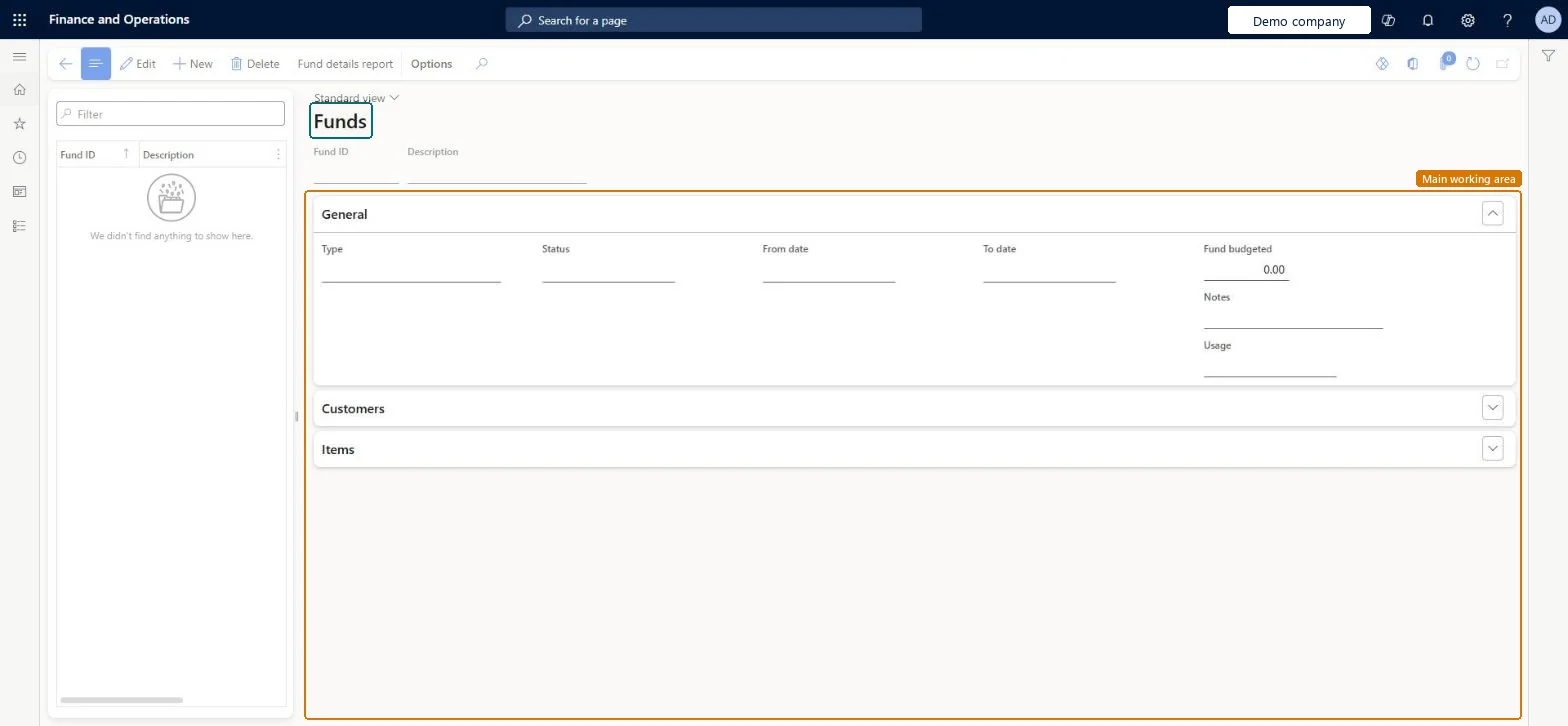
The page in Dynamics 365. page title tab to open what to set or check
About the examples: Examples and screenshots in this guide use BEAT, a demo company in a Dynamics 365 test environment. Use your own company's codes and values instead of copying them.
Setup steps on this page
Budget and approve promotional funds
Use this page to budget a fund for a period, choose its customers and items, and approve it for use.
Steps from Microsoft
Go to Sales and marketing > Trade allowances > Funds > Funds.
Select New and enter a description.
On the General FastTab, select the Type, enter the From date and To date, and enter the Fund budgeted amount.
In the Usage field, select the usage type.
On the Customers FastTab, select the customer category hierarchy, add the customers and enter each customer's budget.
On the Items FastTab, select Add products and add the products.
The usage type of the fund, set up on Fund usage.Microsoft Learn
PROMO
Usage
Common errors and fixes
Message
What to do
The fund can't be selected on the Funds FastTab of a trade allowance agreement.
Set the fund's Status to Approved; only approved funds can be allocated. Microsoft Learn
Test checklist
Create a fund with a period and a Fund budgeted amount, move the target customers under Fund customers on the Customers FastTab and add the promoted items on the Items FastTab.
Leave Status not yet Approved and try to allocate the fund on the Funds FastTab of a trade allowance agreement; it can't be allocated.
Set Status to Approved, allocate the fund to the agreement with an event cost allocation of 100 percent, and check that the agreement now draws on it.
After claims are processed, check fund use on the Trade allowance activity page and the agreement's Analysis view.
One fund per promotional budget and period, with the target customers and items, set to Approved only once the budget is agreed.A fund can be allocated to a trade allowance agreement only after its Status is Approved, and agreements can draw on one or several funds by event cost allocation.
On the live system, Sales manager, Marketing manager and Accounts receivable clerk (maintain), and Sales clerk and the retail roles (use) use this page.
Reversible: Fund values can be changed; allocations already made stay on the agreements.
If you change it later
A fund can be allocated to a trade allowance agreement only after its status is set to Approved. Microsoft Learn
Technical architect
6Technical
Menu item
TAMFundSetupMenuChecked in Dynamics 365
Form
TAMFundManagementChecked in Dynamics 365
Table
TAMFundTableShown as “Trade allowance funds” in Record infoChecked in Dynamics 365
Data entities
GUPFundTableEntityTrade allowance funds Checked in Dynamics 365
Who can open it
PrivilegesMaintain pricing service funds GUPPricingServiceFundMaintainView pricing service funds related transactions GUPPricingServiceFundTransViewMaintain trade allowance funds TAMFundSetupMenuMaintainDutiesMaintain pricing service funds GUPPricingServiceFundMaintainInquiries into pricing service funds related transactions GUPPricingServiceFundTransInquiryMaintain retail campaign discounts RetailDiscountOfferMaintainMaintain retail campaign discounts RetailDiscountOfferViewMaintain trade allowances TAMMaintain9 security rolesMarketing manager CRMMarketingManagerAccounts receivable clerk CustInvoiceAccountsReceivableClerkMCRTestUserRoleRetail merchandising manager RetailMerchandisingManagerRetail operations manager RetailOperationsManagerRetail service RetailServiceRetail store manager RetailStoreManagerSales clerk TradeSalesClerkSales manager TradeSalesManagerChecked in Dynamics 365
Roles to set it up and use it
To set it up or change itSales manager TradeSalesManagerMarketing manager CRMMarketingManagerAccounts receivable clerk CustInvoiceAccountsReceivableClerkTo use itSales clerk TradeSalesClerkRetail service RetailServiceRetail store manager RetailStoreManagerRetail operations manager RetailOperationsManagerRetail merchandising manager RetailMerchandisingManagerGive people one of these roles. On this system, 8 roles can open this page.Checked in Dynamics 365
Actions on the page
Options: Personalize, Page options, ShareChecked in Dynamics 365
Developer
7Developer
Open it by URL
https://<your-environment>/?mi=TAMFundSetupMenu
Integrate with
GUPFundTableEntity data entity Checked in Dynamics 365
Data migration
GUPFundTableEntity The entity offered by the page's Open in Excel list.Load order: Load funds after the fund usage codes and the customer category hierarchies they refer to, then approve them in the system.Load first: Fund usage, Customer category hierarchyChecked in Dynamics 365