Run the Fund details report with the right filters
Sales and marketingTrade allowancesFunds
output:TAMFundDetail
Business process
Manage trade allowances
Menu item
output:TAMFundDetail
Setup steps
1 on this page
Show what matters for
SETUP GUIDEHow to set it up8 sections. Choose a role to highlight what matters to you.
Everyone
1What it is and why
What it is
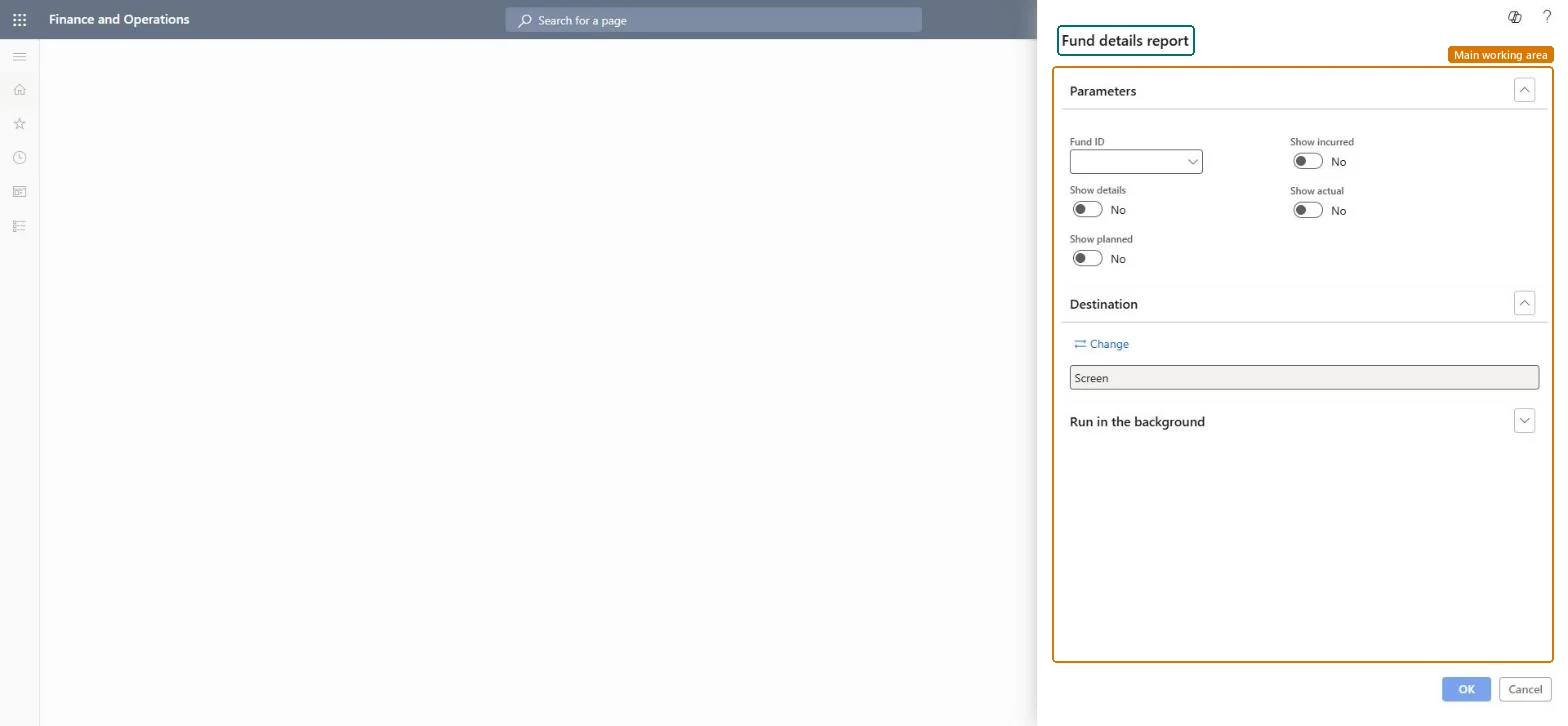
A report that prints the details of a trade allowance fund, which you can limit by fund ID and show as planned, incurred and actual amounts, with or without detail lines.
What you do here
Use this report to review how much of a promotional fund is planned, incurred and actually spent.
Example
For example, before allocating more of fund FND-2027-01 (budget 25,000.00), BEAT runs the report and sees 12,000.00 planned on two agreements and 4,350.00 actual.
The page in Dynamics 365. page title tab to open what to set or check
About the examples: Examples and screenshots in this guide use BEAT, a demo company in a Dynamics 365 test environment. Use your own company's codes and values instead of copying them.
When to run it
When to run it
While a fund is valid, for example before allocating more of it to new agreements.
How often
On demand, for example monthly while the promotion or fund is running.
What the output shows
Planned, incurred and actual amounts for the fund, with detail lines if Show details is Yes.
Select the Fund ID and switch on Show planned, Show incurred and Show actual before allocating more of the fund to new agreements.The report shows the amounts per fund only for the options switched on; without a Fund ID it covers all funds.
Comparing only the actual amount with the budget and missing amounts already planned on confirmed agreements.Test: The report prints the fund's figures
Feature management and licence
Licence or add-in
On the live system, Sales manager, Marketing manager and Accounts receivable clerk use this page.
Checked in Dynamics 365
Solution architect
5Design impact
Shared or per company
Per company: the report reads the funds of the legal entity it runs in. Microsoft data model
Can it be undone
Reversible: Report only.
If you change it later
Nothing changes: the report reads the funds and the agreements that draw on them. Microsoft Learn
Technical architect
6Technical
Menu item
output:TAMFundDetailChecked in Dynamics 365
Form
SysOperationTemplateFormChecked in Dynamics 365
Roles to set it up and use it
To use itSales manager TradeSalesManagerAccounts receivable clerk CustInvoiceAccountsReceivableClerkMarketing manager CRMMarketingManagerGive people one of these roles. On this system, 3 roles can run this page.Checked in Dynamics 365
Load order: Fund details report has no data entity in Data management: it is a report and stores no data. The figures come from the fund records and their posted documents.Checked in Dynamics 365
Checked in a working Dynamics 365 system, version 10.0.49: the menu item, form, table and security, the page.
To cite this step: SM-TRD-170, Run the Fund details report with the right filters. Beyond ERP Atlas Hub, 2026-11-11. https://www.beyonderp.cloud/atlas/step/SM-TRD-170