SETUP GUIDEHow to set it up8 sections. Choose a role to highlight what matters to you.
Everyone
1What it is and why
What it is
A setup page where you create the periods during which a promotion or sale is active, with separate order, ship, receipt and performance dates.
What you do here
Use this page to set the date windows that orders, shipments, receipts and performance must fall in to qualify for a promotion.
Example
BEAT sets up period NEWYEAR-27: orders from 12/26/2026 to 1/5/2027, requested ship dates up to 1/10/2027 and performance until 1/31/2027. A customer order of 3,400.00 placed on 12/28/2026 and shipped on 1/8/2027 qualifies for the bill back.
The page in Dynamics 365. page title tab to open what to set or check
About the examples: Examples and screenshots in this guide use BEAT, a demo company in a Dynamics 365 test environment. Use your own company's codes and values instead of copying them.
Step by step, with screenshots
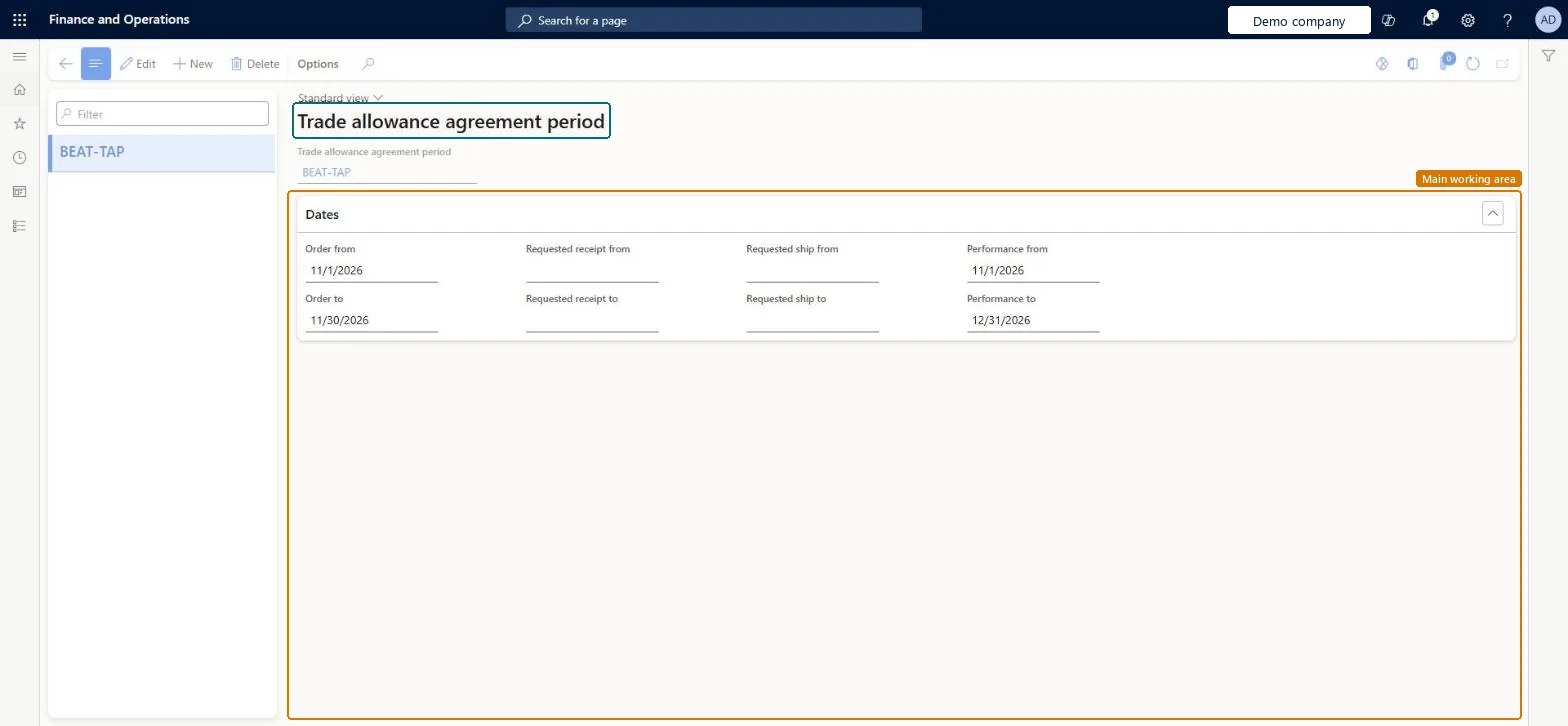
Set up Trade allowance agreement period1 screen
Use this page to set the date windows that orders, shipments, receipts and performance must fall in to qualify for a promotion.
Screen 1
Create a trade allowance agreement period
Go to Sales and marketing > Setup > Trade allowance > Trade allowance agreement period
Select New
Enter the period name
Under Dates, enter the order from and to dates
Enter the requested receipt, requested ship and performance dates that apply
Select Save
Select the period on trade allowance agreements
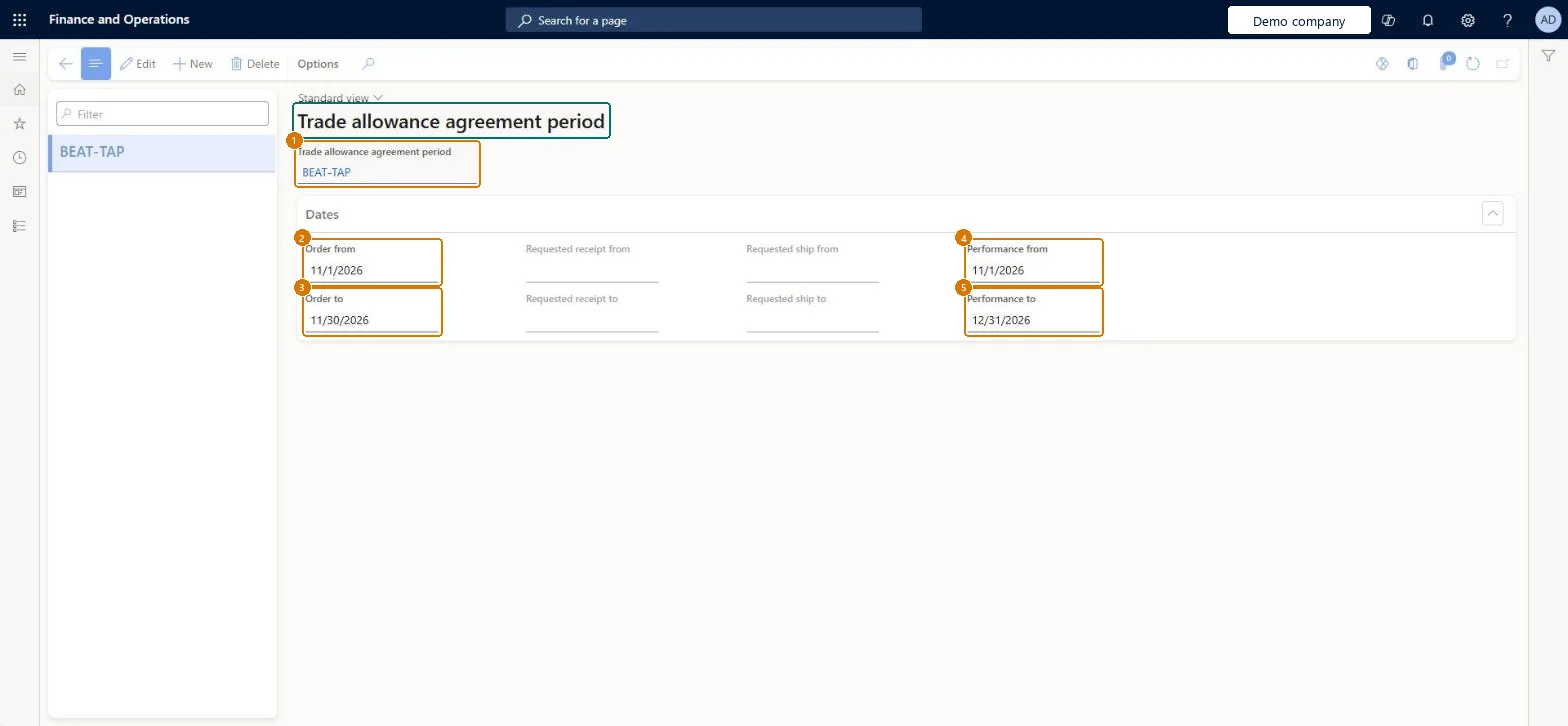
1Trade allowance agreement period
BEAT-TAP
2Order from
11/1/2026
3Order to
11/30/2026
4Performance from
11/1/2026
5Performance to
12/31/2026
Show the full screen page title tab to open what to set or check
Steps from Microsoft
Go to Sales and marketing > Setup > Trade allowance > Trade allowance agreement period.
Select New and enter the name of the period, for example Summer sale.
On the Dates FastTab, in the Order field group, enter the first and last order dates.
In the Request field group, enter the first and last ship dates.
In the Requested receipt field group, enter the first and last receipt dates.
In the Performance field group, enter the first and last dates for actions that earn a lump sum payout.
One named period per recurring promotion window, with the order, ship, receipt and performance windows agreed with sales before agreements are created.The period holds the date windows that orders, shipments, receipts and performance must fall in, and an agreement only applies to orders between its order dates.
Reversible: Periods can be edited; existing claims aren't recalculated.
If you change it later
The period sets the date windows an agreement is valid for: orders outside Order from and Order to don't get the promotion. Changing a period affects agreements created from it afterwards; check existing agreements' dates separately. Microsoft Learn
Technical architect
6Technical
Menu item
TAMPromotionPeriodChecked in Dynamics 365
Form
TAMPromotionPeriodChecked in Dynamics 365
Table
TAMPromotionPeriodShown as “Trade allowance agreement period” in Record infoChecked in Dynamics 365
Data entities
SalesTradeAllowanceAgreementPeriodEntityTrade allowance agreement periods Microsoft data model
Who can open it
PrivilegesMaintain trade allowance periods TAMPromotionPeriodMaintainDutiesMaintain trade allowances TAMMaintain3 security rolesMarketing manager CRMMarketingManagerAccounts receivable clerk CustInvoiceAccountsReceivableClerkSales manager TradeSalesManagerChecked in Dynamics 365
Roles to set it up and use it
To set it up or change itSales manager TradeSalesManagerMarketing manager CRMMarketingManagerAccounts receivable clerk CustInvoiceAccountsReceivableClerkGive people one of these roles. On this system, 3 roles can open this page.Checked in Dynamics 365
Actions on the page
Options: Personalize, Page options, ShareChecked in Dynamics 365
SalesTradeAllowanceAgreementPeriodEntity (Trade allowance agreement periods): loaded for each company.Load order: Load periods before the trade allowance agreements that refer to them.Checked in Dynamics 365
Checked in a working Dynamics 365 system, version 10.0.49: the menu item, form, table and security, the page, the demo records and the values in the screenshots.
To cite this step: SM-SETUP-710, Set up Trade allowance agreement period. Beyond ERP Atlas Hub, 2026-11-11. https://www.beyonderp.cloud/atlas/step/SM-SETUP-710