PAGE GUIDEWhat the page does and how to use it8 sections. Choose a role to highlight what matters to you.
Everyone
1What it is and why
What it is
A setup page where you create categories for your organization's merchandising events, each with a default event type.
What you do here
Use this page to group merchandising events, such as holiday discounts or seasonal sales, for trade allowance agreements.
Example
BEAT creates category DISPLAY with default type Lump sum for in-store display fees and SEASONAL with default type Off invoice. When a 2,000.00 display event is added to an agreement, choosing DISPLAY proposes the Lump sum type automatically.
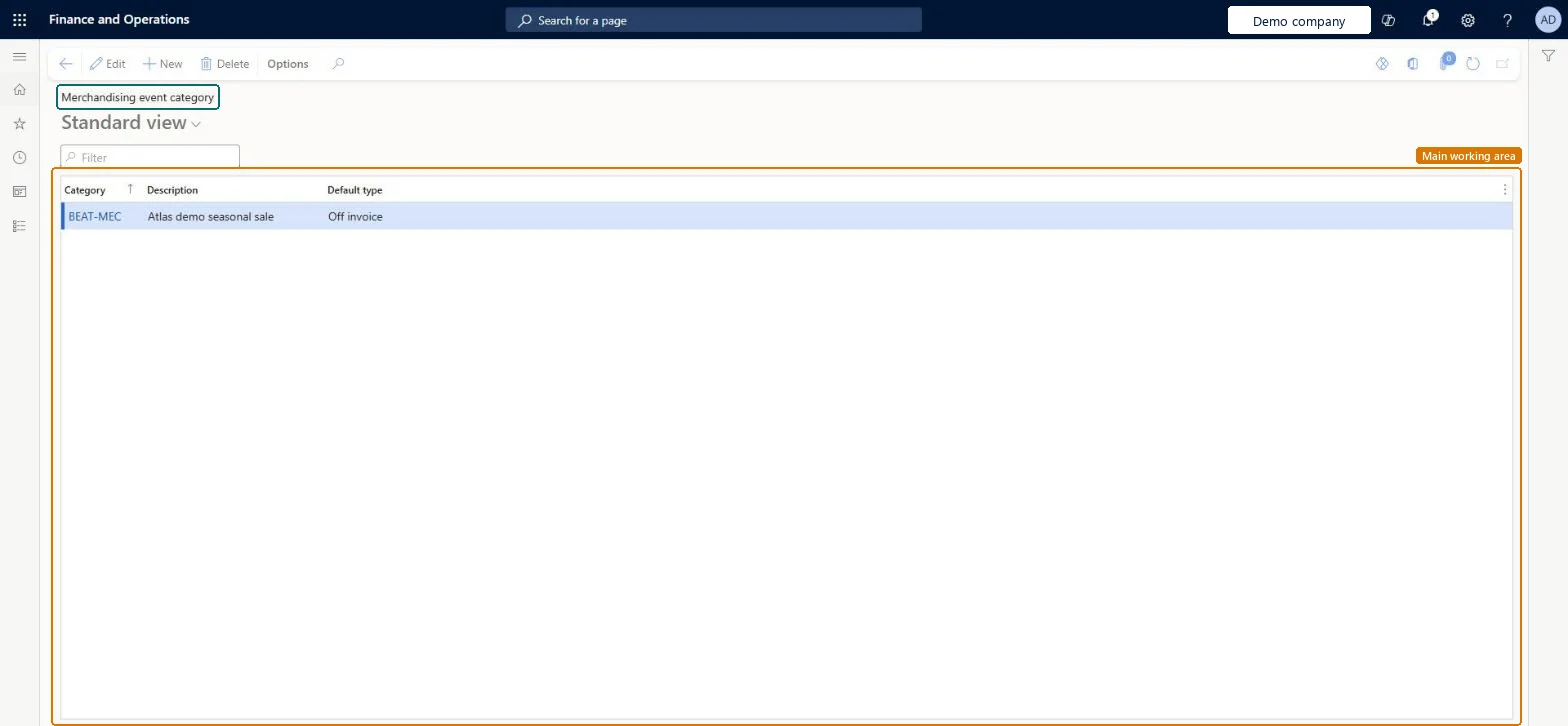
The page in Dynamics 365. page title tab to open what to set or check
About the examples: Examples and screenshots in this guide use BEAT, a demo company in a Dynamics 365 test environment. Use your own company's codes and values instead of copying them.
Step by step, with screenshots
Set up Merchandising event category1 screen
Use this page to group merchandising events, such as holiday discounts or seasonal sales, for trade allowance agreements.
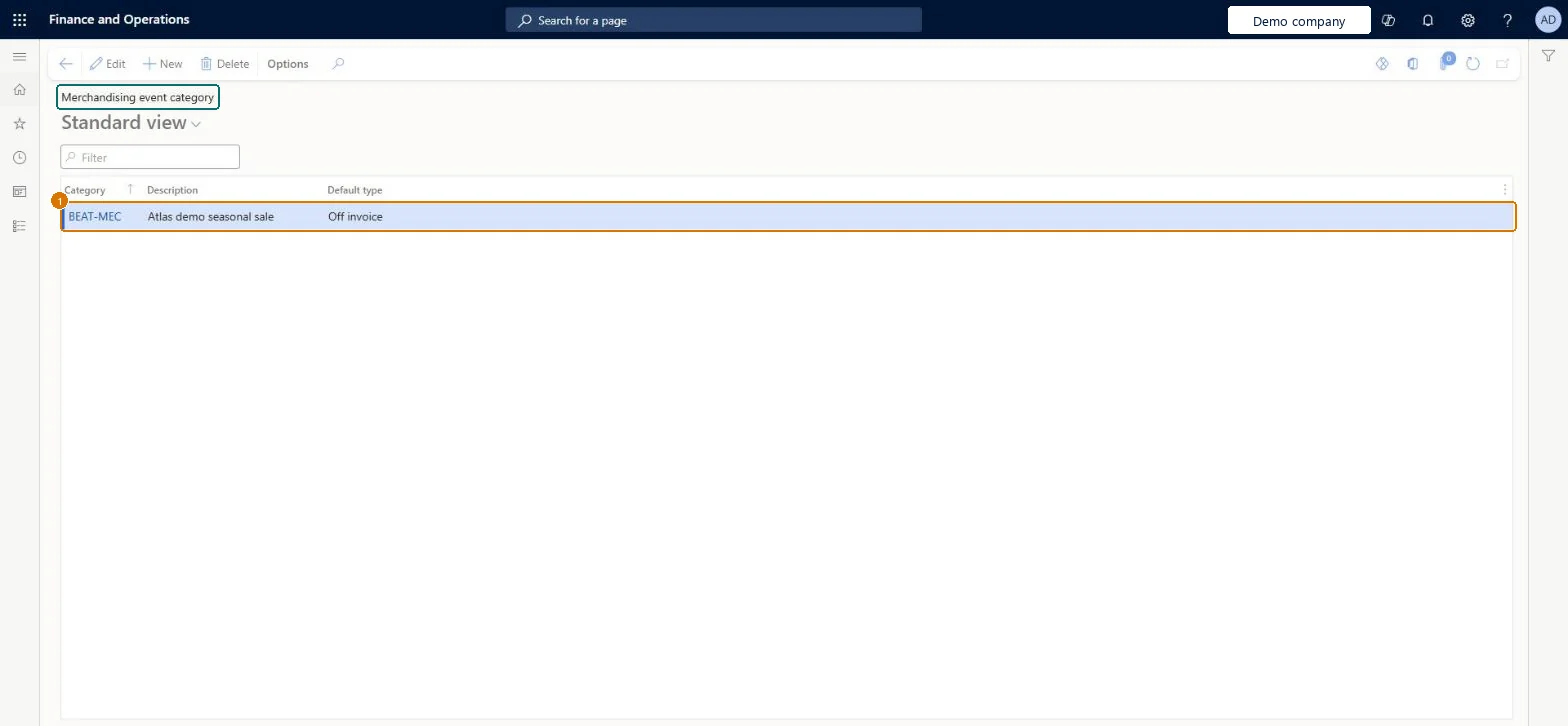
Screen 1
Create a merchandising event category
Go to Sales and marketing > Setup > Trade allowance > Merchandising event category
Select New
Enter the category code and description
Select the default type, such as Off invoice
Select Save
Select the category on merchandising events in trade allowance agreements
1Category
BEAT-MEC
Description
Seasonal sale
Default type
Off invoice
Show the full screen page title tab to open what to set or check
Steps from Microsoft
Go to Sales and marketing > Setup > Trade allowance > Merchandising event category.
Select New.
In the Category field, enter the category name and a short description.
In the Default type field, select the category type for the event.
One category per kind of merchandising activity, each with the event type the business normally pays it with (for example DISPLAY with Lump sum).Agreements cover bill back, lump sum and off-invoice events, and each type is processed differently, so the right default avoids events being paid the wrong way.
Reversible: Categories can be edited at any time; existing events keep their type. Microsoft Learn
If you change it later
The default type is proposed when an event is created; the event type decides whether the reward is a bill back claim, a lump sum or an off-invoice discount. Events already on agreements keep their type. Microsoft Learn
Technical architect
6Technical
Menu item
TAMMerchandisingEventTypeChecked in Dynamics 365
Form
TAMMerchEventTypeChecked in Dynamics 365
Table
TAMMerchandisingEventTypeShown as “Merchandising event type” in Record infoKey field: TAMMerchEventTypeChecked in Dynamics 365
To set it up or change itSales manager TradeSalesManagerMarketing manager CRMMarketingManagerAccounts receivable clerk CustInvoiceAccountsReceivableClerkGive people one of these roles. On this system, 3 roles can open this page.Checked in Dynamics 365
Actions on the page
Options: Personalize, Page options, ShareChecked in Dynamics 365
Load order: Merchandising event category has no data entity in Data management. Create the categories by hand in each legal entity before trade allowance agreements are loaded.Checked in Dynamics 365
Checked in a working Dynamics 365 system, version 10.0.49: the menu item, form, table and security, the page, the demo records and the values in the screenshots.