SETUP GUIDEHow to set it up8 sections. Choose a role to highlight what matters to you.
Everyone
1What it is and why
What it is
A setup page where you create marketing objectives, short explanations of the promotions and sales your organization offers.
What you do here
Use this page to describe the goal of a promotion so it can be selected on trade allowance agreements.
Example
BEAT creates the objectives AWARENESS (new product launch) and CLEARANCE (end of season). The 2026 summer agreement for customer CUS-000214, worth 25,000.00 in bill backs, gets CLEARANCE, so promotion analysis can compare clearance deals with launch deals.
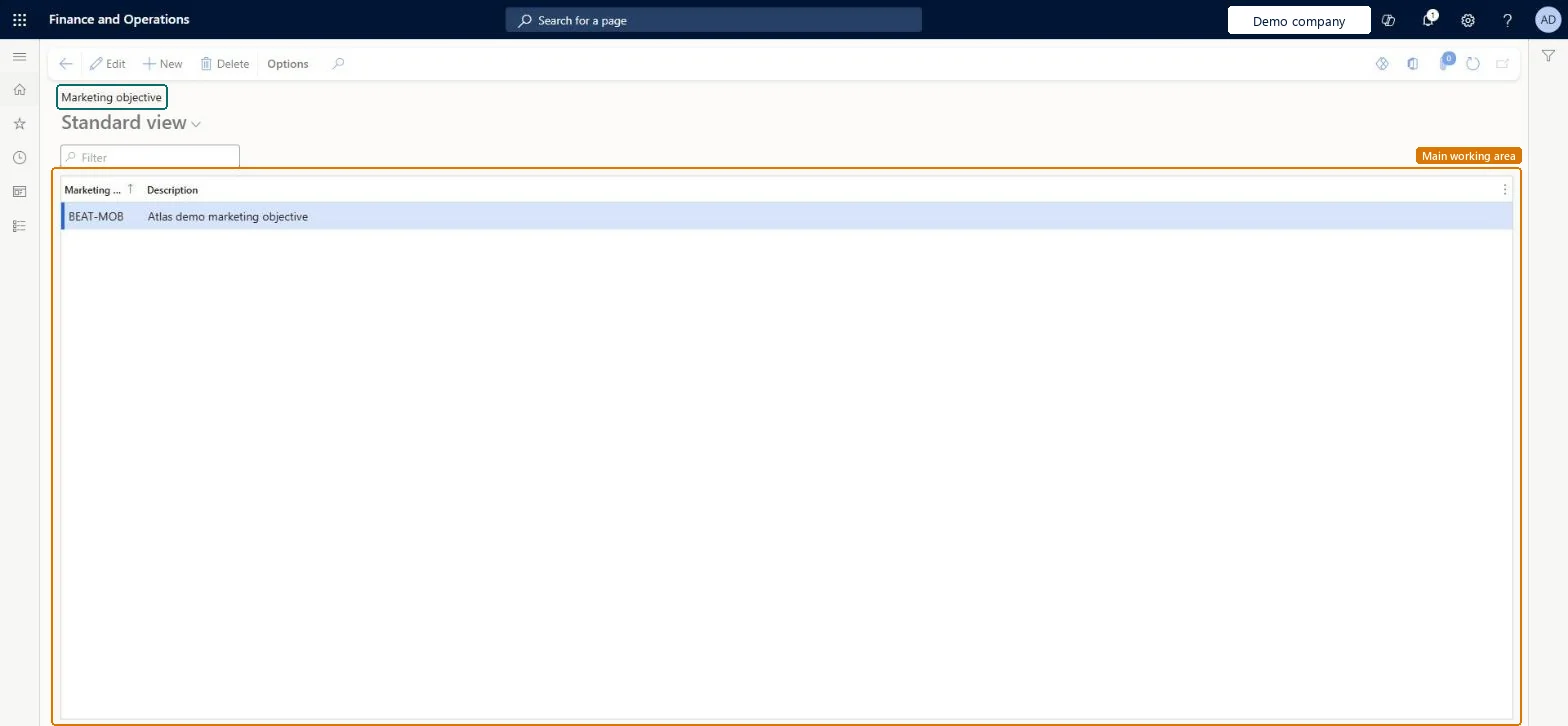
The page in Dynamics 365. page title tab to open what to set or check
About the examples: Examples and screenshots in this guide use BEAT, a demo company in a Dynamics 365 test environment. Use your own company's codes and values instead of copying them.
Step by step, with screenshots
Set up Marketing objective1 screen
Use this page to describe the goal of a promotion so it can be selected on trade allowance agreements.
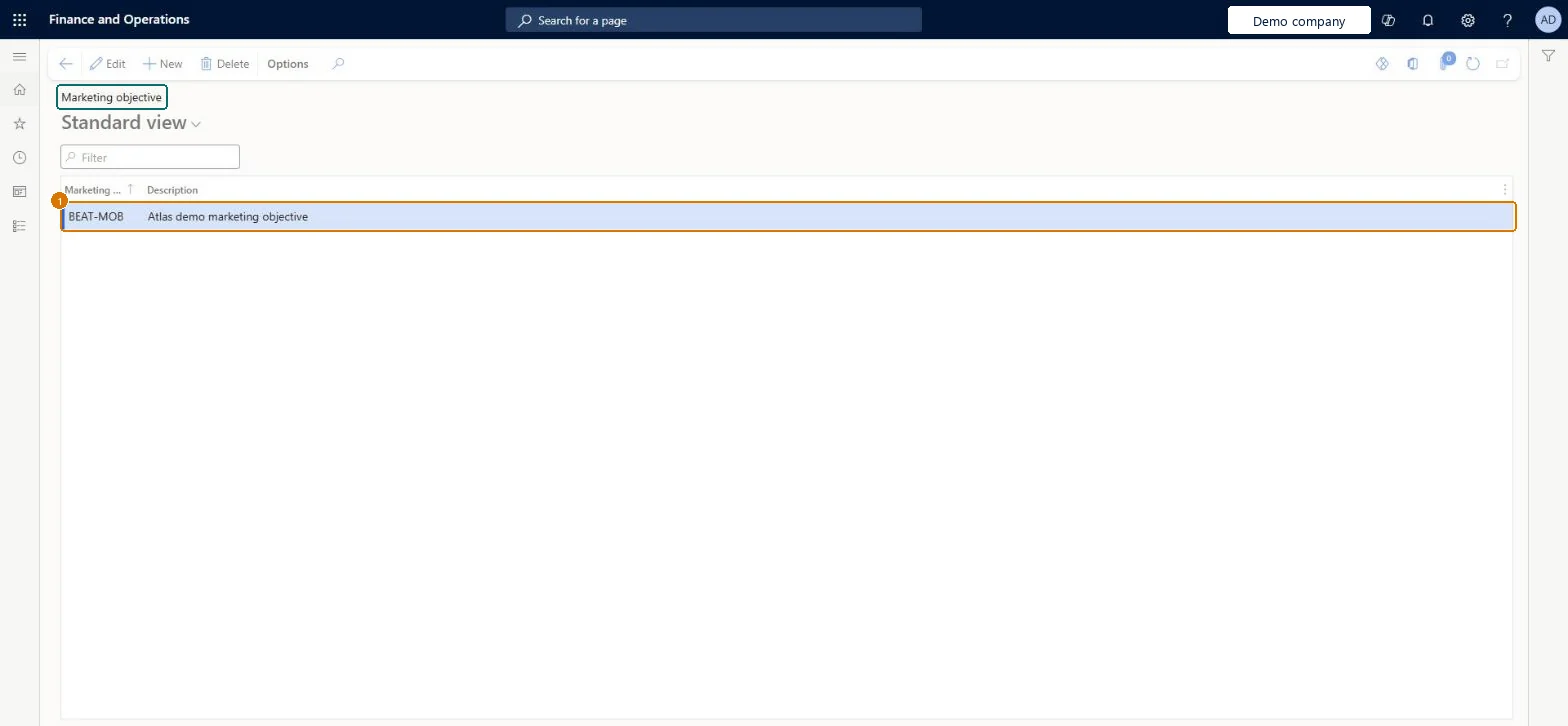
Screen 1
Create a marketing objective
Go to Sales and marketing > Setup > Trade allowance > Marketing objective
Select New
Enter the objective code and a description of the promotion goal
Select Save
Select the objective on trade allowance agreements
1Marketing objective
BEAT-MOB
Description
Marketing objective
Show the full screen page title tab to open what to set or check
Steps from Microsoft
Go to Sales and marketing > Setup > Trade allowance > Marketing objective.
Select New and, in Marketing objective, enter the name of the objective, for example CLEARANCE.
Add a short description of the objective.
Open a trade allowance agreement and select the objective.
A short list of objectives that management actually compares promotions on (for example AWARENESS, CLEARANCE, LISTING).Objectives explain the promotions and sales the organization offers and are selected on trade allowance agreements, so they are the way to compare promotions by goal.
To set it up or change itSales manager TradeSalesManagerMarketing manager CRMMarketingManagerAccounts receivable clerk CustInvoiceAccountsReceivableClerkGive people one of these roles. On this system, 3 roles can open this page.Checked in Dynamics 365
Actions on the page
Options: Personalize, Page options, ShareChecked in Dynamics 365
TAMMarketingObjectiveEntity (Promotion management marketing objectives): loaded for each company.Load order: Load marketing objectives before the trade allowance agreements that refer to them.Checked in Dynamics 365
Checked in a working Dynamics 365 system, version 10.0.49: the menu item, form, table and security, the page, the demo records and the values in the screenshots.
To cite this step: SM-SETUP-700, Set up Marketing objective. Beyond ERP Atlas Hub, 2026-11-11. https://www.beyonderp.cloud/atlas/step/SM-SETUP-700