SETUP GUIDEHow to set it up8 sections. Choose a role to highlight what matters to you.
Everyone
1What it is and why
What it is
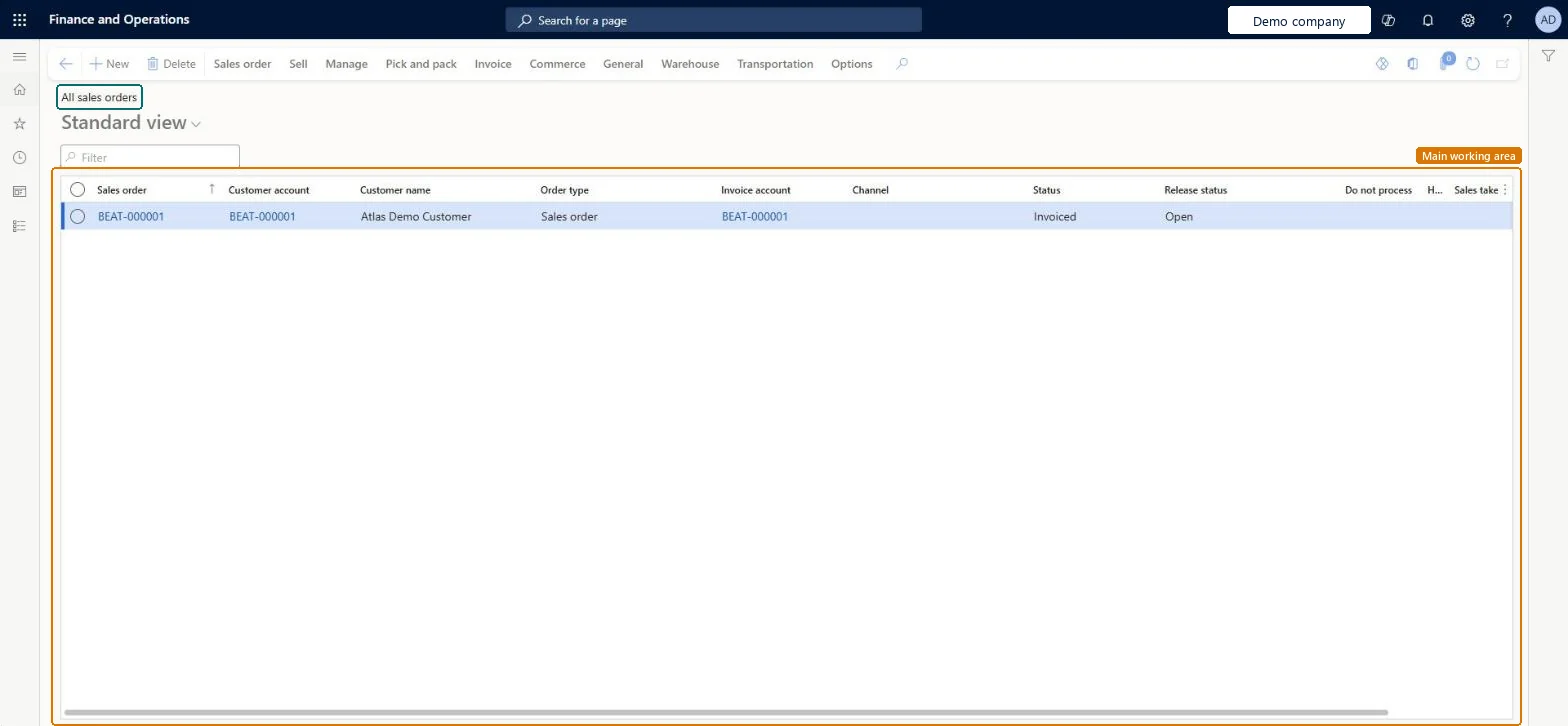
The list of all sales orders of the legal entity: the documents that record what a customer orders, from entry through confirmation, picking, packing slip and invoice.
What you do here
Use this page to create and maintain sales orders, check credit and holds, and start the next document for an order: confirmation, picking list, packing slip or invoice.
Example
For example, a BEAT order taker creates SO-001234 for customer BEAT-000123 with 20.00 pcs of item SPK-100 at 75.00, selects Check credit limit on the Manage tab and confirms the order, so the Document status becomes Confirmation.
The page in Dynamics 365. page title tab to open what to set or check
About the examples: Examples and screenshots in this guide use BEAT, a demo company in a Dynamics 365 test environment. Use your own company's codes and values instead of copying them.
Setup steps on this page
Enter and maintain sales orders
Enter sales orders with the right customer, prices and checks before they move on to confirmation.
Steps from Microsoft
Go to Sales and marketing > Sales orders > All sales orders and, on the Action Pane, select New.
In the Customer account field, select the customer, and then select OK.
In the Item number field, select the product and enter the Quantity.
Check the Unit price, Discount and Discount percent values that came from trade agreements, and enter them if they're empty.
On the Manage tab, select Check credit limit before you add more lines for a customer close to the limit.
On the Sell tab, select Confirm sales order to confirm the order and print the confirmation.
How far the order has got: Open order, Delivered when all lines are fully shipped, Invoiced when nothing is left to invoice.Microsoft Learn
Open order
SalesStatus
Document status
The last document updated for the order, for example Confirmation after confirming or Packing slip after the first shipment.Microsoft Learn
Confirmation
Pool
A group of sales orders, used to filter and select orders more easily.Microsoft Learn
Do not process
Marked when the order is on hold, so it can't be processed further.Microsoft Learn
Yes
MCROrderStopped
Unit price
The price per unit, copied from a valid trade agreement or the product record when one exists.Microsoft Learn
75.00
Discount percent
A percentage that reduces the line's gross amount.Microsoft Learn
Common errors and fixes
Message
What to do
Unable to post packing slip when stopping a sales order line after confirming the outbound shipment A quantity cannot be picked.
On each related line, on the Line details FastTab, General tab, set Stopped to No, post the packing slip, then handle the customer's cancellation as a return. Microsoft Learn
Test checklist
Create a sales order for BEAT-000123 with 20.00 pcs of an item that has a trade agreement price.
Check that Unit price shows the trade agreement price.
Confirm the order and check that Document status is Confirmation.
Post a packing slip for 5.00 pcs and check Status stays Open order and Document status is Packing slip.
Pick the customer first so the order copies its defaults, check prices from trade agreements on each line, and run Check credit limit for customers near their limit.The header copies the customer's terms and delivery settings; prices and discounts come from trade agreements or the product record.
On the live system, Sales clerk, Sales manager, Sales representative and Accounts receivable clerk use this page.
Checked in Dynamics 365
Solution architect
5Design impact
Shared or per company
Per company: sales orders belong to the legal entity they're created in. An intercompany chain creates a separate order in each legal entity. Microsoft Learn
Can it be undone
Reversible with effort: Lines can be edited until posted documents exist.
If you change it later
Posting an invoice updates the invoice remainder on each line; when nothing is left to deliver or invoice, the order status changes to Invoiced. Changing the order type later is allowed except for Item requirements orders that are delivered. Microsoft Learn
Technical architect
6Technical
Menu item
SalesTableListPageChecked in Dynamics 365
Form
SalesTableListPageChecked in Dynamics 365
Table
SalesTableShown as “Sales orders” in Record infoChecked in Dynamics 365
Data entities
SalesOrderHeaderV2EntitySales order headers V2 Microsoft data model SalesOrderHeaderV2ExistAddrReadOnlyEntitySales order headers V2 readonly with the delivery address Microsoft data model ReturnOrderHeaderEntityReturn order headers Microsoft data model CustCollectionsBISalesOnHoldSales orders on hold for customers Microsoft data model
Roles to set it up and use it
To set it up or change itRental manager RentalManagerRental coordinator agent RentalCoordinatorAgentRental sales manager RentalSalesManagerSales representative TradeSalesRepresentativeSales clerk TradeSalesClerkTo use itSales manager TradeSalesManagerAccounts receivable clerk CustInvoiceAccountsReceivableClerkAccounts receivable manager CustInvoiceAccountsReceivableManagerRental representative RentalRepresentativeAccounts receivable centralized payments clerk PaymAccountsReceivableCentralPaymClerkGive people one of these roles. On this system, 28 roles can open this page.Checked in Dynamics 365
SalesOrderHeaderV2Entity Sales order headers V2: loaded for each company, before Sales order lines V2.Load order: Load customers, items and released products first, then Sales order headers V2, then Sales order lines V2 (SalesOrderLineV2Entity).Load first: Customers V3, Released productsMicrosoft Learn