PAGE GUIDEWhat the page does and how to use it8 sections. Choose a role to highlight what matters to you.
Everyone
1What it is and why
What it is
An inquiry page of sales order lines that are not yet delivered to the customer (backorders), viewed by customer.
What you do here
Use this page to see the status of a customer's remaining orders, for example when a customer asks about items that are delayed.
Example
For example, customer BEAT-000123 calls about 15.00 pcs of SPK-100 ordered on SO-001210; the clerk opens Backorder lines, sees the line is still undelivered with a ship date of the 14th, changes the date to the 21st after a vendor delay and tells the customer.
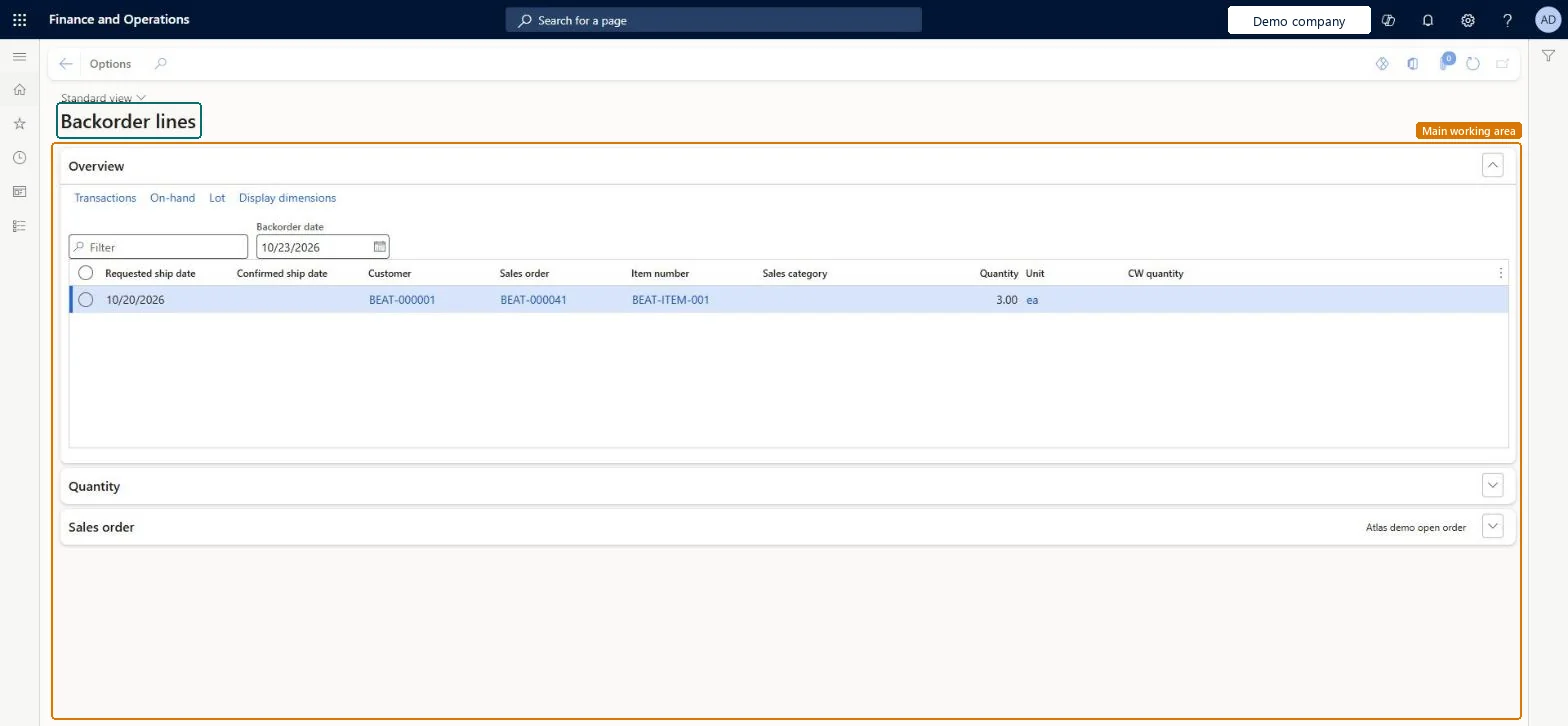
The page in Dynamics 365. page title tab to open what to set or check
About the examples: Examples and screenshots in this guide use BEAT, a demo company in a Dynamics 365 test environment. Use your own company's codes and values instead of copying them.
Setup steps on this page
Follow up backorder lines
Answer customers about delayed lines and correct their delivery dates.
Steps from Microsoft
Go to Sales and marketing > Sales orders > Open orders > Backorder lines.
Filter on the customer who asked about a delay.
Select Order lines to see the remaining open order lines, or Inventory transactions to see the transactions behind them.
Select Link on change view to keep the same line selected in both views.
Open the sales order and change the delivery date, then tell the customer.
Shows the inventory transactions behind the customer's backorders.Microsoft Learn
Link on change view
Keeps the same line selected when you switch between the two views.Microsoft Learn
Common errors and fixes
Message
What to do
A customer's delayed line doesn't appear.
Backorder lines shows lines not yet delivered; a line that is fully delivered by packing slip is no longer a backorder. Check the line's Deliver remainder on the order. Microsoft Learn
Test checklist
Create an order of 15.00 pcs with a ship date in the past and no packing slip.
Open Backorder lines and filter on the customer.
Check the line shows with 15.00 pcs remaining.
Post a packing slip for all and check the line disappears.
Filter on one customer first, then use Order lines to see the remaining lines and their ship dates.Backorders by customer show the status of the customer's remaining orders; without the filter the list mixes all customers.
To use itSales manager TradeSalesManagerRental manager RentalManagerRental coordinator agent RentalCoordinatorAgentAccounts receivable clerk CustInvoiceAccountsReceivableClerkAccounts receivable manager CustInvoiceAccountsReceivableManagerGive people one of these roles. On this system, 28 roles can open this page.Checked in Dynamics 365
Actions on the page
Options: Personalize, Page options, ShareChecked in Dynamics 365
SalesOrderLineV2Entity Sales order lines V2: open lines are migrated with their orders; this page only reads them.Load order: Lines load after Sales order headers V2: the lines entity needs the header created first.Load first: Sales order headers V2Microsoft Learn