SETUP GUIDEHow to set it up8 sections. Choose a role to highlight what matters to you.
Everyone
1What it is and why
What it is
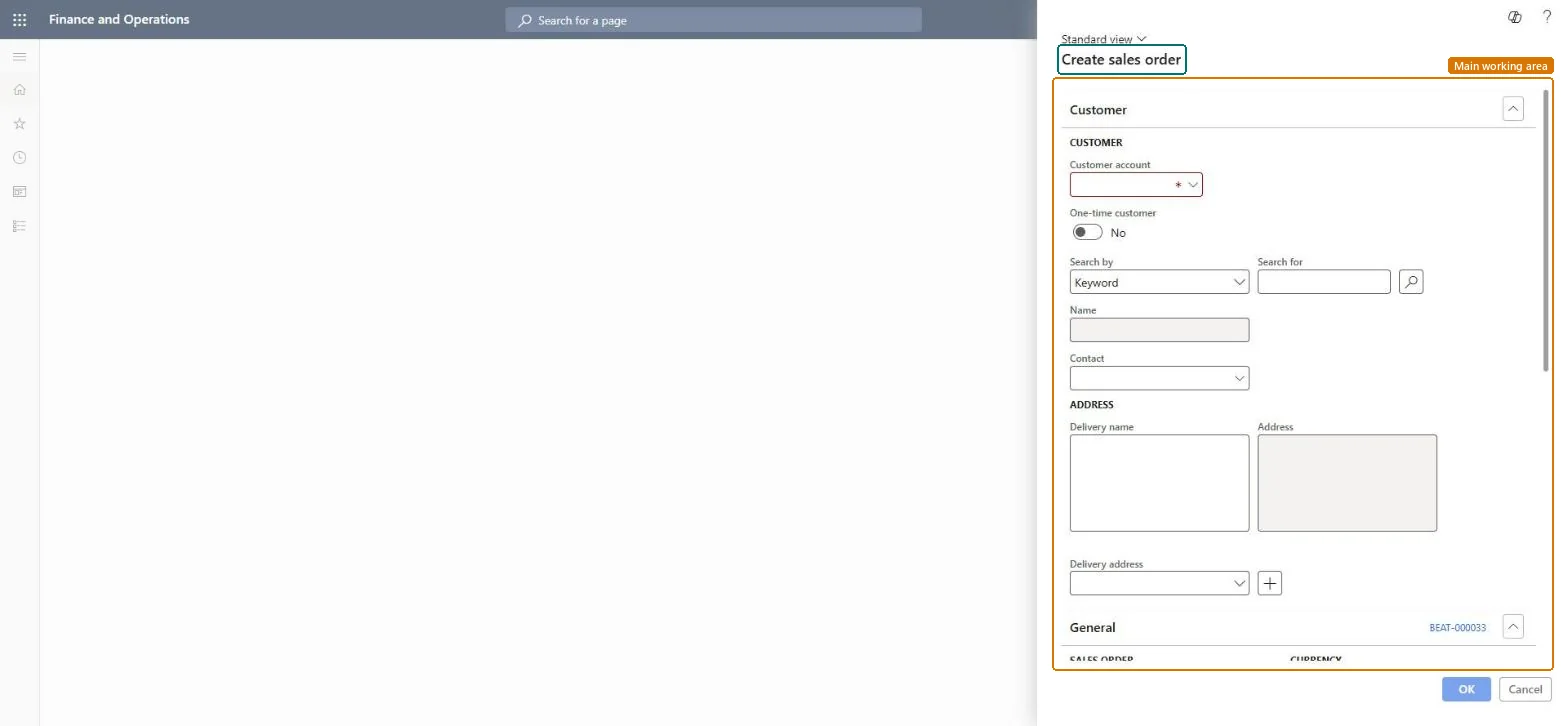
The Create sales order dialog, opened straight from the menu: you enter the customer and header details, and the new sales order opens for its lines.
What you do here
Use this dialog to start a sales order quickly without opening the All sales orders list first.
Example
For example, a BEAT order taker on the phone with customer BEAT-000077 opens Create sales order, selects the account, sets the requested ship date to the next Monday and selects OK; order SO-001240 opens and the taker adds 12.00 pcs of SPK-200 at 129.00.
The page in Dynamics 365. page title tab to open what to set or check
About the examples: Examples and screenshots in this guide use BEAT, a demo company in a Dynamics 365 test environment. Use your own company's codes and values instead of copying them.
Setup steps on this page
Start sales orders from Create sales order
Create a sales order header directly from the menu.
Steps from Microsoft
Go to Sales and marketing > Sales orders > Create sales order.
In the Customer account field, select the customer; check that the header defaults, such as the delivery address, are right.
Select OK to create the order.
In the Sales order lines section, select the Item number and enter the Quantity.
Check the Unit price and discounts, then confirm the order from the Sell tab.
Shows that the selected customer is an intercompany customer; the order then creates an intercompany purchase order in the customer's legal entity.Microsoft Learn
No
Common errors and fixes
Message
What to do
Shipment %1 cannot be confirmed because customer is on hold for %2.
The customer is on hold. Clear the reason, set Invoicing and delivery on hold to No on the customer, then confirm the shipment again. Microsoft Learn
Test checklist
Open Create sales order and select BEAT-000077.
Select OK.
Check that a new sales order number is assigned and the customer's defaults are on the header.
Add one line and check it appears on All sales orders.
Use this dialog for quick order entry, and check the header defaults (delivery address, requested dates) before selecting OK.Header values are copied to the lines when they are created, so a wrong header value spreads to every line.
On the live system, Sales manager, Accounts receivable clerk, Accounts receivable manager and Rental manager use this page.
Checked in Dynamics 365
Solution architect
5Design impact
Shared or per company
Per company: sales orders belong to the legal entity they're created in. An intercompany chain creates a separate order in each legal entity. Microsoft Learn
Can it be undone
Reversible: Delete or change the order while nothing is posted.
If you change it later
Creates a sales order header that copies the customer's defaults; for an intercompany customer it also creates the intercompany purchase order in the other legal entity. Microsoft Learn
To use itSales manager TradeSalesManagerRental manager RentalManagerRental coordinator agent RentalCoordinatorAgentAccounts receivable clerk CustInvoiceAccountsReceivableClerkAccounts receivable manager CustInvoiceAccountsReceivableManagerGive people one of these roles. On this system, 28 roles can run this page.Checked in Dynamics 365
SalesOrderHeaderV2Entity Sales order headers V2: loaded for each company.Load order: Load customers first, then Sales order headers V2, then Sales order lines V2.Load first: Customers V3Microsoft Learn