PAGE GUIDEWhat the page does and how to use it8 sections. Choose a role to highlight what matters to you.
Everyone
1What it is and why
What it is
A periodic job that confirms several sales orders at once and creates their confirmation documents.
What you do here
Use this periodic task to confirm many sales orders in one run, with the option to combine them into one confirmation.
Example
For example, customer BEAT-000123 has five open orders worth 8,450.00 in EUR; the clerk selects the account on the Range tab, sets Summary update for to Order with SO-001234 as the summary order, and sends one confirmation instead of five.
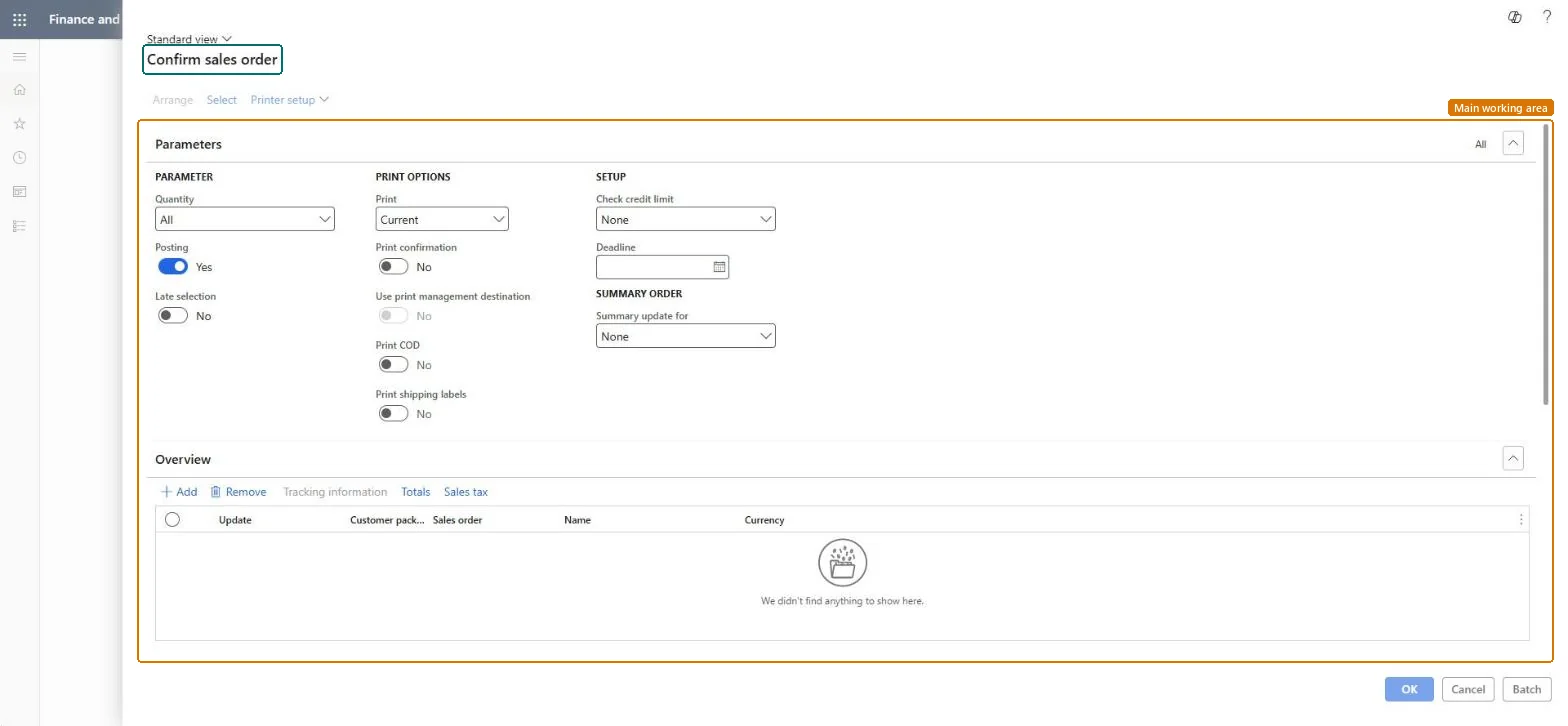
The page in Dynamics 365. page title tab to open what to set or check
About the examples: Examples and screenshots in this guide use BEAT, a demo company in a Dynamics 365 test environment. Use your own company's codes and values instead of copying them.
When to run it
When to run it
When agreed customer orders need a confirmation document, for example at the end of each order-entry day.
How often
Daily or whenever new orders are ready to confirm.
Batch settings
Run it in batch for large volumes, for example all orders entered during the day.
What the output shows
Sales order confirmations, one per order or combined per summary order, and Document status Confirmation on the orders. Orders that didn't combine have a different invoice account or currency.
Confirm many sales orders at once, combined where it helps the customer.
Steps from Microsoft
Go to Sales and marketing > Sales orders > Order confirmation > Confirm sales order.
Select Select, and on the Range tab enter the Customer account, or other criteria, for the orders to confirm.
In Summary update for, choose Order to combine several orders into one confirmation document. Orders are only combined when they share invoice account and currency.
In the Sales order field, select the order that should be the summary order, then select Arrange.
In Check credit limit, keep the default from the parameters or choose None to skip the check; a customer with Mandatory credit limit still gets the check.
Select OK, then open the orders and check that the Document status is Confirmation.
Prints the sales order confirmation when it is posted.Microsoft Learn
Yes
Common errors and fixes
Message
What to do
Sales order <order number> Credit limit exceeded ...
The classic credit limit check stopped or warned on the order. Check the customer's credit; Check credit limit = None skips it, except for customers with Mandatory credit limit. Microsoft Learn
Test checklist
Each order shows Document status Confirmation.
Combined orders appear on one confirmation.
Orders over the credit limit were handled as expected.
Set Default values for summary update on the Accounts receivable parameters, and use Summary update for = Order when customers want one confirmation for several orders.Orders combine only when they share invoice account and currency; the default comes from the parameters.
On the live system, Sales clerk, Retail service and Rental manager use this page.
Checked in Dynamics 365
Solution architect
5Design impact
Shared or per company
Per company: summary update parameters and defaults are set on the Accounts receivable parameters of each legal entity. Microsoft Learn
Can it be undone
Hard to reverse: The confirmation journal stays. If the order changes, confirm it again to create a new confirmation version. Microsoft Learn
If you change it later
Creates sales order confirmation journals and sets the Document status of the orders to Confirmation. Microsoft Learn
Technical architect
6Technical
Menu item
action:SalesFormLetter_ConfirmationChecked in Dynamics 365
Form
SalesEditLinesChecked in Dynamics 365
Roles to set it up and use it
To use itRental manager RentalManagerRental coordinator agent RentalCoordinatorAgentSales clerk TradeSalesClerkRetail service RetailServiceRental sales manager RentalSalesManagerGive people one of these roles. On this system, 11 roles can run this page.Checked in Dynamics 365
Load order: Confirm sales order has no data entity in Data management. It's a posting job; confirmations are created by posting and aren't migrated. Migrate open orders and confirm them again if the customer needs a document.Checked in Dynamics 365