SETUP GUIDEHow to set it up8 sections. Choose a role to highlight what matters to you.
Everyone
1What it is and why
What it is
A setup page where administrators set how email is sent for the whole environment, including the email providers and the SMTP or Microsoft Graph settings.
What you do here
Use this page to configure email behavior for the environment and to send a test email.
Example
For example, BEAT sends collection letters and workflow notifications through Microsoft Graph: the app registration has the Mail.Send application permission with admin consent, and the per-minute email sending limit stays 0 because Graph has its own throttling.
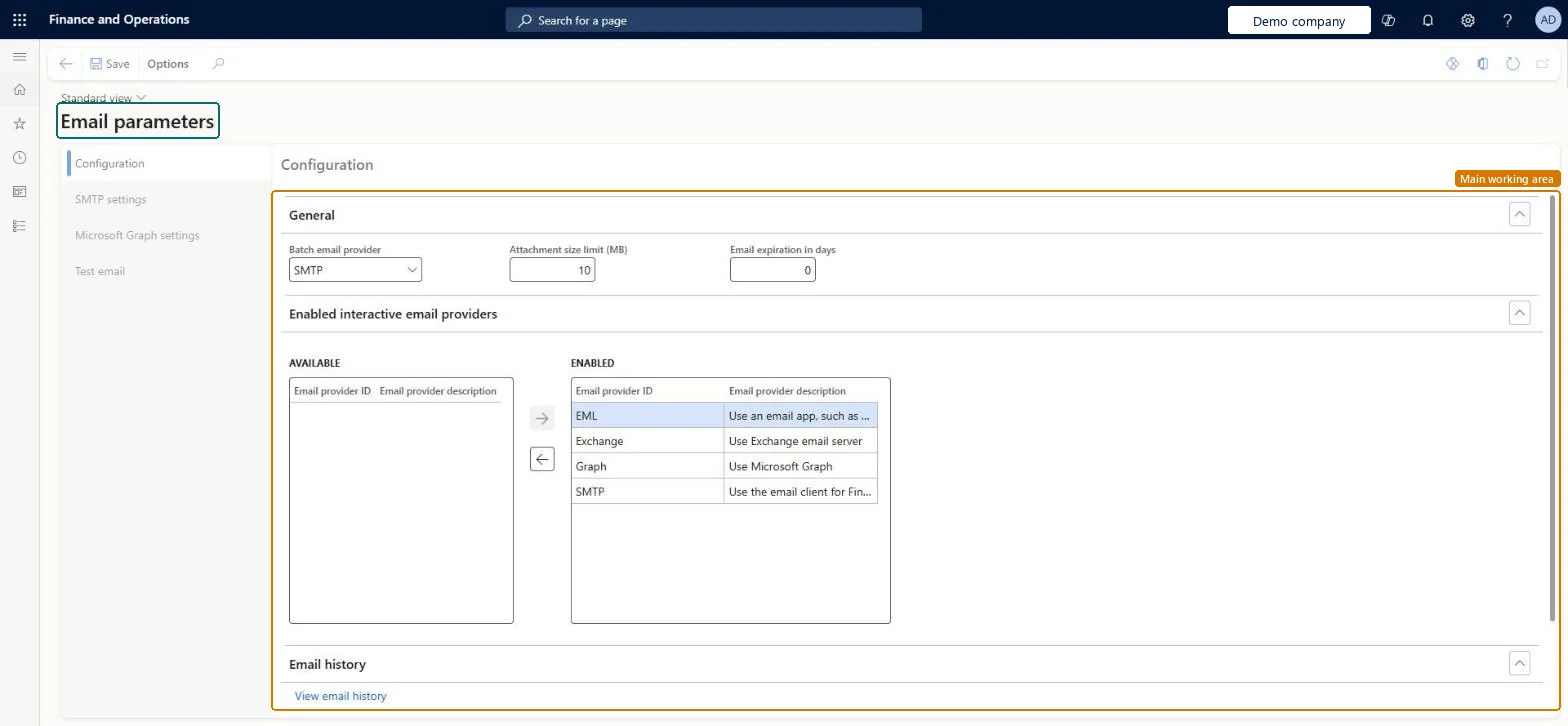
The page in Dynamics 365. page title tab to open what to set or check
About the examples: Examples and screenshots in this guide use BEAT, a demo company in a Dynamics 365 test environment. Use your own company's codes and values instead of copying them.
Step by step, with screenshots
Set up Email parameters1 screen
Use this page to configure email behavior for the environment and to send a test email.
Screen 1
Review the email parameters
Go to System administration > Setup > Email > Email parameters
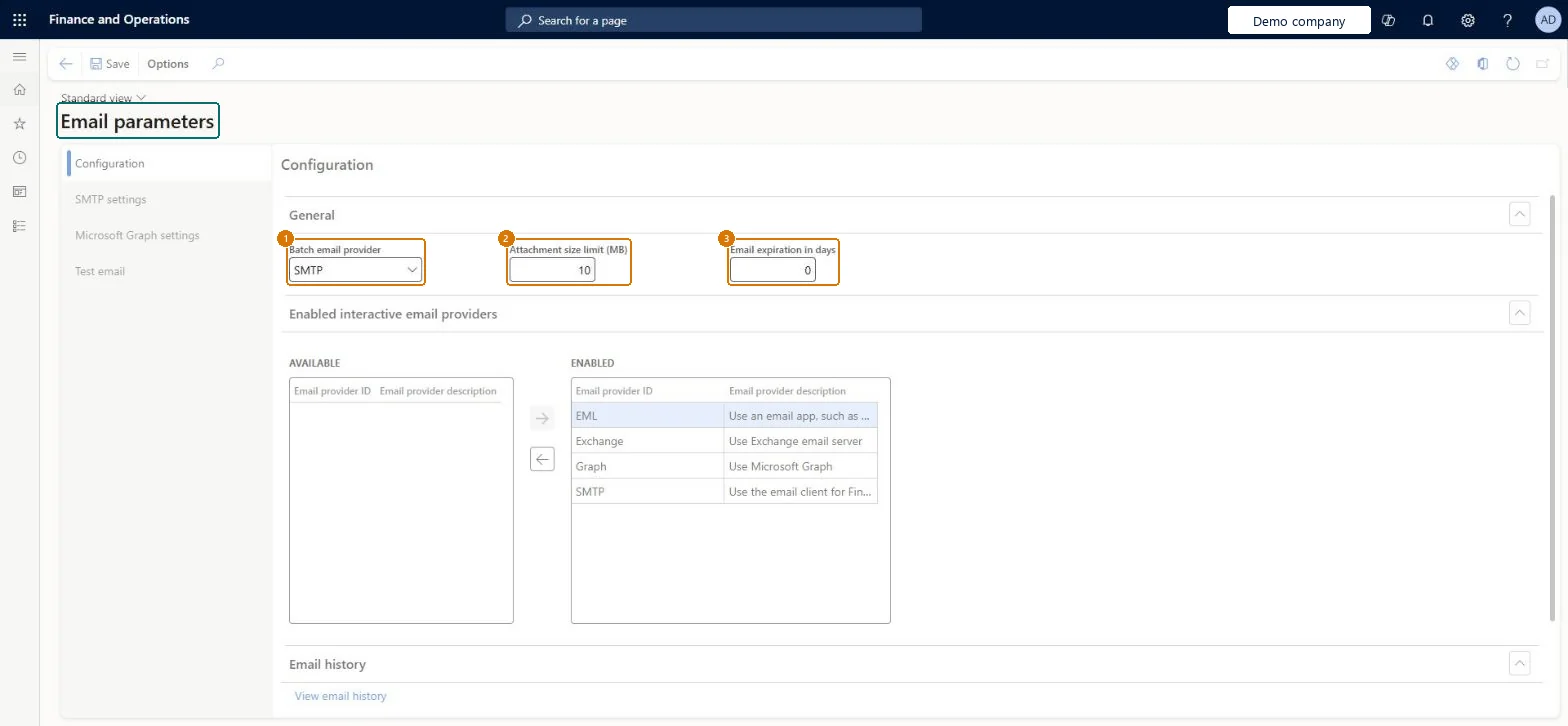
Open the Configuration tab and review the batch email provider, the attachment size limit and the email expiration
Review which interactive email providers are enabled
Open the SMTP settings or Microsoft Graph settings tab to review the provider settings
Open the Test email tab to send a test email
Show the full screen page title tab to open what to set or check
Steps from Microsoft
Go to System administration > Setup > Email > Email parameters.
On the Configuration tab, choose the interactive and batch email providers: Microsoft Graph for Microsoft 365 customers, SMTP otherwise. The Exchange provider is deprecated.
For Microsoft Graph or Exchange, keep the per-minute email sending limit at 0.
On the Microsoft Graph settings tab, enter the Application ID and the Application secret of the app registered in Microsoft Entra ID.
For SMTP, on the SMTP settings tab, enter the outgoing mail server, port 587 and SSL required = Yes, and the account if authentication is required.
Select Save, and then send a test email.
Turn on Batch processing for the Email distributor batch so queued email is sent.
Microsoft Graph as Batch email provider (with per-minute email sending limit = 0); if SMTP is used: port 587 with SSL required = YesMicrosoft Graph is the recommended provider for Microsoft 365 customers and replaces the deprecated Exchange provider. Graph and Exchange have their own throttling, so their per-minute limit should be 0.
Reversible: Providers and settings can be changed at any time. The SMTP password is encrypted per environment and must be re-entered after a database copy.
If you change it later
SMTP in finance and operations doesn't support multifactor authentication or OAuth 2.0, and the deprecation of Basic authentication in Exchange Online affects SMTP through Microsoft 365 SMTP servers, so Microsoft recommends the Microsoft Graph provider. The SMTP password is encrypted per environment and must be cleared and re-entered after a database copy. Microsoft Learn
Technical architect
6Technical
Menu item
SysEmailParametersChecked in Dynamics 365
Form
SysEmailParametersChecked in Dynamics 365
Table
SysEmailParametersShown as “Email parameters” in Record infoChecked in Dynamics 365
PrivilegesMaintain email parameters SysEmailParametersMaintainView email parameters SysEmailParametersViewDutiesMaintain system settings SysServerSettingsMaintain1 security roleInformation technology manager SysServerITManagerChecked in Dynamics 365
Roles to set it up and use it
To set it up or change itInformation technology manager SysServerITManagerGive people one of these roles. On this system, 1 role can open this page.Checked in Dynamics 365
Actions on the page
Options: Personalize, Page options, Edit, ShareChecked in Dynamics 365
SysEmailParametersEntity (Email parameters): shared by all companies.Load order: Email parameters isn't in Microsoft's default configuration templates in BEAT; add it to a data project on its own. A database refresh doesn't copy the SMTP relay server to the target sandbox, and the SMTP password must be entered again there.Checked in Dynamics 365
Checked in a working Dynamics 365 system, version 10.0.49: the menu item, form, table and security, the page, the demo records and the values in the screenshots.
To cite this step: SA-SETUP-340, Set up Email parameters. Beyond ERP Atlas Hub, 2026-11-11. https://www.beyonderp.cloud/atlas/step/SA-SETUP-340