Employee, Self-service employee, Human resource assistant and 4 more roles
Business process
Administer system features
Menu item
BusinessProcessGenericMyTemplates
Main table
BusinessProcessTemplateHeader
Setup steps
1 on this page
Show what matters for
SETUP GUIDEHow to set it up6 sections. Choose a role to highlight what matters to you.
Everyone
1What it is and why
What it is
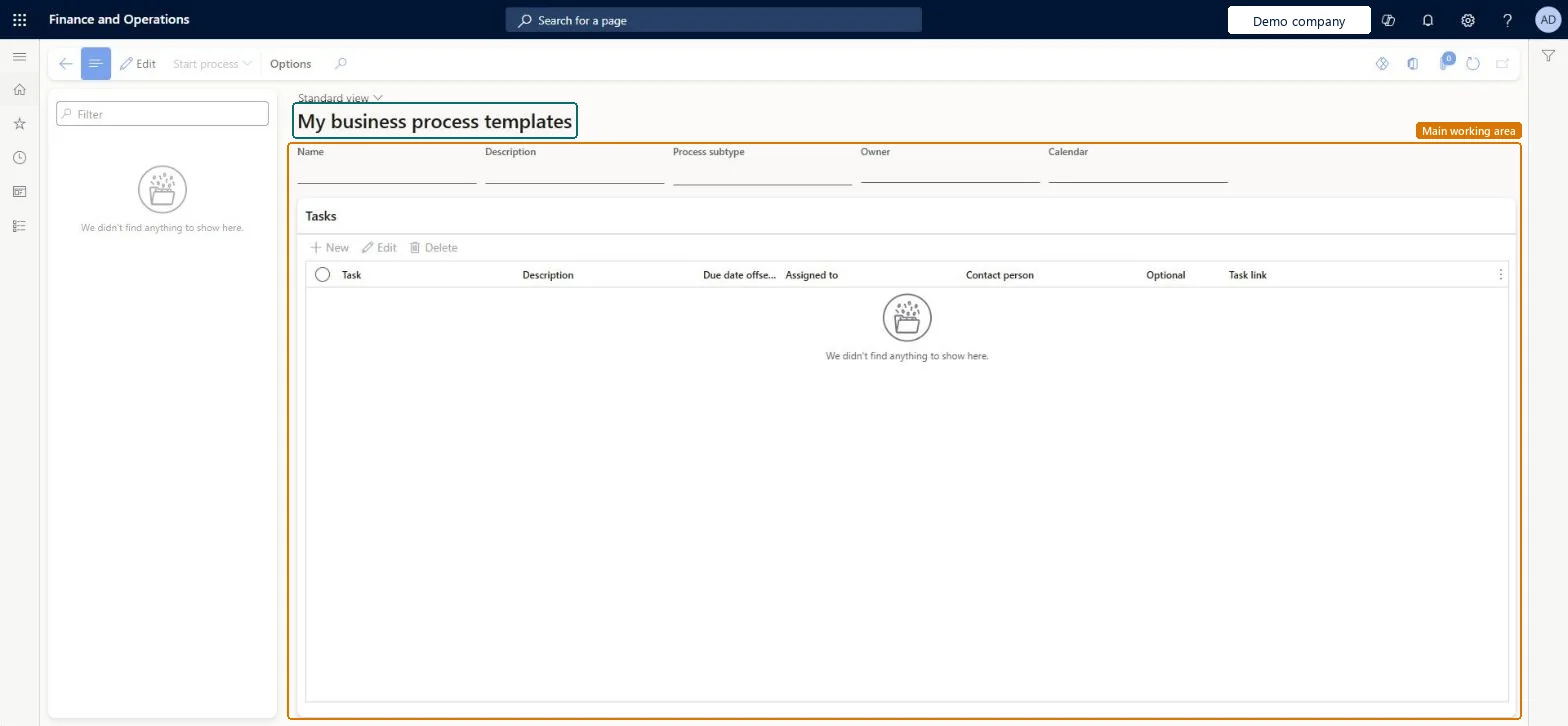
A setup page where you maintain business process templates, each with a name, description, process subtype, owner, calendar and a list of tasks.
What you do here
Use this page to define the tasks of a business process template, including each task's description, due date offset, assignee, contact person, whether it is optional and a task link. A Start process button is available on the Action Pane.
The page in Dynamics 365. page title tab to open what to set or check
About the examples: Examples and screenshots in this guide use BEAT, a demo company in a Dynamics 365 test environment. Use your own company's codes and values instead of copying them.
Setup steps on this page
Set up My business process templates
How to use it
Go to Organization administration > Setup > Business process > My business process templates.
Select Edit to change a template.
Enter the Name, Description, Process subtype, Owner and Calendar.
Under Tasks, select New to add a task.
Fill in the Task, Description, Due date offset, Assigned to, Contact person, Optional and Task link columns.
Select Start process to start the process.
Source: Checked in Dynamics 365
Technical architect
4Technical
Menu item
BusinessProcessGenericMyTemplatesChecked in Dynamics 365
Form
BusinessProcessGenericMyTemplatesChecked in Dynamics 365
Table
BusinessProcessTemplateHeaderShown as “Business process template” in Record infoChecked in Dynamics 365
Who can open it
PrivilegesMaintain generic business processes. BusinessProcessGenericMaintainMaintain owned generic business processes. BusinessProcessGenericOwnerMaintainDutiesMaintain generic business processes. BusinessProcessGenericMaintainMaintain owned generic business processes. BusinessProcessGenericOwnerMaintain7 security rolesEmployee HCMEmployeeSelf-service employee HCMEmployeeSelfServiceHuman resource assistant HcmHumanResourceAssistantHuman resource manager HcmHumanResourceManagerPayroll administrator HcmPayrollAdministratorPayroll manager HcmPayrollManagerRetail task manager RetailTaskManagerChecked in Dynamics 365
Roles to set it up and use it
To set it up or change itHuman resource manager HcmHumanResourceManagerHuman resource assistant HcmHumanResourceAssistantPayroll administrator HcmPayrollAdministratorPayroll manager HcmPayrollManagerRetail task manager RetailTaskManagerGive people one of these roles. On this system, 7 roles can open this page.Checked in Dynamics 365
Actions on the page
Options: Personalize, Page options, ShareChecked in Dynamics 365
Checked in a working Dynamics 365 system, version 10.0.49: the menu item, form, table and security, the page.
To cite this step: OA-SETUP-340, Set up My business process templates. Beyond ERP Atlas Hub, 2026-11-11. https://www.beyonderp.cloud/atlas/step/OA-SETUP-340