About the examples: Examples and screenshots in this guide use BEAT, a demo company in a Dynamics 365 test environment. Use your own company's codes and values instead of copying them.
Step by step, with screenshots
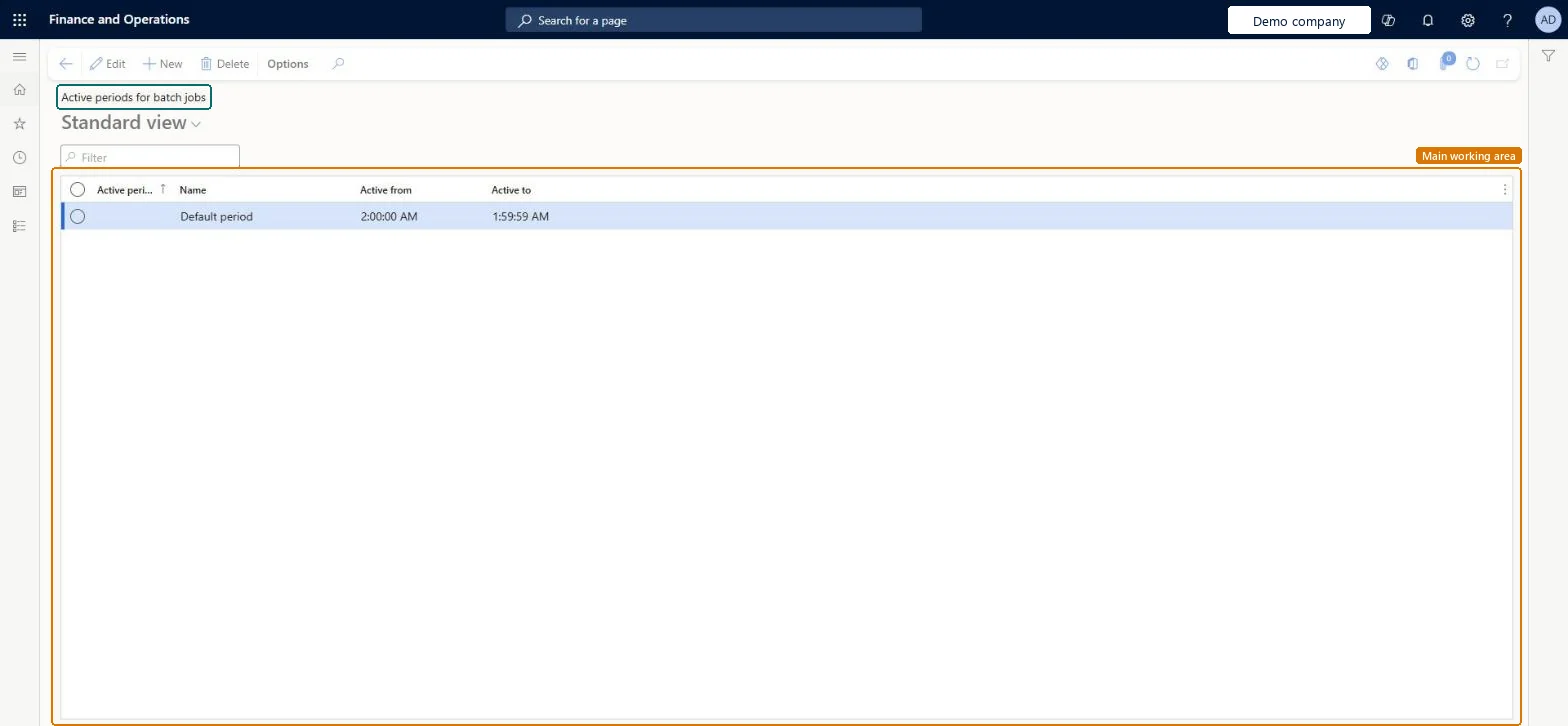
Set up Active periods for batch jobs1 screen
Use this page to control when batch jobs run, for example only outside office hours.
Screen 1
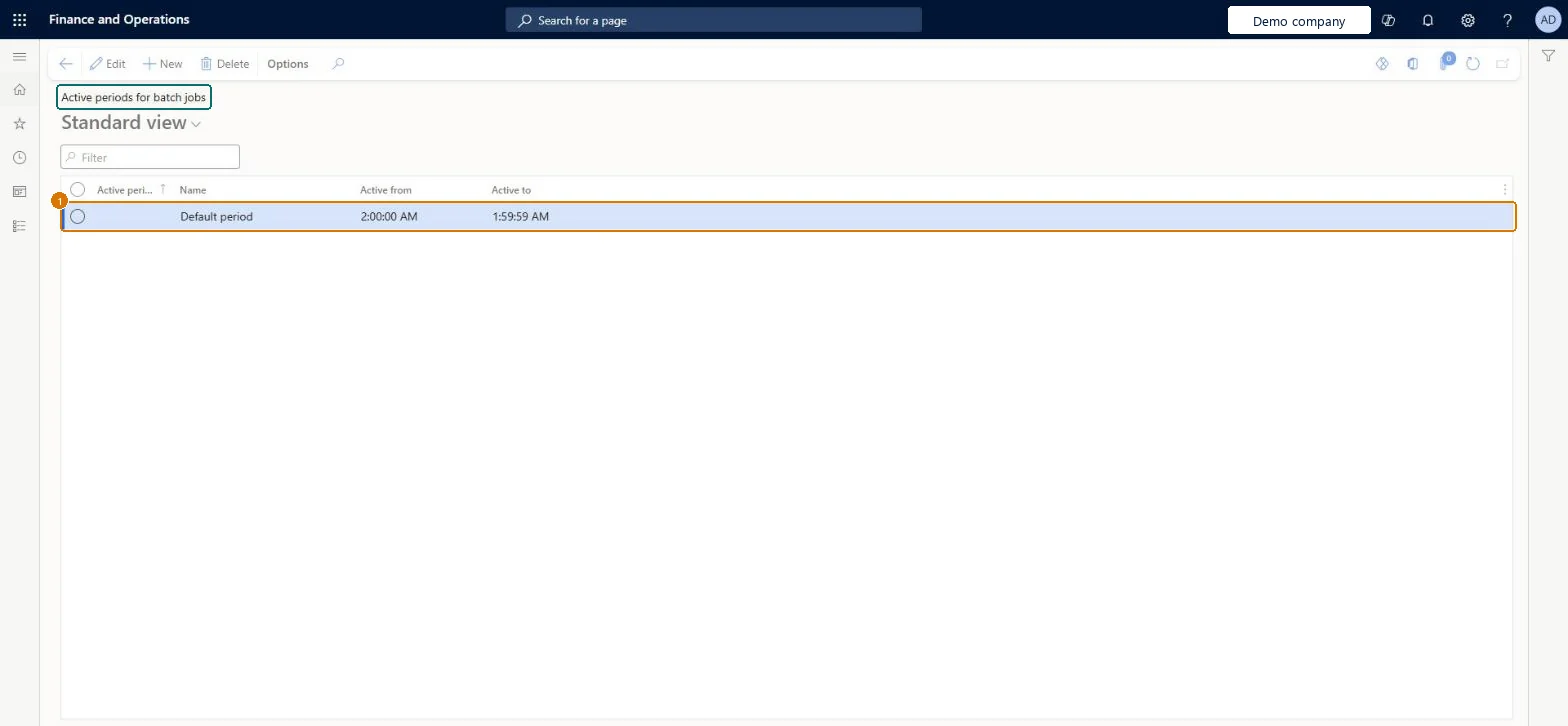
Review the active periods for batch jobs
Go to System administration > Setup > Active periods for batch jobs
Review the name and the active from and active to times of each period
Select New to add a period when batch jobs should only run at certain times
Show the full screen page title tab to open what to set or check
Steps from Microsoft
Go to System administration > Setup > Active periods for batch jobs.
Enter a name and the start and end of the active period.
Select Save.
Go to System administration > Inquiries > Batch jobs, select a job and select Edit.
In the Active period field, select the active period, and then select Save.
Set Timezone on each active period to the time zone of the business that owns the jobs, for example 6:00 PM to 8:00 AM local time for out-of-hours jobsWith daylight saving time support, each active period follows the DST changes of its time zone, so jobs keep starting at the same local hour all year. Every period starts in UTC by default.
Daylight Saving Time support for batch job active periods (Optional)
Licence or add-in
On this system the page opens for Information technology manager, Scale unit administrator and Batch job manager. Batch job managers and IT administrators maintain active periods. Daylight saving time support is an optional feature that can't be turned off once on.
One-way: Warning: Turning on the Daylight Saving Time support for batch job active periods feature can't be undone. The periods themselves can be edited at any time. Microsoft Learn
If you change it later
Once daylight saving time support for active periods is turned on, it can't be turned off, and existing periods are shown in the UTC time zone. Microsoft Learn
Technical architect
6Technical
Menu item
BatchJobActivePeriodChecked in Dynamics 365
Form
BatchJobActivePeriodChecked in Dynamics 365
Table
BatchJobActivePeriodShown as “Active periods for batch jobs” in Record infoChecked in Dynamics 365
Who can open it
PrivilegesMaintain batch jobs BatchJobMaintainView batch jobs BatchJobViewDutiesMaintain batch jobs BatchJobMaintainMaintain the runtime of scale units. ScaleUnitRuntimeMaintainMaintain system settings SysServerSettingsMaintain3 security rolesBatch job manager BatchJobManagerScale unit administrator ScaleUnitRuntimeAdminInformation technology manager SysServerITManagerChecked in Dynamics 365
Roles to set it up and use it
To set it up or change itInformation technology manager SysServerITManagerScale unit administrator ScaleUnitRuntimeAdminBatch job manager BatchJobManagerGive people one of these roles. On this system, 3 roles can open this page.Checked in Dynamics 365
Actions on the page
Options: Personalize, Page options, ShareChecked in Dynamics 365
Load order: Active periods for batch jobs has no data entity in Data management, so it can't be loaded from a file or a configuration template. Create the periods by hand in each environment, then select them on the batch jobs.Checked in Dynamics 365
Checked in a working Dynamics 365 system, version 10.0.49: the menu item, form, table and security, the page, the demo records and the values in the screenshots.