About the examples: Examples and screenshots in this guide use BEAT, a demo company in a Dynamics 365 test environment. Use your own company's codes and values instead of copying them.
Step by step, with screenshots
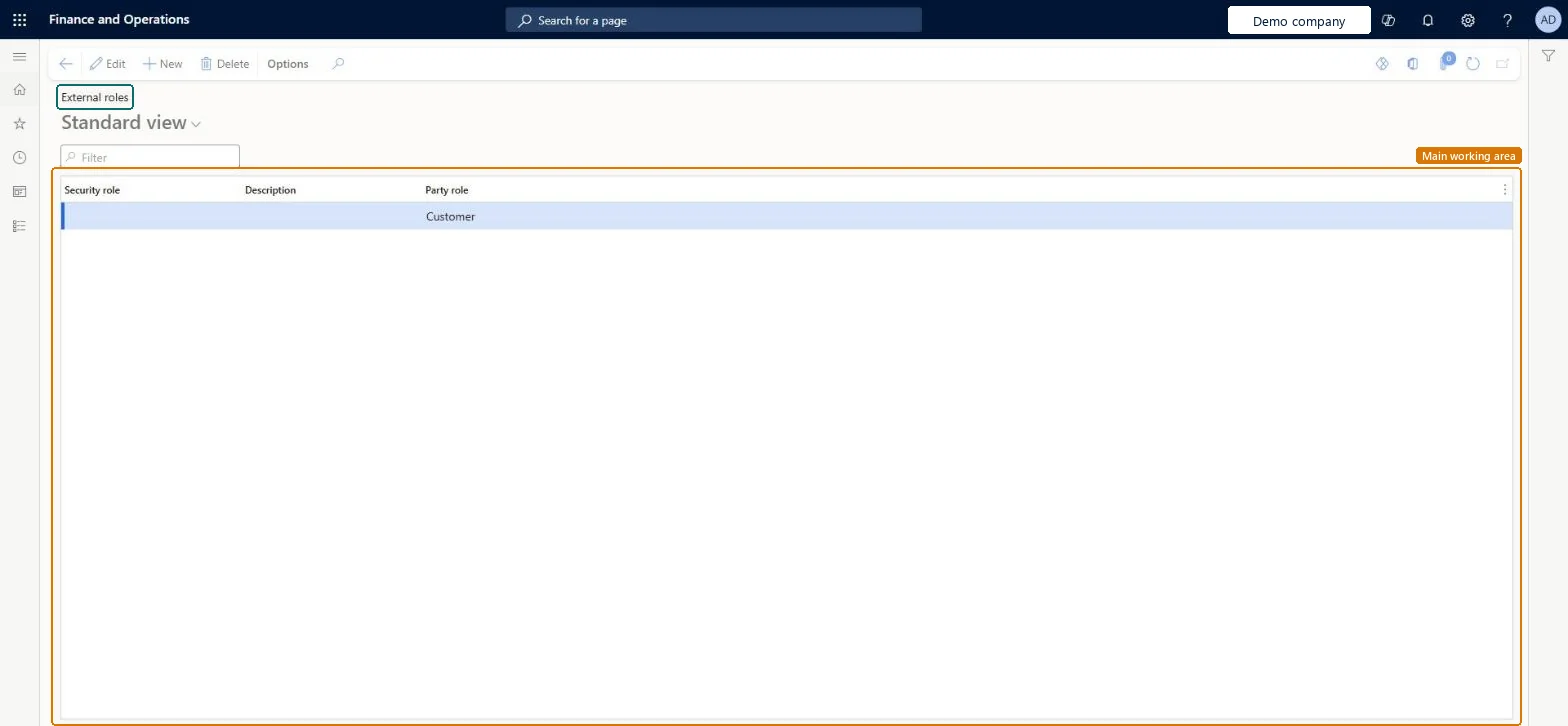
Set up External roles1 screen
Use this page to control which roles can be requested for vendor and prospective vendor users, so they only get access they should have.
Screen 1
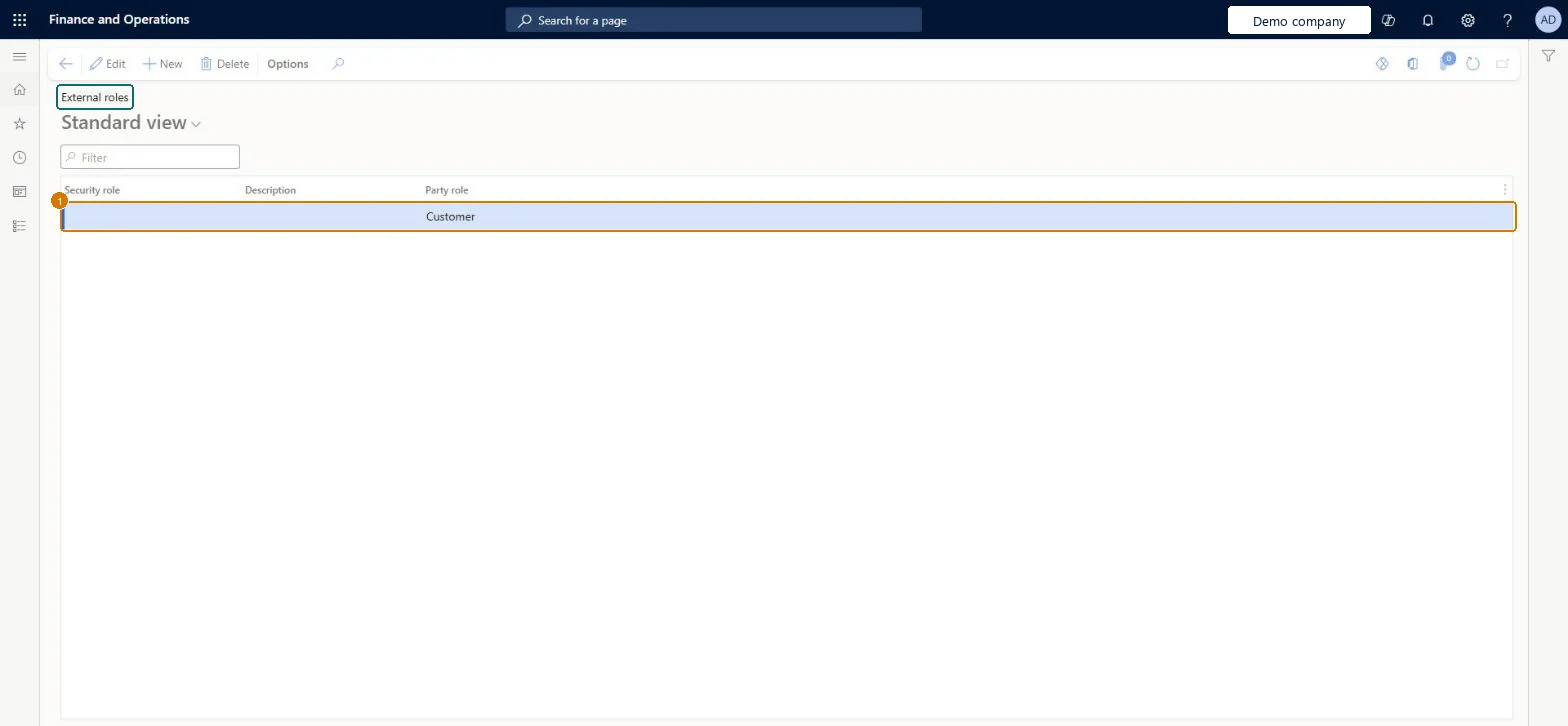
Review the roles external users can request
Go to System administration > Security > External roles
Review the party role and the security role on each line
Select New to add a line for another party role and choose the security role it may request
Show the full screen page title tab to open what to set or check
Steps from Microsoft
Go to System administration > Security > External roles.
Select New.
Select a security role, such as Vendor admin (external) or Vendor (external).
Select the party role, such as Vendor or Prospective vendor.
Check that the vendor request is Request approved and that the vendor user has the roles defined for the Vendor party role on External roles; assign them by hand if Vendor collaboration access was set to No at approval. Microsoft Learn
Access Denied: You do not have sufficient permissions to open the menu item VendProspectiveVendorRegistrationWizard. Please contact your system administrator.
Assign the prospective vendor the System external user and Vendor prospective (external) roles. Microsoft Learn
Test checklist
Add Vendor (external) for the Vendor party role and Vendor prospect (external) for the Prospective vendor party role.
From a vendor contact, select Provision vendor user and check that only the listed roles can be selected.
After the request is approved, check that the new user has the selected role and SystemExternalUser.
Sign in as the vendor user and check that only vendor collaboration pages are available.
Vendor (external) for the Vendor party role; add Vendor admin (external) only if vendors maintain their own contacts and user requests; Vendor prospect (external) for the Prospective vendor party roleThese are the roles Supply Chain Management provides for vendor collaboration and onboarding. Only roles listed here can be requested in a vendor user request, which keeps vendors to the access they need.
To set it up or change itInformation technology manager SysServerITManagerGive people one of these roles. On this system, 1 role can open this page.Checked in Dynamics 365
Actions on the page
Options: Personalize, Page options, ShareChecked in Dynamics 365
DirExternalRoleEntity (External role): shared by all companies; not in Microsoft's default templates.Load order: Load External role after the roles it names exist in the target, including custom roles from Security configuration.Load first: Security rolesChecked in Dynamics 365
Checked in a working Dynamics 365 system, version 10.0.49: the menu item, form, table and security, the page, the demo records and the values in the screenshots.
To cite this step: SA-SEC-030, Set up External roles. Beyond ERP Atlas Hub, 2026-11-11. https://www.beyonderp.cloud/atlas/step/SA-SEC-030