BeyondERP.Newsletter
Menu

Setup step on the Email attachments page · System administration

Schedule the email attachment distributor

Send the attachments of server email together with the email queue.

Business process
Administer system features
Menu item
action:SysEmailAttachment
Setup steps
1 on this page
Show what matters for
SETUP GUIDEHow to set it up8 sections. Choose a role to highlight what matters to you.
Everyone

1What it is and why

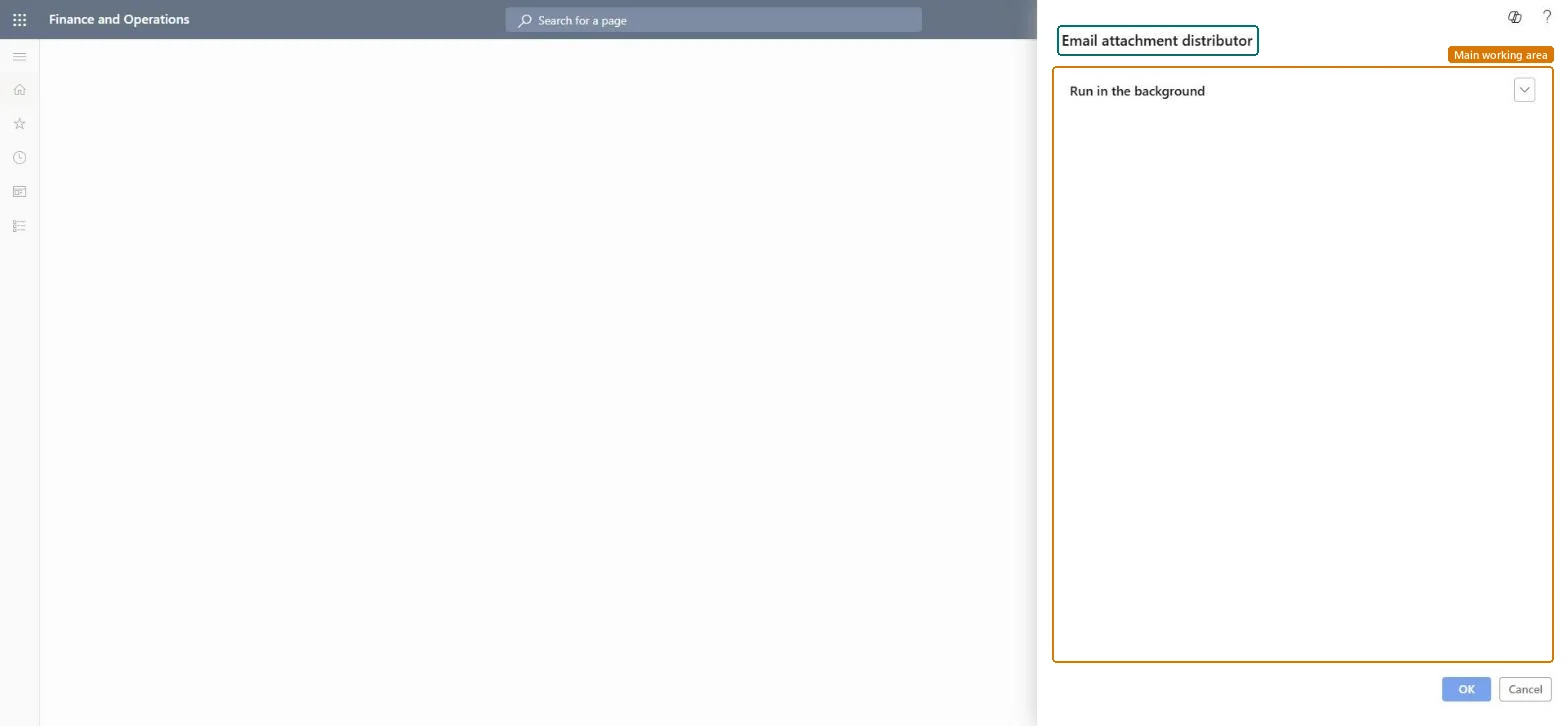
What it isA periodic job, titled Email attachment distributor on its dialog, that runs the attachment distribution for email the server sends; the dialog has only a Run in the background section.
What you do hereUse it next to the Email distributor batch, at once or as a background job, when the server sends email with attachments.
ExampleFor example, BEAT sends statements by batch email; the administrator schedules the Email attachment distributor on the same recurrence as the Email distributor batch and checks Batch email sending status afterwards.
Email attachments page in Dynamics 365
The page in Dynamics 365. page title tab to open what to set or check
Functional consultant · Solution architect

2Where it fits

End user · Functional consultant

3How to do it

About the examples: Examples and screenshots in this guide use BEAT, a demo company in a Dynamics 365 test environment. Use your own company's codes and values instead of copying them.

When to run it

When to run itWhen the server sends email with attachments, for example documents sent by batch processes.
How oftenOn demand, or as a recurring background job next to the Email distributor batch.
Batch settingsRun it in the background on a recurrence that matches the Email distributor batch.
What the output showsAttachments handed over for the queued email. A message that fails because of its size usually means it is over the Attachment size limit on Email parameters.

Source: Microsoft Learn

Setup steps on this page

Schedule the email attachment distributor

Send the attachments of server email together with the email queue.

Steps from Microsoft

  1. Go to System administration > Periodic tasks > Email processing > Email attachments.
  2. Use it alongside the Email distributor batch: this Email attachment distributor handles the attachments of email that the server sends.
  3. Expand Run in the background and set it up as a batch job if attachments are sent regularly.
  4. Afterwards, open Batch email sending status and confirm that messages with attachments were sent.
  5. For a message that failed, open Email history and read the error on the Failure details tab.

Source: Microsoft Learn

Fields on the page

FieldWhat it means
Run in the backgroundThe only section on the dialog: batch processing and recurrence.Checked in Dynamics 365

Common errors and fixes

MessageWhat to do
A message with an attachment failsOpen Email history, filter Email status = Failed and read Failure details; check the Attachment size limit on Email parameters. Microsoft Learn
Functional consultant

4Setup decisions

Setup stepRecommended value and whyDecision, common mistake and test
Schedule the email attachment distributorA recurring background job on the same recurrence as the Email distributor batch, only where the server sends email with attachmentsThe attachment size limit on Email parameters caps every single email, so failures show up on Email history with their details.Is the attachment distributor scheduled?Checking only Batch email sending status; the reason for a failed attachment is on the Failure details tab of Email history.Test: Server email with an attachment arrives

Feature management and licence

Licence or add-inNo Feature management feature needs to be turned on for this page.

Microsoft Learn

Solution architect

5Design impact

Shared or per companyEnvironment-wide: it works on the email queue of the whole environment. Microsoft Learn
Can it be undoneNo: Sent email can't be recalled.
If you change it laterAttachments are sent with the queued email; a message over the Attachment size limit on Email parameters can't be sent. Microsoft Learn
Technical architect

6Technical

Menu itemaction:SysEmailAttachment Checked in Dynamics 365
FormDialog Checked in Dynamics 365
Developer

7Developer

Open it by URLhttps://<your-environment>/?mi=action:SysEmailAttachment
Data migrationLoad order: Email attachments has no data entity in Data management, so it can't be loaded from a file or a configuration template. It is a periodic job; set it up again in each environment.Checked in Dynamics 365
Everyone

8Sources

To cite this step: SA-EMAIL-820, Schedule the email attachment distributor. Beyond ERP Atlas Hub, 2026-11-11. https://www.beyonderp.cloud/atlas/step/SA-EMAIL-820