System administrationPeriodic tasksEmail processing
action:SysEmailDistributor
Business process
Administer system features
Menu item
action:SysEmailDistributor
Setup steps
1 on this page
Show what matters for
SETUP GUIDEHow to set it up8 sections. Choose a role to highlight what matters to you.
Everyone
1What it is and why
What it is
A periodic job that sends the queued email that the server sends without user interaction.
What you do here
Use this periodic task to process the email queue; it must be running for such email to be sent.
Example
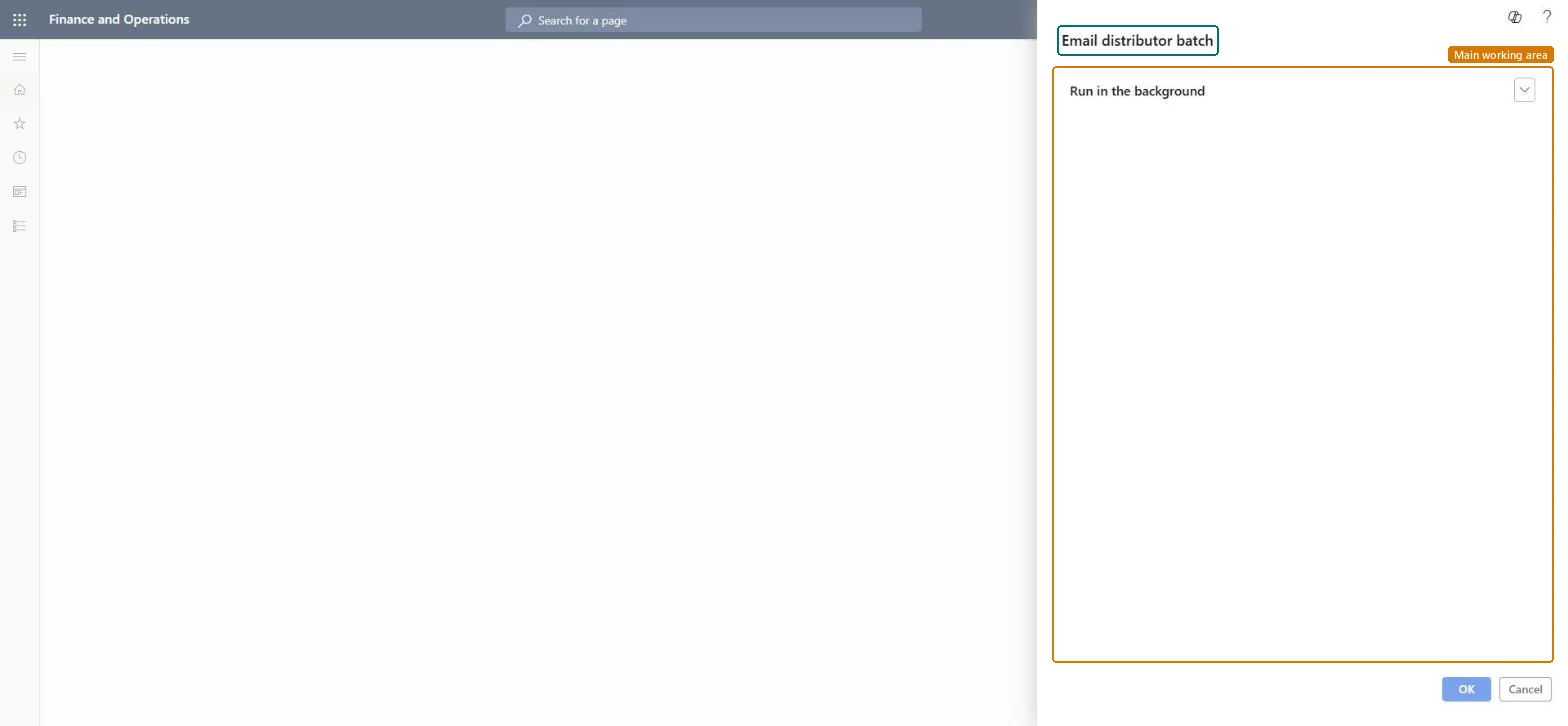
For example, after a database refresh BEAT's workflow notifications stop; Batch email sending status shows them queued, and the administrator restarts Email distributor batch with Recurrence set to No end date, every minute.
The page in Dynamics 365. page title tab to open what to set or check
About the examples: Examples and screenshots in this guide use BEAT, a demo company in a Dynamics 365 test environment. Use your own company's codes and values instead of copying them.
When to run it
When to run it
Once during email setup, and again whenever the job was stopped, deleted or lost after an environment refresh.
How often
Continuously, as a recurring job with no end date.
Batch settings
Keep it as a recurring batch job with No end date, typically every minute.
What the output shows
Queued email such as workflow notifications sent through the batch email provider. Email that stays queued usually means this job isn't running; email that fails usually points to the provider settings or Send As permissions.
Go to System administration > Periodic tasks > Email processing > Email distributor batch.
Before you start it, make sure Email parameters has a batch email provider with working SMTP or Microsoft Graph settings, because this job sends the email that the server sends without user interaction.
Turn on Batch processing; the email queue is processed only while this job runs.
Select Recurrence, select No end date and adjust the count; set it to run every minute if needed.
Start it with the right account: with Microsoft Graph or Exchange, the account that runs the job, usually admin, becomes the sender.
Open Batch email sending status and confirm that queued messages move on to sent.
One recurring job with No end date, every minute, started by the account that should send Graph or Exchange emailLearn: the batch process must run to process the queue, and with Microsoft Graph or Exchange the account associated with the batch process is the sender.
Load order: Email distributor batch has no data entity in Data management, so it can't be loaded from a file or a configuration template. It is a recurring batch job; start it again in each environment, for example after a refresh.Checked in Dynamics 365