System administrationPeriodic tasksEmail processing
SysOutgoingEmailTable
Used by
Information technology manager
Business process
Administer system features
Menu item
SysOutgoingEmailTable
Main table
SysOutgoingEmailTable
Setup steps
1 on this page
Show what matters for
PAGE GUIDEWhat the page does and how to use it8 sections. Choose a role to highlight what matters to you.
Everyone
1What it is and why
What it is
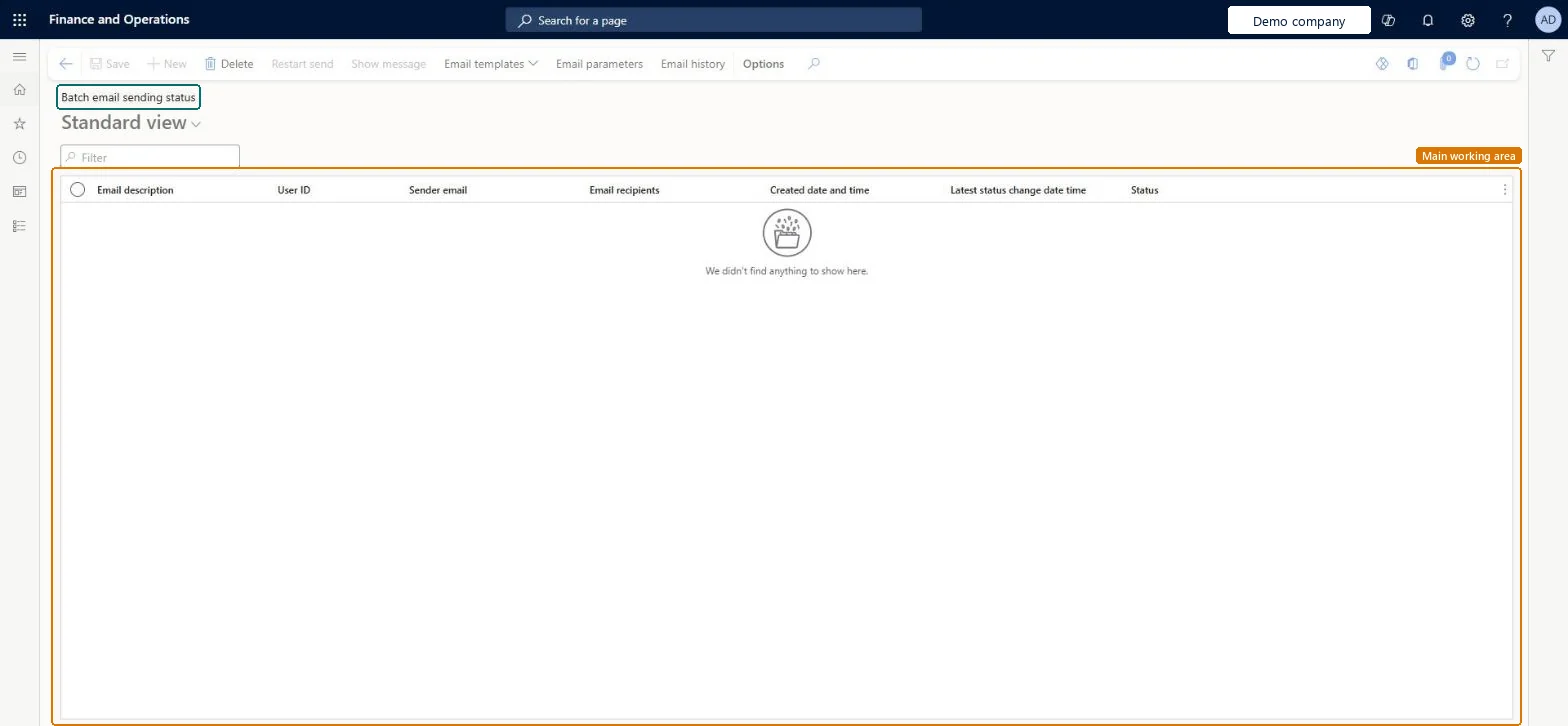
An inquiry page that shows the status of the email waiting to be sent, or sent, by the email batch process.
What you do here
Use this page to check that emails are sent and come from the correct account.
Example
For example, a BEAT approver says workflow emails never arrive; the administrator filters the page on that user, finds three messages in Failed with Sender email set to a personal mailbox, and corrects the system email template's sender.
The page in Dynamics 365. page title tab to open what to set or check
About the examples: Examples and screenshots in this guide use BEAT, a demo company in a Dynamics 365 test environment. Use your own company's codes and values instead of copying them.
When to run it
When to run it
When users report missing email, and after you set up workflow email notifications.
How often
On demand, when email delivery is in doubt.
What the output shows
One line per email sent or waiting to be sent by the email batch process, with its status and timing. Many lines still waiting usually mean the Email distributor batch isn't running; a wrong Sender email points to user options or templates.
Confirm that system email is sent, and sent from the right account.
Steps from Microsoft
Go to System administration > Periodic tasks > Email processing > Batch email sending status.
Find the message and read Email description, User ID, Sender email, Email recipients, Created date and time, Latest status change date time and Status.
Compare Sender email with the account you expect. If it is wrong, adjust user options, system email templates or organization email templates.
Select Show message to read a message, or Restart send to try a failed message again.
For the reason of a failure, open Email history and read the Failure details tab of the failed email.
Filter on the user or status first, then compare Sender email with the expected accountLearn's troubleshooting starts here: wrong senders point to user options or templates, waiting messages to a stopped distributor.
Nothing to undo: Viewing the list changes nothing. Restart send queues the selected message again, and a message that is sent can't be recalled. Microsoft Learn
If you change it later
If email goes out from the wrong account, change the user options, system templates or organization templates. Microsoft Learn
Technical architect
6Technical
Menu item
SysOutgoingEmailTableChecked in Dynamics 365
Form
SysOutgoingEmailTableChecked in Dynamics 365
Table
SysOutgoingEmailTableShown as “Outgoing email” in Record infoKey field: UserId, EmailItemIdChecked in Dynamics 365
Who can open it
PrivilegesMaintain status of sent emails SysOutgoingEmailTableMaintainDutiesMaintain system settings SysServerSettingsMaintain1 security roleInformation technology manager SysServerITManagerChecked in Dynamics 365
Roles to set it up and use it
To set it up or change itInformation technology manager SysServerITManagerGive people one of these roles. On this system, 1 role can open this page.Checked in Dynamics 365
Actions on the page
Options: Personalize, Page options, Edit, ShareChecked in Dynamics 365
Load order: Batch email sending status has no data entity in Data management, so it can't be loaded from a file or a configuration template. It lists the outgoing email queue of the environment, which isn't moved between environments.Checked in Dynamics 365