About the examples: Examples and screenshots in this guide use BEAT, a demo company in a Dynamics 365 test environment. Use your own company's codes and values instead of copying them.
When to run it
When to run it
When you start using alert rules based on due dates; after that the job runs at least daily.
How often
At least once a day, plus an extra run when a same-day due date must be caught.
Batch settings
Run it as a recurring daily batch job, timed just after the date change or at night.
What the output shows
Alert messages for every date that became due since the last run and matches an alert rule. Messages that never arrive after a stop of several days usually mean the batch processing window was shorter than the stop.
Turn dates that became due into alerts for the users whose rules match them.
Steps from Microsoft
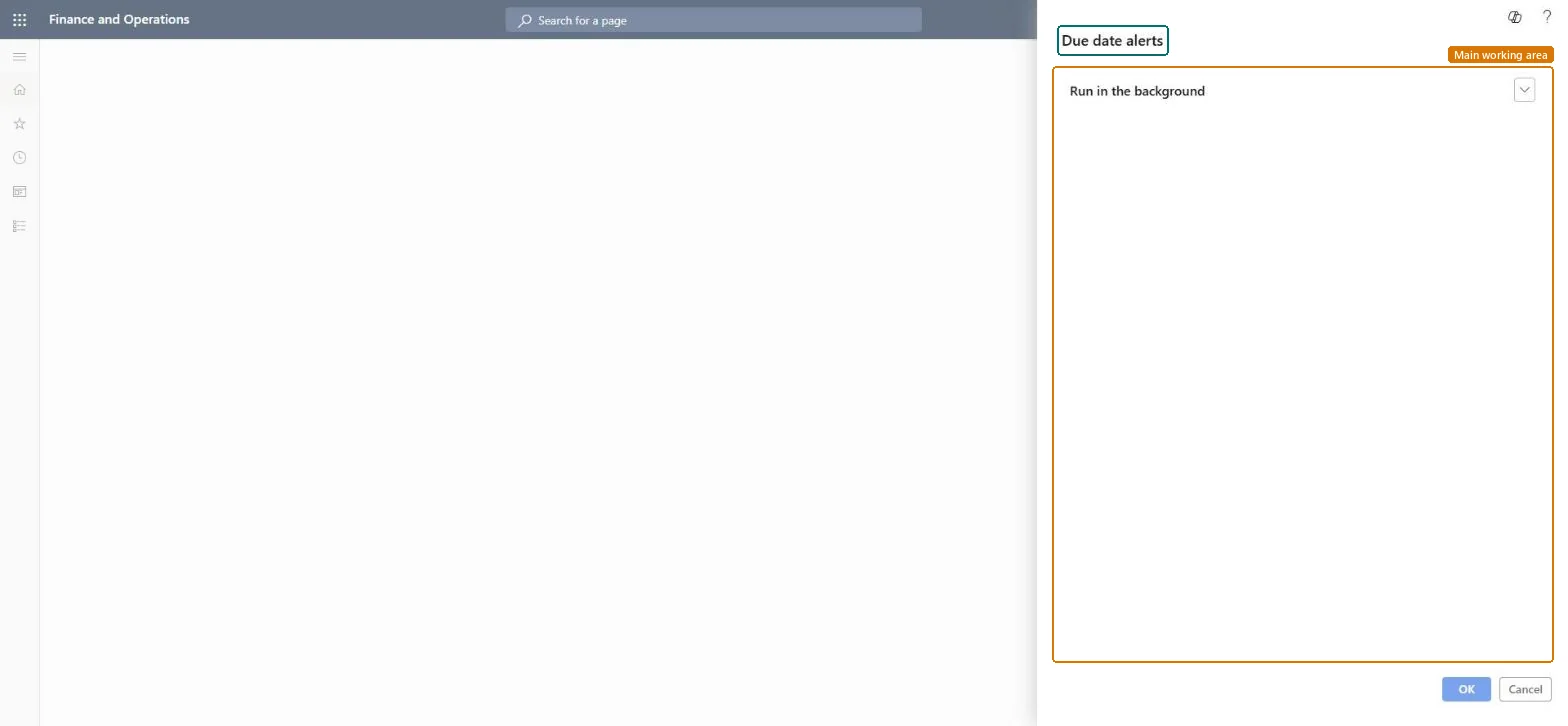
Go to System administration > Periodic tasks > Alerts > Due date alerts.
In Batch processing window, enter how many days late a due-date message may still be sent, so events aren't lost when the job doesn't run for some days.
Turn on batch processing and set a recurrence of at least once a day.
Schedule the run just after the system date changes when messages must arrive as early as possible, or at night to spread the load.
When a document created during the day must raise its due-date message the same day, run the job again; a second run doesn't create duplicate messages.
The next day, confirm that users received messages for the dates that became due.
Keeps due date alerts from being lost when the job hasn't run for a few days.Microsoft Learn
3 days
Run in the background
Recurrence of at least once a day, just after the date change or at night.Microsoft Learn
Common errors and fixes
Message
What to do
Due date alerts are missing after the job stopped for some days
The stop was longer than the due-date criteria plus the batch processing window. Set a batch processing window that covers likely stops. Microsoft Learn
A document created today didn't raise today's alert
The day's run happened before the document was created. Run the job again; a second run doesn't duplicate alerts. Microsoft Learn
At least one run a day just after the date changes, with a batch processing window that covers a long weekendLearn recommends at least one run per day, just after the date change for early alerts, and a processing window so alerts aren't lost when the job stops.
Rules apply in the company where they were created, unless a rule is set to Organization-wide, which applies across legal entities. Microsoft Learn
Can it be undone
No: Sent alerts can't be recalled.
If you change it later
Running the job more than once a day doesn't create duplicate alerts. Microsoft Learn
Technical architect
6Technical
Menu item
action:EventDueDateChecked in Dynamics 365
Form
DialogChecked in Dynamics 365
Roles to set it up and use it
To use itInformation technology manager SysServerITManagerGive people one of these roles. On this system, 1 role can run this page.Checked in Dynamics 365
Load order: Due date alerts has no data entity in Data management, so it can't be loaded from a file or a configuration template. It is a recurring batch job; set it up again in each environment.Checked in Dynamics 365