Setup step on the Replenishment rules page · Retail and Commerce
Set up Replenishment rules
Use this page to create rules for stores or store groups so that, when Replenishment rules is the distribution method, each store receives quantities in proportion to its weight.
Retail and CommerceInventory managementReplenishment
RetailReplenishmentRuleTable
Used by
Retail operations manager, Retail service
Business process
Manage sales channels
Menu item
RetailReplenishmentRuleTable
Main table
RetailReplenishmentRuleTable
Data entity
RetailReplenishmentRuleEntity
Setup steps
1 on this page
Show what matters for
SETUP GUIDEHow to set it up8 sections. Choose a role to highlight what matters to you.
Everyone
1What it is and why
What it is
A setup page where you define replenishment rules: named lists of replenishment hierarchies or channels, each with a weight, that control how quantities are shared between stores in cross docking and buyer's push.
What you do here
Use this page to create rules for stores or store groups so that, when Replenishment rules is the distribution method, each store receives quantities in proportion to its weight.
Example
For example, a rule line of type Channel targets one store, while a line of type Replenishment hierarchy targets a whole hierarchy of channels.
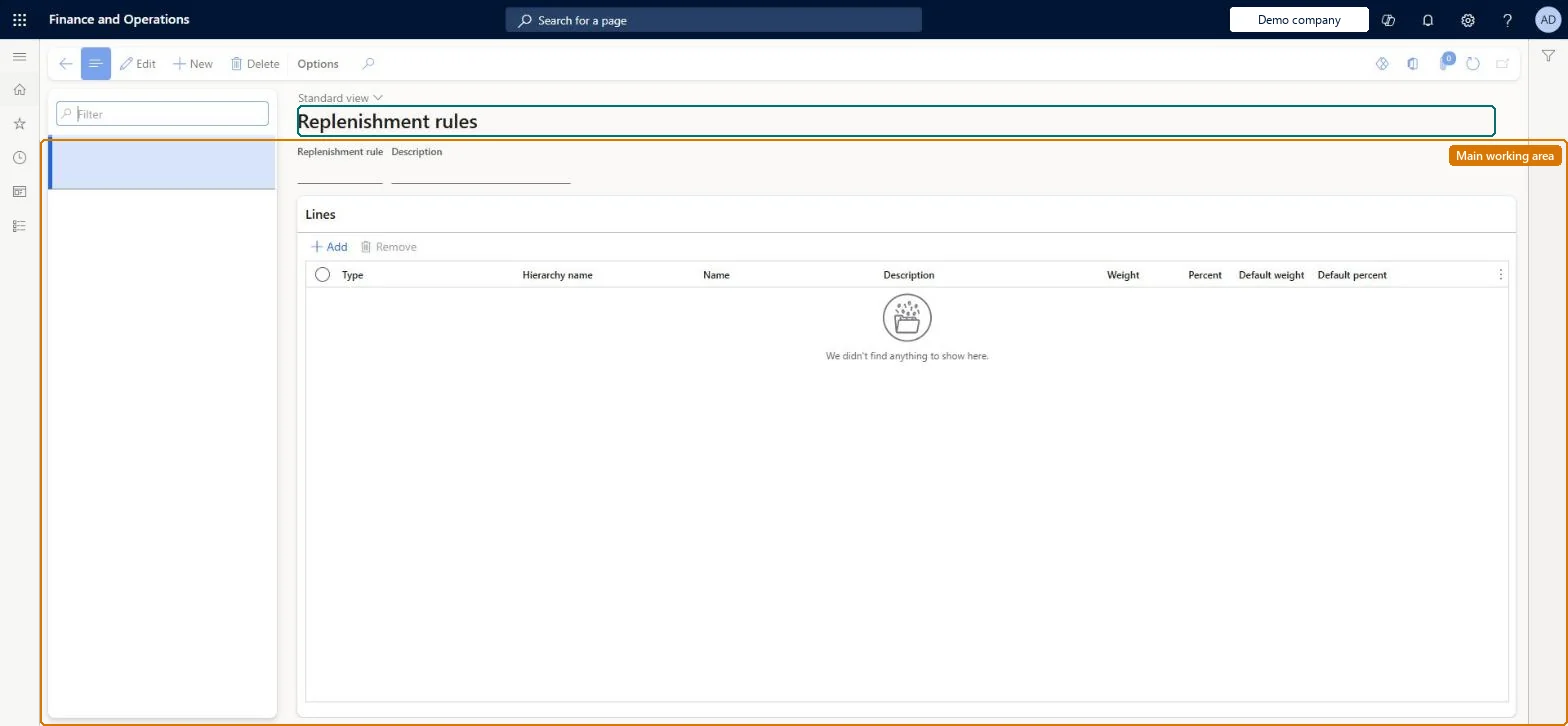
The page in Dynamics 365. page title tab to open what to set or check
About the examples: Examples and screenshots in this guide use BEAT, a demo company in a Dynamics 365 test environment. Use your own company's codes and values instead of copying them.
Setup steps on this page
Set up Replenishment rules
Use this page to create rules for stores or store groups so that, when Replenishment rules is the distribution method, each store receives quantities in proportion to its weight.
Steps from Microsoft
Go to Retail and Commerce > Inventory management > Replenishment > Replenishment rules.
Select New.
Enter a Replenishment rule name and a Description, then select Save.
Select Add, set Type to Replenishment hierarchy or Channel, and select the Name.
Enter a Weight (the default comes from the warehouse).
One rule per store group, with lines of type Replenishment hierarchy or Channel; keep the default weight from the warehouse unless a store needs a different shareThe default weight on a rule line comes from the warehouse, and the line weight controls each store's share when Replenishment rules is the distribution method.
Setting weights on a rule but running the cross-dock or buyer's push with Location weight, which uses the warehouse weights and ignores the rule.
Solution architect
5Design impact
Can it be undone
Reversible: Rules are read when quantities are calculated; once a cross-dock's orders are created its distribution settings are locked.
If you change it later
A weight entered on a rule line overrides the default weight taken from the warehouse, changing the share each store receives; warehouses not flagged as stores are left out of the calculation. Microsoft Learn
Technical architect
6Technical
Menu item
RetailReplenishmentRuleTableChecked in Dynamics 365
Form
RetailReplenishmentRuleTableChecked in Dynamics 365
Table
RetailReplenishmentRuleTableShown as “REPLENISHMENT RULES” in Record infoChecked in Dynamics 365
PrivilegesMaintain retail replenishment RetailReplenishmentMaintainDutiesMaintain retail replenishment RetailReplenishmentMaintain2 security rolesRetail operations manager RetailOperationsManagerRetail service RetailServiceChecked in Dynamics 365
Roles to set it up and use it
To set it up or change itRetail service RetailServiceRetail operations manager RetailOperationsManagerGive people one of these roles. On this system, 2 roles can open this page.Checked in Dynamics 365