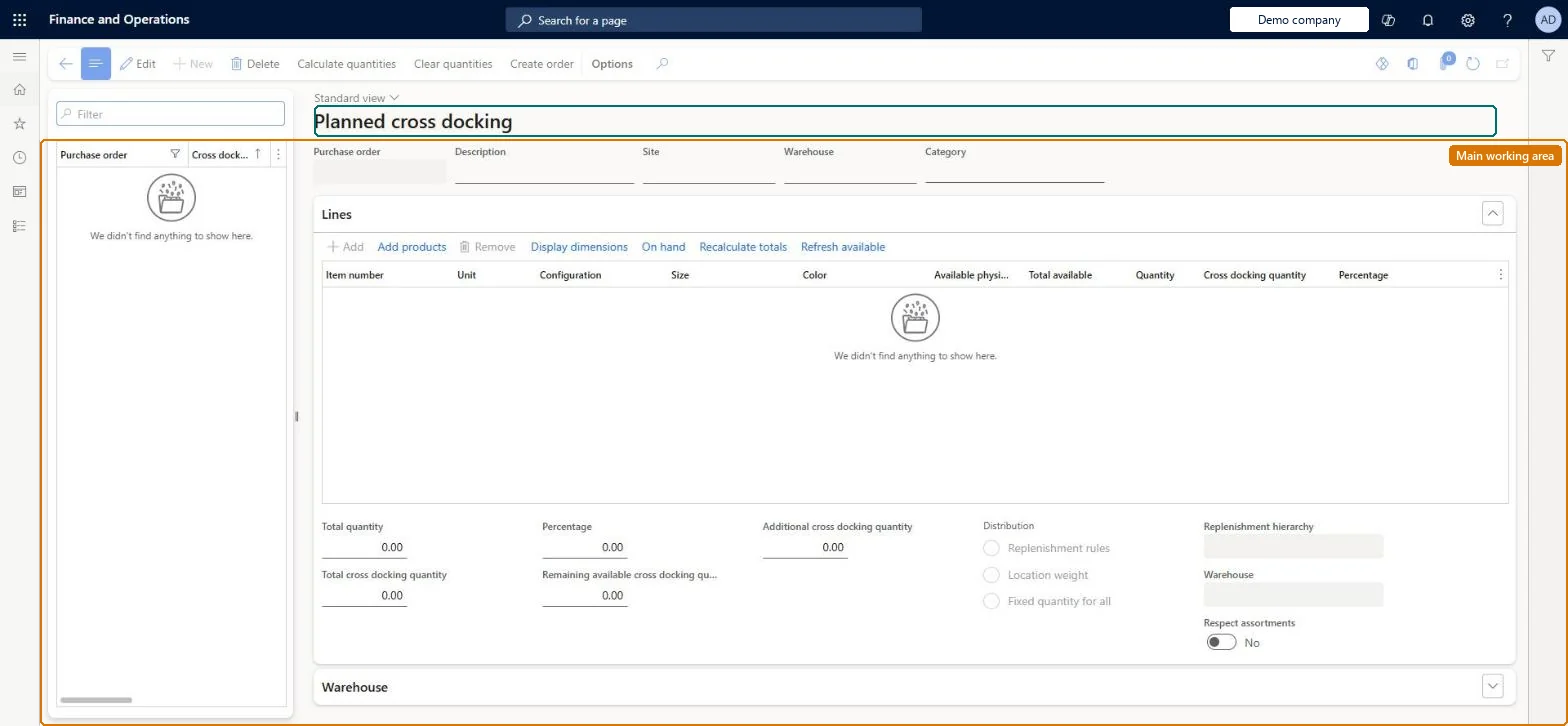
A page where quantities arriving on a purchase order are distributed from the receiving warehouse to stores, creating one transfer order per receiving store.
Retail and CommerceInventory managementReplenishment
RetailCrossDock
Used by
Retail operations manager, Retail service
Business process
Cross dock inventory to retail stores (transfer order to replenish in Dynamics 365 Supply Chain Management
Menu item
RetailCrossDock
Main table
RetailBuyersPushTable
Data entity
RetailCrossDockEntity
Show what matters for
PAGE GUIDEWhat the page does and how to use it7 sections. Choose a role to highlight what matters to you.
Everyone
1What it is and why
What it is
A page where quantities arriving on a purchase order are distributed from the receiving warehouse to stores, creating one transfer order per receiving store.
What you do here
Use this page to decide how much of each purchased product to cross-dock and how to spread it across stores (by location weight, replenishment rules or a fixed quantity), then create the transfer orders.
Example
For example, distribute an incoming purchase order's products to the stores in a replenishment hierarchy in proportion to each store's weight.
The page in Dynamics 365. page title tab to open what to set or check
About the examples: Examples and screenshots in this guide use BEAT, a demo company in a Dynamics 365 test environment. Use your own company's codes and values instead of copying them.
Steps from Microsoft
Go to Retail and Commerce > Inventory management > Replenishment > Cross docking.
Open the purchase order to cross-dock (All purchase orders > Retail tab > Cross docking) and select Edit.
In the Lines section, select the product; use the Category field to filter if needed.
Enter Cross docking quantity or Additional cross docking quantity.
Set Distribution, Replenishment hierarchy and Respect assortments.
Select Calculate quantities and review the quantities in the warehouse list.
Select Create order, then Yes to confirm.
Select a warehouse and then Order to view the transfer orders created.
One-way: Warning: after Create order, the Distribution, Replenishment hierarchy and Respect assortments fields of that cross-dock become read-only; one transfer order is created per receiving warehouse. Check the calculated quantities before you create the orders. Microsoft Learn
If you change it later
After the transfer orders are created, the distribution method, hierarchy and assortment settings of that cross dock are locked; if the stores are in another legal entity, sales and purchase orders are created instead of plain transfers. Microsoft Learn
Technical architect
5Technical
Menu item
RetailCrossDockChecked in Dynamics 365
Form
RetailBuyersPushChecked in Dynamics 365
Table
RetailBuyersPushTableShown as “BUYER'S PUSH TABLE” in Record infoKey field: BuyersPushIdChecked in Dynamics 365
PrivilegesMaintain retail replenishment RetailReplenishmentMaintainDutiesMaintain retail replenishment RetailReplenishmentMaintain2 security rolesRetail operations manager RetailOperationsManagerRetail service RetailServiceChecked in Dynamics 365
Roles to set it up and use it
To set it up or change itRetail service RetailServiceRetail operations manager RetailOperationsManagerGive people one of these roles. On this system, 2 roles can open this page.Checked in Dynamics 365
Actions on the page
(Action Pane without tabs): Calculate quantities, Clear quantities, Create orderChecked in Dynamics 365