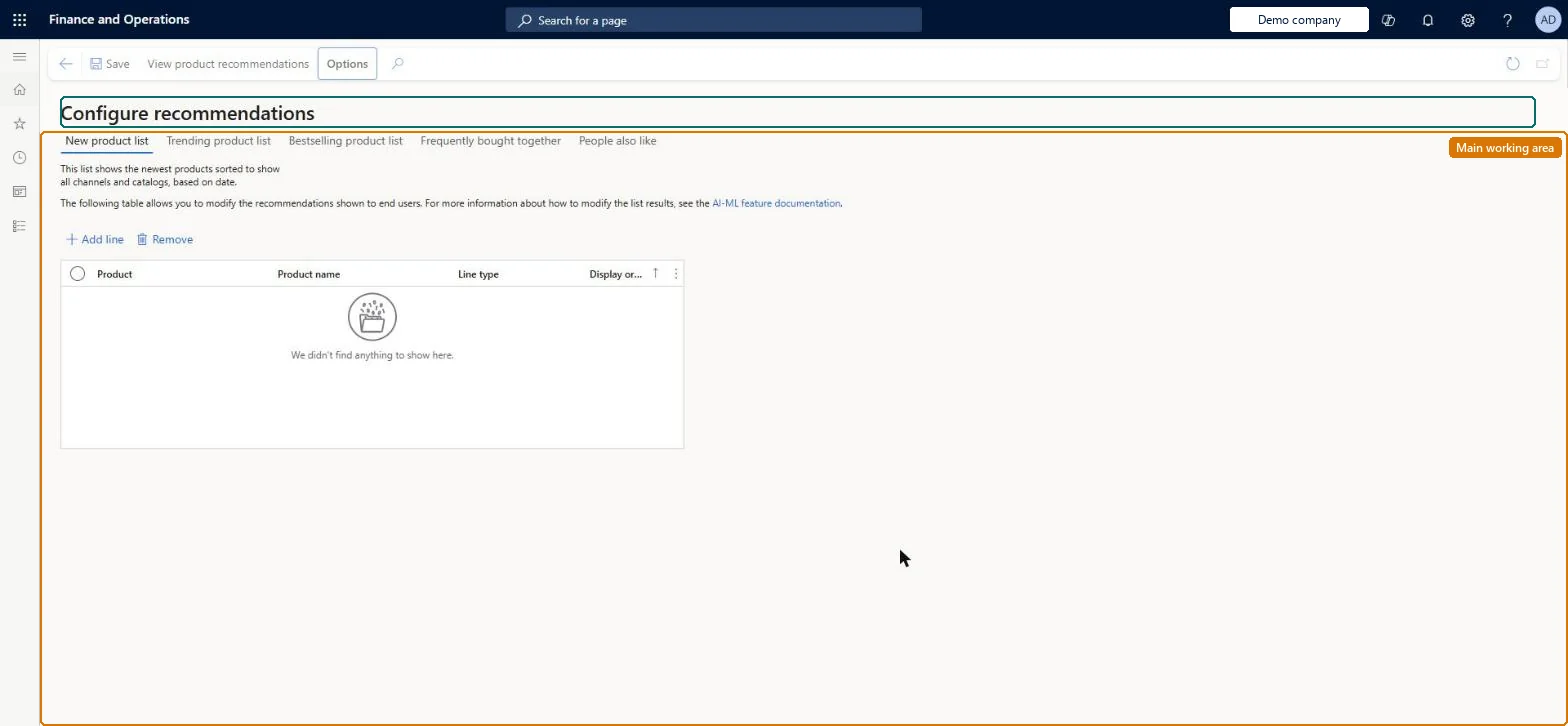
Setup step on the Configure recommendations page · Retail and Commerce
Set up Configure recommendations
Use this page to change how many days of new products and sales feed the Trending and Best selling lists, and to pin or remove products in the New, Trending, Best selling, People also like and Frequently bought together lists.
SETUP GUIDEHow to set it up8 sections. Choose a role to highlight what matters to you.
Everyone
1What it is and why
What it is
A setup page (called Recommendation parameters in the article) where you tune the parameters of the AI-ML recommendation lists and manually include or exclude products from them.
What you do here
Use this page to change how many days of new products and sales feed the Trending and Best selling lists, and to pin or remove products in the New, Trending, Best selling, People also like and Frequently bought together lists.
Example
For example, exclude a discontinued product from the Trending list, or include a new product at the front of the New list with a specific display order.
The page in Dynamics 365. page title tab to open what to set or check
About the examples: Examples and screenshots in this guide use BEAT, a demo company in a Dynamics 365 test environment. Use your own company's codes and values instead of copying them.
Setup steps on this page
Set up Configure recommendations
Use this page to change how many days of new products and sales feed the Trending and Best selling lists, and to pin or remove products in the New, Trending, Best selling, People also like and Frequently bought together lists.
Steps from Microsoft
Go to Retail and Commerce > Product recommendations > Configure recommendations.
In the list of shared parameters, select Recommendation lists.
Select the list to add or remove products from.
Select Add line and search for a product by Name or Product number.
Under Line type, select Include or Exclude.
Change the Display order to set the sequence of included products.
To remove a product from the table, select the line and select Remove.
Keep the default day ranges (Trending: new products from the last 180 days, sales from the last 30 days; Best selling: sales from the last 30 days) and evaluate the lists for a few days before changing themMicrosoft says the defaults work for many needs and advises evaluating results for a few days before changing parameters and testing again.
Giving two pinned products the same Display order. Their final order in the list can then differ from the order shown in the back office.
Reversible: Day ranges and Include or Exclude lines can be changed or removed at any time; they change which products appear in the lists and in what order.
If you change it later
Changing the day ranges alters which products appear and how they are ranked; Microsoft advises letting results run for a few days before adjusting, and two products with the same display order may not keep the back-office order. Microsoft Learn
Technical architect
6Technical
Menu item
RetailRecoListsConfigurationChecked in Dynamics 365
Form
RetailRecoListConfigurationsChecked in Dynamics 365
To set it up or change itRetail merchandising manager RetailMerchandisingManagerGive people one of these roles. On this system, 1 role can open this page.Checked in Dynamics 365
Actions on the page
(Action Pane without tabs): Save, View product recommendationsChecked in Dynamics 365