SETUP GUIDEHow to set it up8 sections. Choose a role to highlight what matters to you.
Everyone
1What it is and why
What it is
A setup page where you define the types of reward points (amount or quantity based, redeemable or not, with expiry) that loyalty programs issue to customers.
What you do here
Use this page to create each reward point type before you set up loyalty programs, so earning rules, redemption rules and tier rules can refer to it.
Example
For example, a retailer creates a redeemable Amount-type point in US dollars that expires after 12 months and a nonredeemable point used only to qualify customers for tiers.
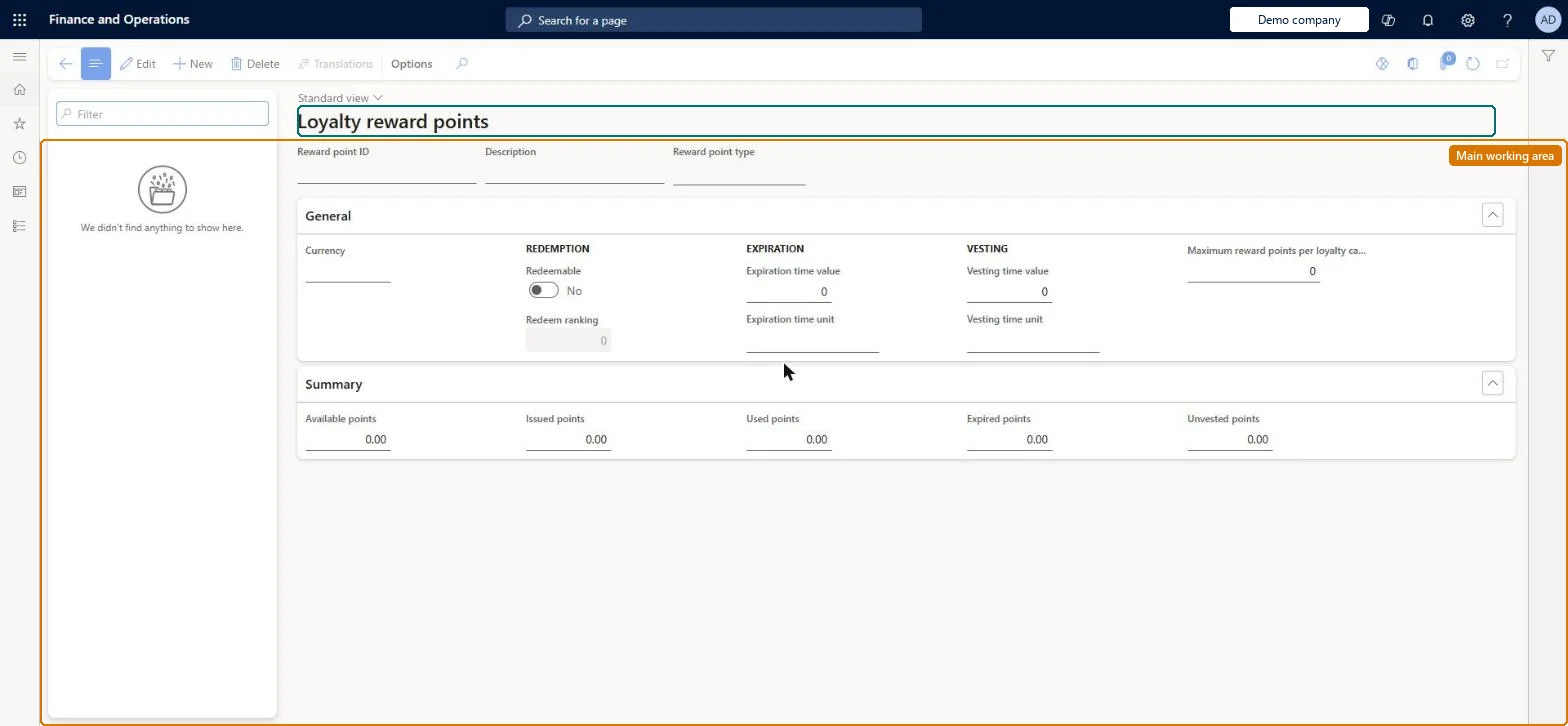
The page in Dynamics 365. page title tab to open what to set or check
About the examples: Examples and screenshots in this guide use BEAT, a demo company in a Dynamics 365 test environment. Use your own company's codes and values instead of copying them.
Setup steps on this page
Set up Loyalty reward points
Use this page to create each reward point type before you set up loyalty programs, so earning rules, redemption rules and tier rules can refer to it.
Steps from Microsoft
Go to Retail and Commerce > Customers > Loyalty > Loyalty reward points.
Select New.
Enter a Reward point ID and a Description.
In the Reward point type field, select Quantity or Amount; for Amount, select the Currency.
Check or uncheck Redeemable and enter a Redeem ranking.
Enter the Expiration time value and select the Expiration time unit.
A non-redeemable reward point for tier qualification and a separate redeemable reward point for paymentTier rules use a non-redeemable reward point, while redemption rules show only redeemable points; non-redeemable points are meant for tracking and tier progress.
Reversible: Definitions can be changed, but the channels get the change only after Process loyalty schemes and 1050 are run. Expiration time value 0 means points never expire.
If you change it later
Any change to reward point definitions must be followed by running Process loyalty schemes and the 1050 job so the channels receive the updated configuration. Microsoft Learn
Technical architect
6Technical
Menu item
RetailLoyaltyRewardPointsChecked in Dynamics 365
Form
RetailLoyaltyRewardPointsChecked in Dynamics 365
Table
RetailLoyaltyRewardPointShown as “RETAIL LOYALTY REWARD POINT” in Record infoKey field: RewardPointIdChecked in Dynamics 365
To set it up or change itRetail service RetailServiceRetail operations manager RetailOperationsManagerGive people one of these roles. On this system, 2 roles can open this page.Checked in Dynamics 365
Actions on the page
(Action Pane without tabs): TranslationsChecked in Dynamics 365
Checked in a working Dynamics 365 system, version 10.0.49: the menu item, form, table and security, the page.
To cite this step: RC-LOYALTY-010, Set up Loyalty reward points. Beyond ERP Atlas Hub, 2026-11-11. https://www.beyonderp.cloud/atlas/step/RC-LOYALTY-010