Retail and CommercePricing and discountsMix and match discounts
RetailMixAndMatchLineGroupSetup
Used by
Retail merchandising manager, Retail operations manager, Retail service and 1 more role
Business process
Manage sales channels
Menu item
RetailMixAndMatchLineGroupSetup
Main table
RetailMixAndMatchLineGroupSetup
Data entity
RetailMixAndMatchLineGroupSetupEntity
Setup steps
1 on this page
Show what matters for
SETUP GUIDEHow to set it up8 sections. Choose a role to highlight what matters to you.
Everyone
1What it is and why
What it is
A setup page where you define the reusable mix and match line groups (an ID, the number of products needed and a display colour) that are later assigned to mix and match discounts.
What you do here
Use this page to create the line groups that describe each part of a product combination before you build a mix and match discount.
Example
For example, create line group A needing two products and line group B needing one, then use them on a buy-two-get-one discount.
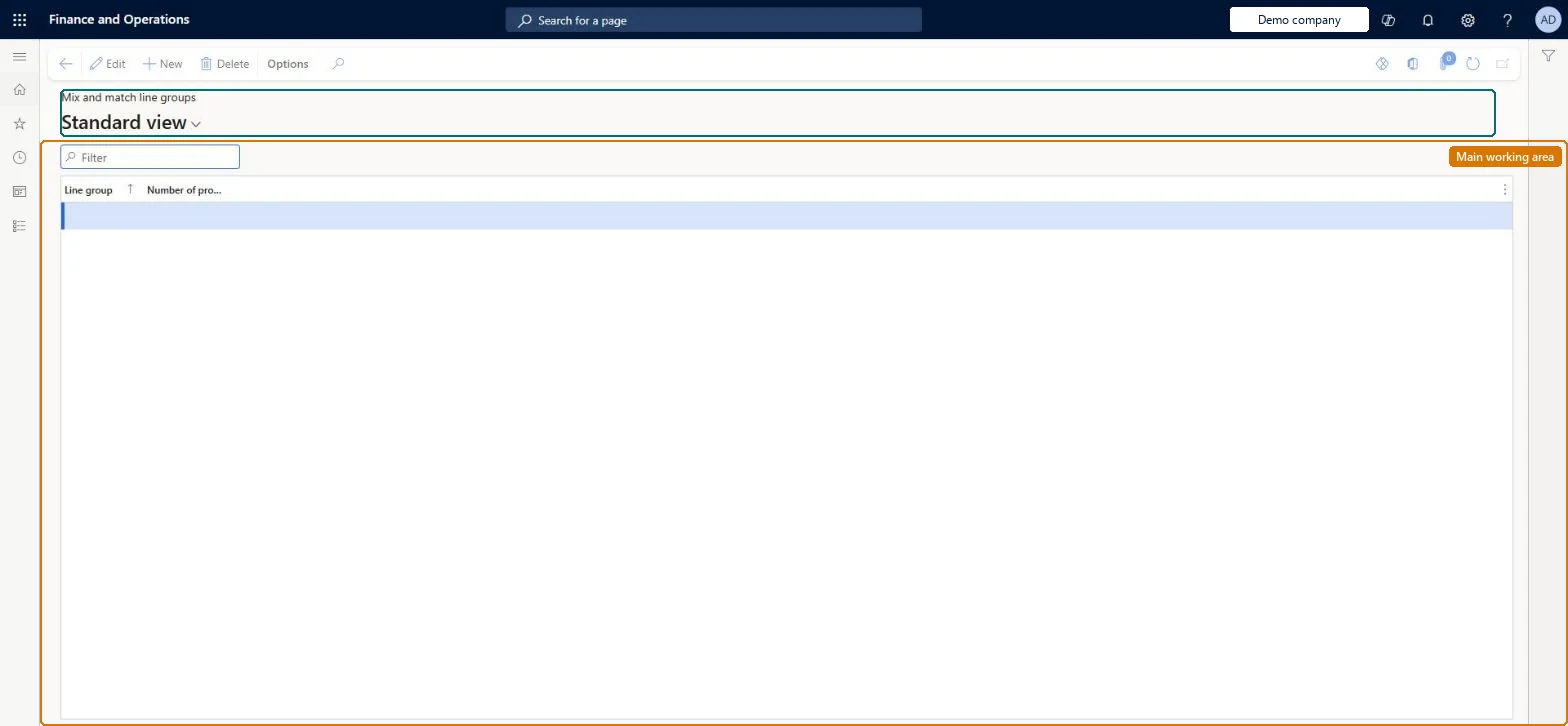
The page in Dynamics 365. page title tab to open what to set or check
About the examples: Examples and screenshots in this guide use BEAT, a demo company in a Dynamics 365 test environment. Use your own company's codes and values instead of copying them.
Setup steps on this page
Set up Mix and match line group setup
Use this page to create the line groups that describe each part of a product combination before you build a mix and match discount.
How to use it
Go to Retail and Commerce > Pricing and discounts > Mix and match discounts > Mix and match line group setup.
Use the Filter box to find a line group.
Select New and enter the Line group name and the Number of products the group needs for the discount to apply.
Select Save; select Delete to remove a selected line group.
Number of products needed of 20 or fewer; use a larger unit for bigger quantitiesMicrosoft's best practice for pricing performance is not to configure line groups with more than 20 products needed.
Defining a line group that needs a large count of small units, which slows price and discount calculation.
Solution architect
5Design impact
If you change it later
Setting a high number of products needed on a line group slows price calculation; Microsoft advises keeping it at 20 or fewer and using a larger unit instead. Microsoft Learn
Technical architect
6Technical
Menu item
RetailMixAndMatchLineGroupSetupChecked in Dynamics 365
Form
RetailMixAndMatchLineGroupSetupChecked in Dynamics 365
Table
RetailMixAndMatchLineGroupSetupShown as “MIX AND MATCH LINE GROUP SETUP” in Record infoChecked in Dynamics 365
Data entities
RetailMixAndMatchLineGroupSetupEntityMix and match line group setup Checked in Dynamics 365
Who can open it
PrivilegesMaintain retail mix and match RetailMixAndMatchMaintainMaintain retail mix and match RetailMixAndMatchViewDutiesMaintain retail campaign discounts RetailDiscountOfferMaintainMaintain retail campaign discounts RetailDiscountOfferView4 security rolesRetail merchandising manager RetailMerchandisingManagerRetail operations manager RetailOperationsManagerRetail service RetailServiceRetail store manager RetailStoreManagerChecked in Dynamics 365
Roles to set it up and use it
To set it up or change itRetail service RetailServiceRetail merchandising manager RetailMerchandisingManagerTo use itRetail operations manager RetailOperationsManagerRetail store manager RetailStoreManagerGive people one of these roles. On this system, 4 roles can open this page.Checked in Dynamics 365
Checked in a working Dynamics 365 system, version 10.0.49: the menu item, form, table and security, the page.
To cite this step: RC-MIXMATCH-010, Set up Mix and match line group setup. Beyond ERP Atlas Hub, 2026-11-11. https://www.beyonderp.cloud/atlas/step/RC-MIXMATCH-010