PAGE GUIDEWhat the page does and how to use it8 sections. Choose a role to highlight what matters to you.
Everyone
1What it is and why
What it is
A setup page where you define loyalty schemes: the earning rules and redemption rules for a loyalty program, and the channels they apply to.
What you do here
Use this page to specify how customers earn reward points for purchases or other activities, how points are redeemed as payment, and which channels and tiers the rules cover.
Example
For example, a retailer creates a scheme that earns one point per dollar spent in all stores and lets customers pay with 100 points per dollar.
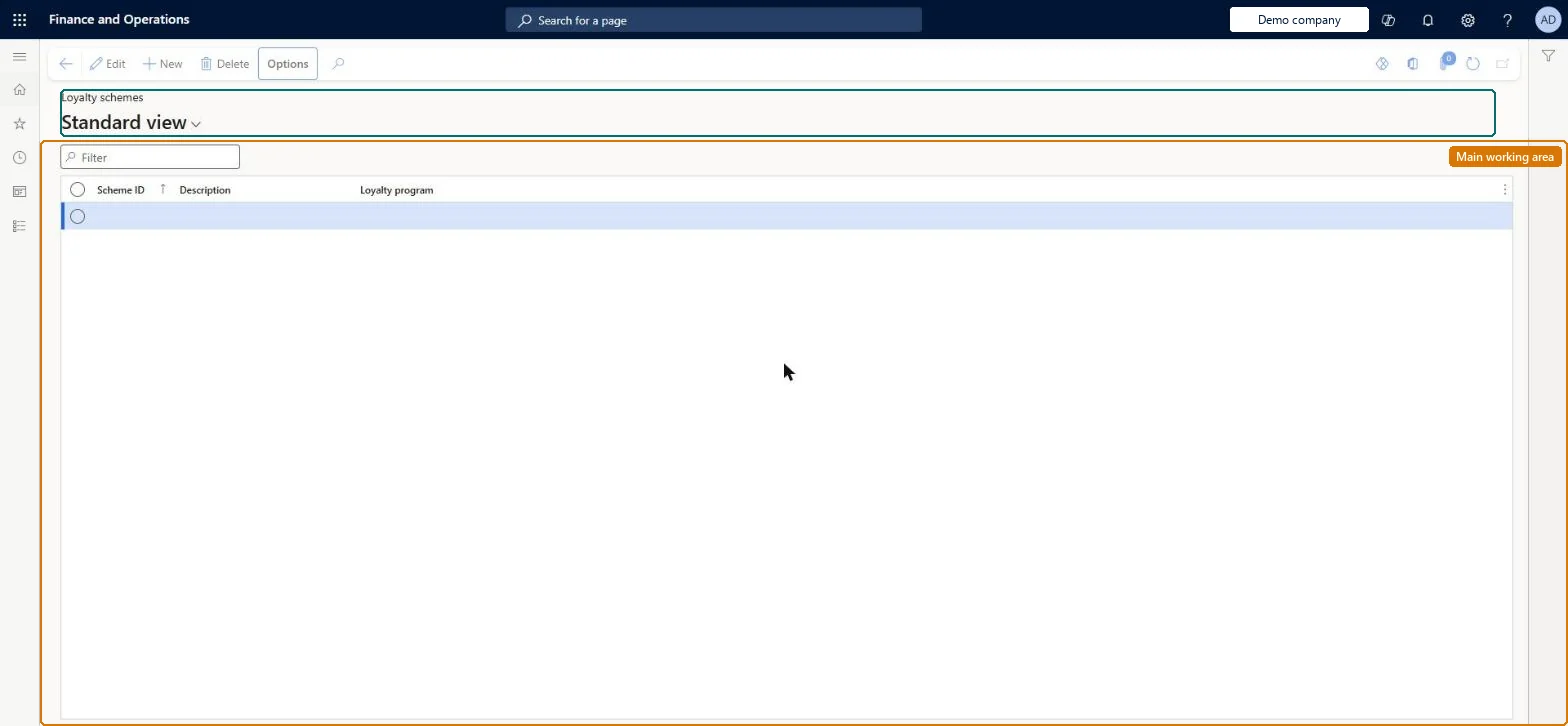
The page in Dynamics 365. page title tab to open what to set or check
About the examples: Examples and screenshots in this guide use BEAT, a demo company in a Dynamics 365 test environment. Use your own company's codes and values instead of copying them.
Setup steps on this page
Set up Loyalty schemes
Use this page to specify how customers earn reward points for purchases or other activities, how points are redeemed as payment, and which channels and tiers the rules cover.
Steps from Microsoft
Go to Retail and Commerce > Customers > Loyalty > Loyalty schemes.
Select New and enter a Scheme ID and Description.
In the Name field, select the loyalty program and select Save.
Under earning rules, select Add line, choose the Activity type, amount or quantity, currency, Reward point ID and Reward points.
Under redemption rules, select Add line, choose the Reward point ID, Reward points, Redemption type, Amount or quantity and Currency.
Under channels, select Add line and move organization nodes to Selected organization nodes.
Activity amount/quantity 1.0 for Sales transaction count rules; staff and wholesale affiliations listed under Excluded affiliationsLearn says to always use 1.0 for Sales transaction count, and excluded affiliations stop customers with special pricing from earning points.
Forgetting that earning rules are cumulative: a customer who matches a tier line and an affiliation line earns both.
Solution architect
5Design impact
Can it be undone
Reversible: Any change to a scheme's rules or channels takes effect in stores only after Process loyalty schemes and 1050 run. Microsoft Learn
If you change it later
Changing a scheme's channels or rules has no effect in the stores until Process loyalty schemes and the 1050 job are run; earning rules that a customer qualifies for are cumulative. Microsoft Learn
Technical architect
6Technical
Menu item
RetailLoyaltySchemesChecked in Dynamics 365
Form
RetailLoyaltySchemesChecked in Dynamics 365
Table
RetailLoyaltySchemeShown as “LOYALTY SCHEMES” in Record infoKey field: LoyaltySchemeIdChecked in Dynamics 365
To set it up or change itRetail service RetailServiceRetail operations manager RetailOperationsManagerGive people one of these roles. On this system, 2 roles can open this page.Checked in Dynamics 365