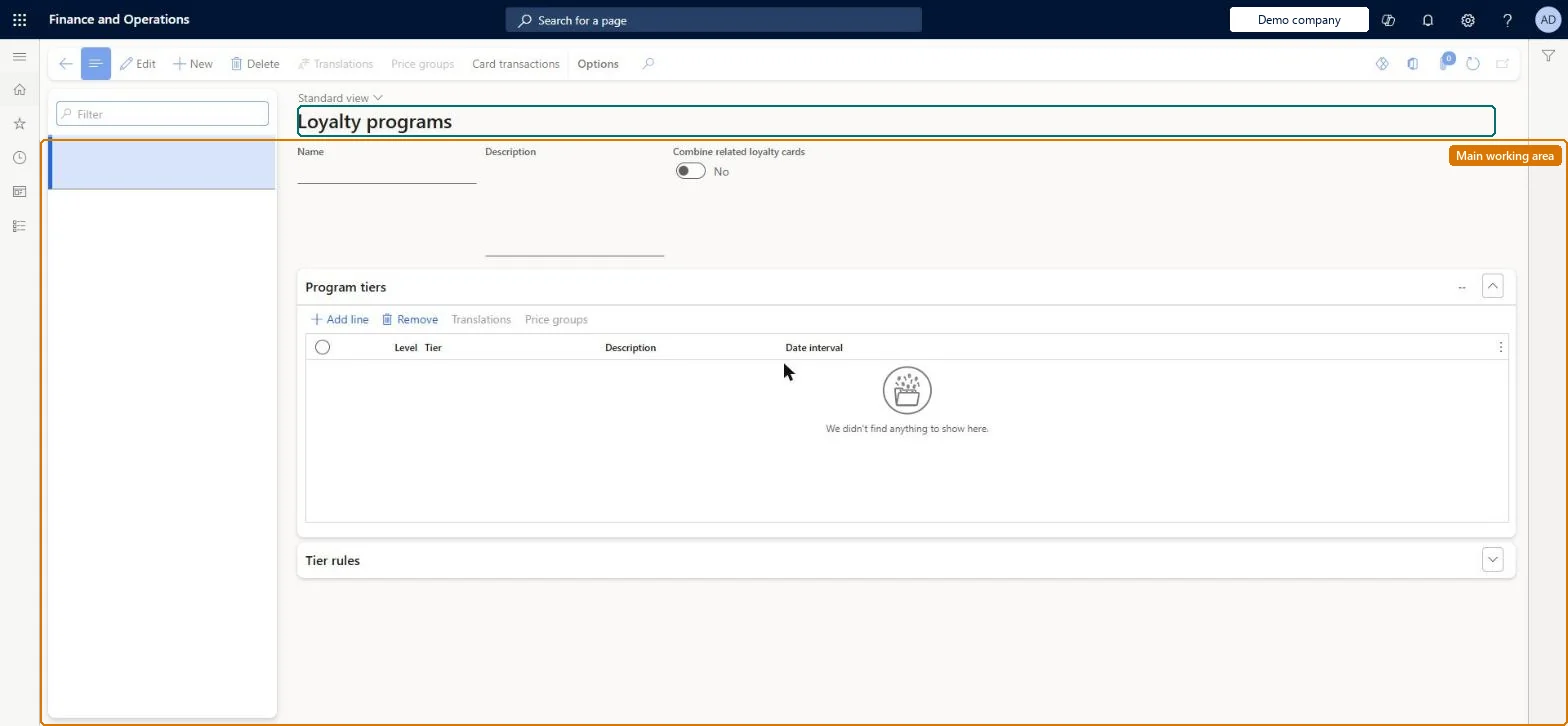
A setup page where you define loyalty programs, the core loyalty entity, including optional tiers, the tier rules that qualify customers, and the price groups that give program and tier discounts.
PAGE GUIDEWhat the page does and how to use it8 sections. Choose a role to highlight what matters to you.
Everyone
1What it is and why
What it is
A setup page where you define loyalty programs, the core loyalty entity, including optional tiers, the tier rules that qualify customers, and the price groups that give program and tier discounts.
What you do here
Use this page to create a loyalty program, add tiers with date intervals, set tier rules based on reward points, and attach price groups at program and tier level.
Example
For example, a retailer creates a two-tier program where customers reach the gold tier by earning 1,000 nonredeemable points within the past year and keep it for one year.
The page in Dynamics 365. page title tab to open what to set or check
About the examples: Examples and screenshots in this guide use BEAT, a demo company in a Dynamics 365 test environment. Use your own company's codes and values instead of copying them.
Setup steps on this page
Set up Loyalty programs
Use this page to create a loyalty program, add tiers with date intervals, set tier rules based on reward points, and attach price groups at program and tier level.
Steps from Microsoft
Go to Retail and Commerce > Customers > Loyalty > Loyalty programs.
Select New and enter a Name and Description.
Select Add line and enter the Level, Tier, Description and Date interval for each tier.
Select Save.
On the Tier rules FastTab, select New, choose a Reward point, enter Minimum issued points and an Evaluation date interval.
Select Price groups and assign a price group to the program.
On the Program tiers FastTab, select Price groups to assign tier-level price groups.
Lowest tier with Minimum issued points 0, tier date intervals that run into the future, evaluation date intervals that run into the past, and price groups used only for loyaltyLearn sets 0 for a base tier everyone qualifies for, says the tier interval should extend into the future and the evaluation interval into the past, and warns not to share price groups across entity types.
Using the same price group for a loyalty discount and a channel discount, which makes it hard to tell why a price or discount applied.Test: Tier qualification
Solution architect
5Design impact
Can it be undone
Hard to reverse: Programs and tiers can be edited, but existing cards keep their tiers until Update loyalty card tiers is run; schedule it off-peak because it re-evaluates earning history. Microsoft Learn
If you change it later
Changed tier rules apply to already-issued cards only after Update loyalty card tiers is run, which can be resource-intensive at scale. Microsoft Learn
Technical architect
6Technical
Menu item
RetailLoyaltyProgramsChecked in Dynamics 365
Form
RetailLoyaltyProgramsChecked in Dynamics 365
Table
RetailAffiliationShown as “LOYALTY PROGRAM” in Record infoKey field: NameChecked in Dynamics 365
To set it up or change itRetail service RetailServiceRetail operations manager RetailOperationsManagerGive people one of these roles. On this system, 2 roles can open this page.Checked in Dynamics 365
Actions on the page
(Action Pane without tabs): Translations, Price groups, Card transactionsChecked in Dynamics 365
RetailAffiliationEntity (Retail affiliations): shared by all companies, in Microsoft's default template 500 - Retail.RetailLoyaltyEntity (Loyalty program): shared by all companies.Load order: Microsoft's default template 500 - Retail loads Retail affiliations at execution unit 1, level 30, sequence 10. Lower levels load first, and entities at the same level load in sequence order.Load first: the default templates at lower levels (System setup to General ledger)Microsoft Learn