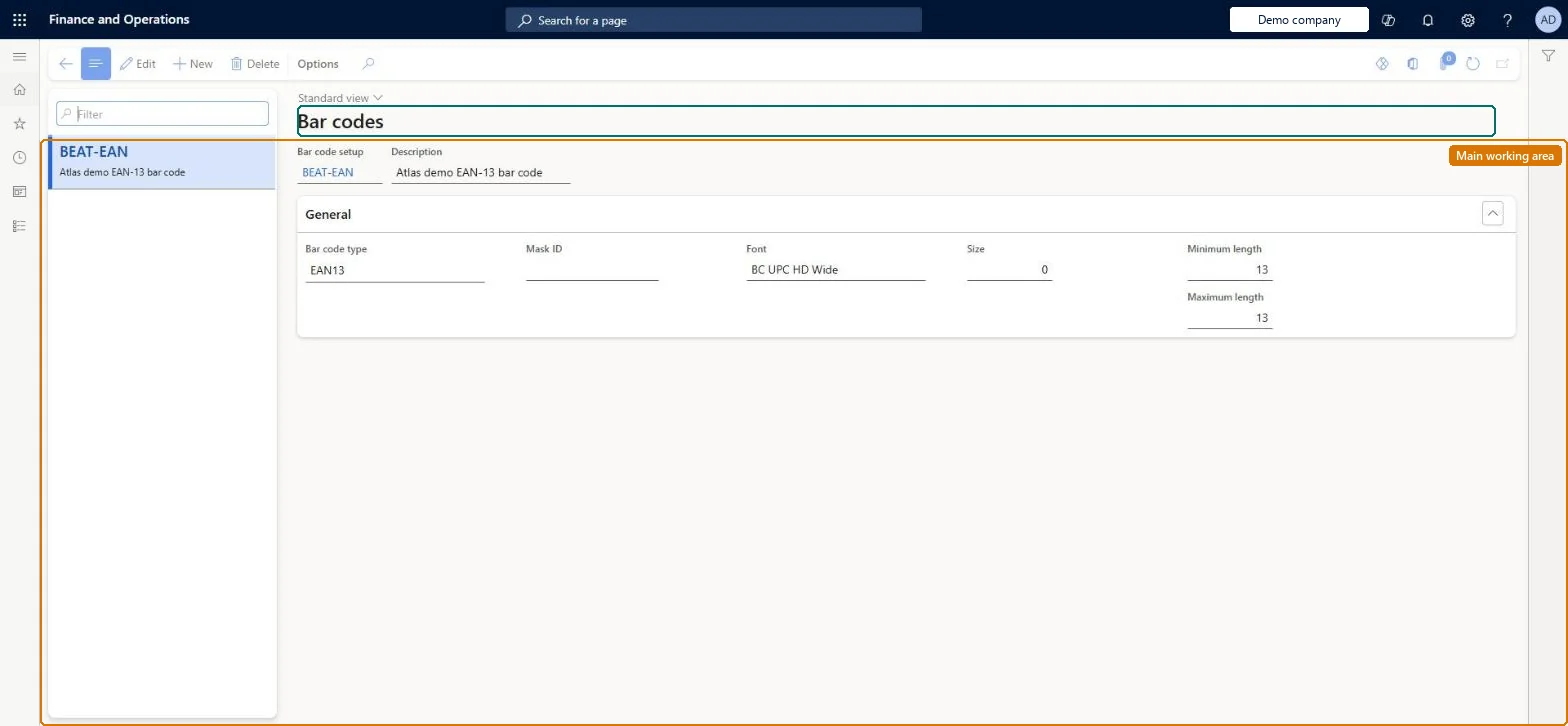
Setup step on the Bar code setup page · Retail and Commerce
Set up Bar code setup
Use this page to assign a barcode mask to a barcode type and size so the setup can be selected when creating barcodes for products, and to define the barcode formats used in warehouse processes.
Retail and CommerceInventory managementBar codes and labels
RetailBarcodeSetup
Used by
Retail operations manager, Retail service, Information technology manager
Business process
Manage sales channels
Menu item
RetailBarcodeSetup
Main table
BarcodeSetup
Data entity
BarcodeSetupEntity
Setup steps
1 on this page
Show what matters for
SETUP GUIDEHow to set it up8 sections. Choose a role to highlight what matters to you.
Everyone
1What it is and why
What it is
A setup page where you define barcode setups: a code, description, barcode type (such as Code 39 or EAN13), the barcode mask to apply, and the size and maximum length, which product barcodes then reference.
What you do here
Use this page to assign a barcode mask to a barcode type and size so the setup can be selected when creating barcodes for products, and to define the barcode formats used in warehouse processes.
Example
For example, create a setup of type Code 39 with the Product mask and size 12, then use it to create product barcodes.
The page in Dynamics 365. page title tab to open what to set or check
About the examples: Examples and screenshots in this guide use BEAT, a demo company in a Dynamics 365 test environment. Use your own company's codes and values instead of copying them.
Setup steps on this page
Set up Bar code setup
Use this page to assign a barcode mask to a barcode type and size so the setup can be selected when creating barcodes for products, and to define the barcode formats used in warehouse processes.
Steps from Microsoft
Go to Retail and Commerce > Inventory management > Bar codes and labels > Bar code setup.
A bar code type matching the mask's barcode standard, the Mask ID set, and the same format as the identifier when the setup is used in warehouse parametersThe barcode mask must be assigned to a barcode before use, and a setup used in Inventory and warehouse management parameters must match the format of the record's unique identifier.
Selecting a setup in the warehouse parameters whose format doesn't match the picking route number sequence, so picking list barcodes don't work.
Reversible: Setups can be edited; product barcodes and warehouse parameters that reference the setup pick up the change.
If you change it later
A barcode setup chosen in the warehouse parameters must match the format of the identifier it is used for, such as the picking route number sequence. Microsoft Learn
Technical architect
6Technical
Menu item
RetailBarcodeSetupChecked in Dynamics 365
Form
BarcodeSetupChecked in Dynamics 365
Table
BarcodeSetupShown as “BARCODE SETUP” in Record infoKey field: barcodeSetupIdChecked in Dynamics 365
To use itRetail service RetailServiceRetail operations manager RetailOperationsManagerInformation technology manager SysServerITManagerGive people one of these roles. On this system, 3 roles can open this page.Checked in Dynamics 365
BarcodeSetupEntity (Barcode setup): loaded for each company, in Microsoft's default template 310 - Product information management.Load order: Microsoft's default template 310 - Product information management loads Barcode setup at execution unit 1, level 30, sequence 10. Lower levels load first, and entities at the same level load in sequence order.Load first: the default templates at lower levels (System setup to General ledger)Microsoft Learn