About the examples: Examples and screenshots in this guide use BEAT, a demo company in a Dynamics 365 test environment. Use your own company's codes and values instead of copying them.
Step by step, with screenshots
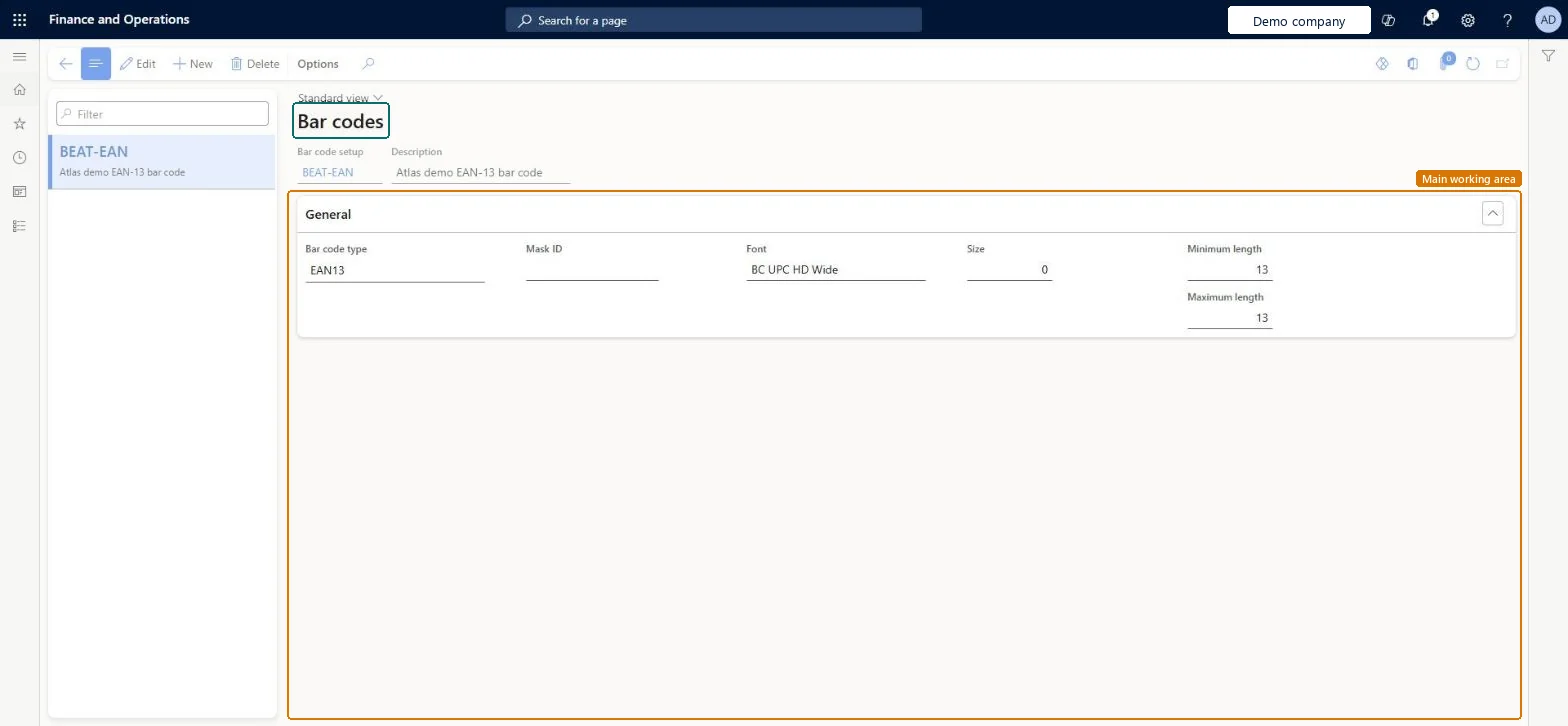
Set up Bar codes1 screen
Use this page to create the bar code setups that check bar codes follow the rules of their standard, so they can be printed and scanned.
Screen 1
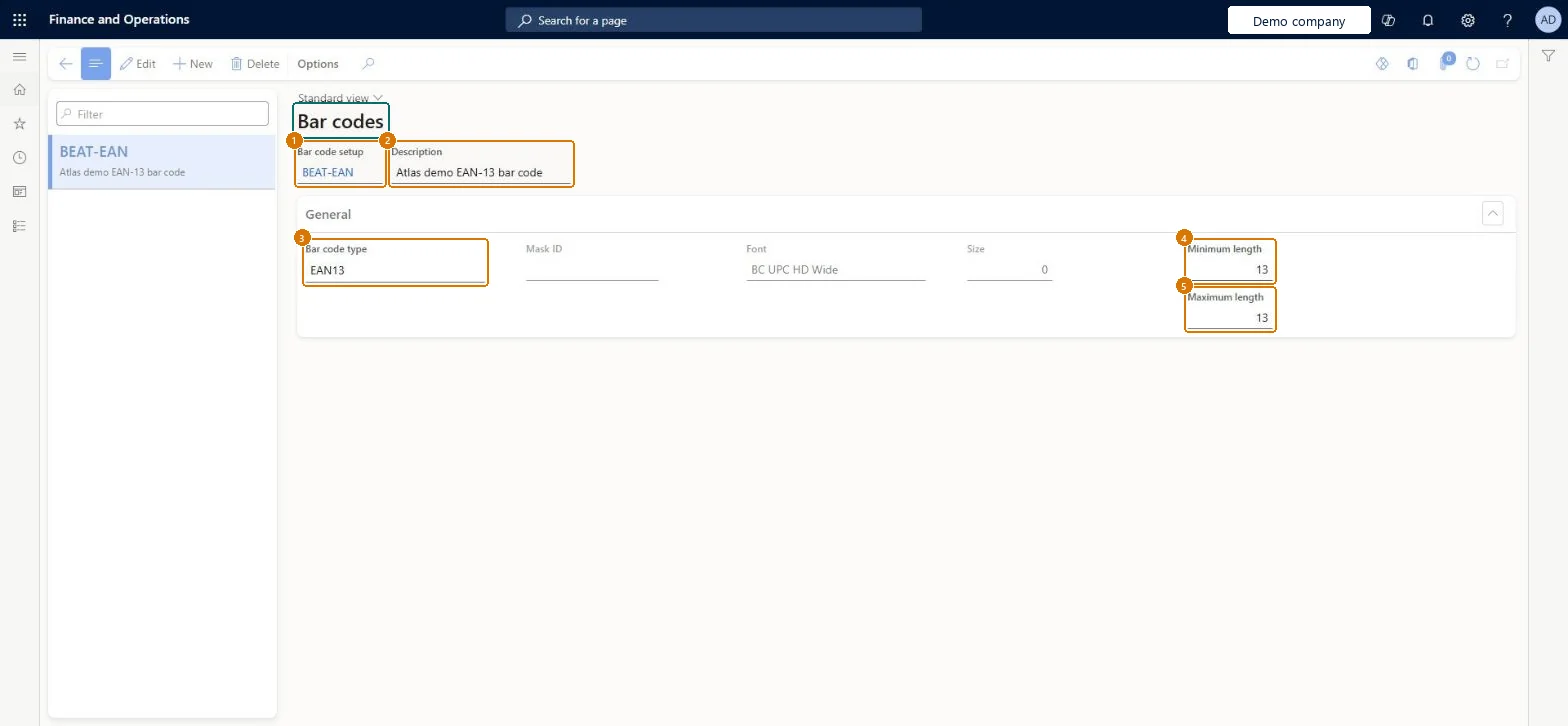
Create a bar code setup
Go to Organization administration > Setup > Bar codes
Select New
Enter the bar code setup ID and description
Select the bar code type
Select Save
1Bar code setup
BEAT-EAN
2Description
EAN-13 bar code
3Bar code type
EAN13
4Minimum length
13
5Maximum length
13
Show the full screen page title tab to open what to set or check
Steps from Microsoft
Go to Retail and Commerce > Inventory management > Bar codes and labels > Bar codes.
Select New.
In the Bar code setup field, enter a name.
In the Description field, enter a description.
In the Bar code type field, select the type, such as Code 39.
In the Mask ID field, select the bar code mask, if one is used.
One bar code setup per format, with a bar code type and length that match the identifier it encodes (for example, the picking route number sequence)Bar code setups validate that bar codes follow the rules of their standard so they can be printed and scanned, and Microsoft notes that the format must match the unique identifier of the record it's used for.
When a number sequence generates bar codes with a mask, its segments must be no longer than the mask's segments, and strictly shorter for types with a check digit (EAN13, EAN8, UPCA, UPCE). Otherwise generated bar codes don't fit the mask.
Reversible: Bar code setups can be edited, but a setup selected in Inventory and warehouse management parameters must keep matching the format of the identifier it prints, such as the picking route number. Microsoft Learn
Technical architect
6Technical
Menu item
BarcodeSetupChecked in Dynamics 365
Form
BarcodeSetupChecked in Dynamics 365
Table
BarcodeSetupShown as “Barcode setup” in Record infoKey field: barcodeSetupId, descriptionChecked in Dynamics 365
PrivilegesManage barcode setup BarcodeSetupMaintainView barcode setup BarcodeSetupViewDutiesInquire into logistic policies InventLogisticPoliciesInquireEnable the logistic process InventLogisticProcessEnable7 security rolesProduct design manager BOMProductDesignManagerMaterials manager InventMaterialsManagerProduction manager ProdProductionManagerProduction supervisor ProdProductionSupervisorProcess engineer RouteProcessEngineerProcess engineering manager RouteProcessEngineeringManagerWarehouse manager WMSWarehouseManagerChecked in Dynamics 365
Roles to set it up and use it
To set it up or change itProduction manager ProdProductionManagerMaterials manager InventMaterialsManagerWarehouse manager WMSWarehouseManagerTo use itProduct design manager BOMProductDesignManagerProcess engineer RouteProcessEngineerProduction supervisor ProdProductionSupervisorProcess engineering manager RouteProcessEngineeringManagerGive people one of these roles. On this system, 7 roles can open this page.Checked in Dynamics 365
Actions on the page
Options: Personalize, Page options, ShareChecked in Dynamics 365
BarcodeSetupEntity (Barcode setup): loaded for each company, in Microsoft's default template 310 - Product information management.Load order: Microsoft's default template 310 - Product information management loads Barcode setup at execution unit 1, level 30, sequence 10. Lower levels load first, and entities at the same level load in sequence order.Load first: the default templates at lower levels (System setup to General ledger)Microsoft Learn
Checked in a working Dynamics 365 system, version 10.0.49: the menu item, form, table and security, the page, the demo records and the values in the screenshots.