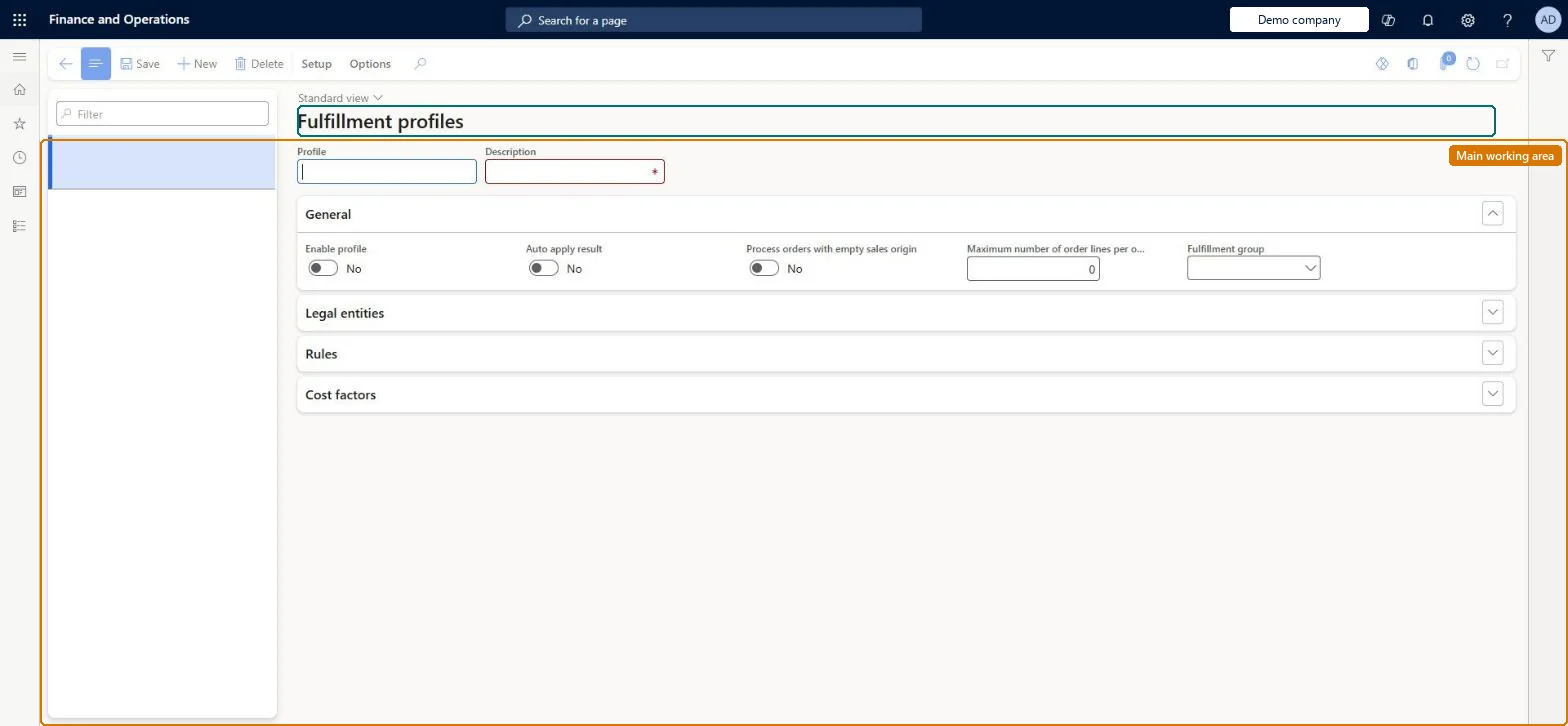
Setup step on the Fulfillment profiles page · Retail and Commerce
Set up Fulfillment profiles
Use this page to create the profile that a DOM processor batch job runs, decide whether results are applied automatically to sales lines, limit the order lines per optimization batch, and link the legal entities, rules, cost factors, delivery modes and sales origins the profile covers.
Retail and CommerceDistributed order managementSetup
DOMFulfillmentProfiles
Used by
DOM administrator
Business process
Manage sales channels
Menu item
DOMFulfillmentProfiles
Main table
DOMFulfillmentProfile
Setup steps
1 on this page
Show what matters for
SETUP GUIDEHow to set it up8 sections. Choose a role to highlight what matters to you.
Everyone
1What it is and why
What it is
A setup page where you define DOM fulfillment profiles, each grouping a set of rules, legal entities, sales order origins and modes of delivery that one DOM run processes.
What you do here
Use this page to create the profile that a DOM processor batch job runs, decide whether results are applied automatically to sales lines, limit the order lines per optimization batch, and link the legal entities, rules, cost factors, delivery modes and sales origins the profile covers.
Example
For example, create one profile for web orders shipped by standard delivery and another with different rules for marketplace orders.
The page in Dynamics 365. page title tab to open what to set or check
About the examples: Examples and screenshots in this guide use BEAT, a demo company in a Dynamics 365 test environment. Use your own company's codes and values instead of copying them.
Setup steps on this page
Set up Fulfillment profiles
Use this page to create the profile that a DOM processor batch job runs, decide whether results are applied automatically to sales lines, limit the order lines per optimization batch, and link the legal entities, rules, cost factors, delivery modes and sales origins the profile covers.
Steps from Microsoft
Go to Retail and Commerce > Distributed order management > Setup > Fulfillment profiles.
Select New and enter values for Profile and Description.
Set Auto apply result, Process orders with empty sales origin and Maximum number of order lines per optimization.
On the Legal entities FastTab, select Add and choose a legal entity.
On the Rules FastTab, select Add and choose each rule to link; then select Save.
On the Setup tab of the Action Pane, select Modes of delivery and add the company and mode of delivery combinations.
On the Setup tab, select Sales order origins and add the company and sales origin combinations.
One fulfillment group with all shipping warehouses assigned to the profile; each mode of delivery and sales origin in one active profile onlyLearn advises one fulfillment group with all shipping warehouses for the profile, and a mode of delivery or sales origin can't belong to more than one active profile.
Hard to reverse: With Auto apply result = Yes, each run changes the sales order lines; with No, results stay in the fulfillment plan only.
If you change it later
Changing Maximum number of order lines per optimization changes how DOM batches lines and how long the processor job takes; a large value makes the job run longer on one batch server. Microsoft Learn
Technical architect
6Technical
Menu item
DOMFulfillmentProfilesChecked in Dynamics 365
Form
DOMFulfillmentProfileChecked in Dynamics 365
Table
DOMFulfillmentProfileShown as “FULFILLMENT PROFILES” in Record infoKey field: ProfileIdChecked in Dynamics 365
Who can open it
PrivilegesMaintain DOM DOMMaintainDutiesMaintain DOM DOMMaintain1 security roleDOM administrator DOMAdministratorChecked in Dynamics 365
Roles to set it up and use it
To set it up or change itDOM administrator DOMAdministratorGive people one of these roles. On this system, 1 role can open this page.Checked in Dynamics 365