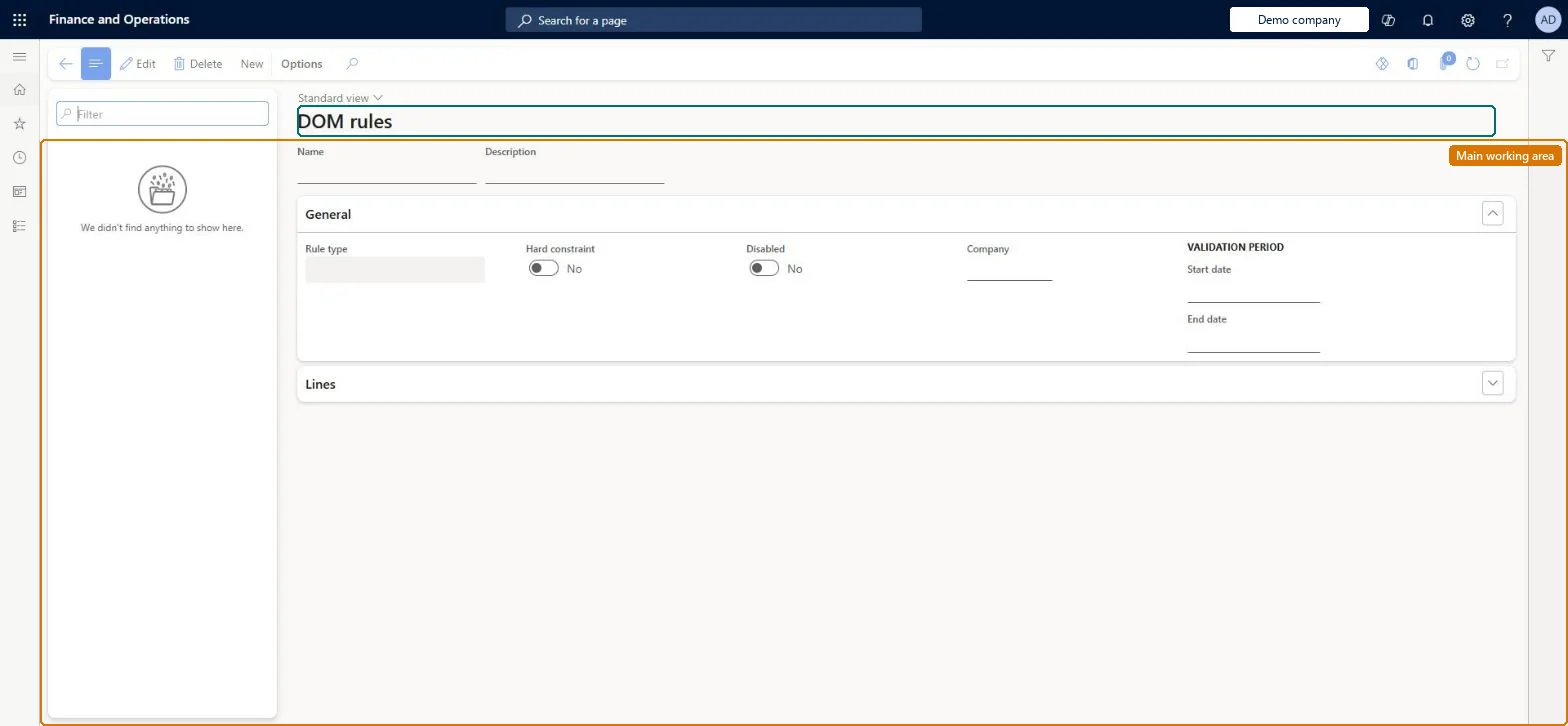
A setup page where you define the distributed order management (DOM) rules, such as minimum inventory, location priority, partial orders, offline locations, maximum rejects, maximum distance and maximum orders, that constrain how DOM assigns order lines to fulfillment locations.
Retail and CommerceDistributed order managementSetup
DOMManageRules
Used by
DOM administrator
Business process
Manage sales channels
Menu item
DOMManageRules
Main table
DOMRules
Setup steps
1 on this page
Show what matters for
PAGE GUIDEWhat the page does and how to use it8 sections. Choose a role to highlight what matters to you.
Everyone
1What it is and why
What it is
A setup page where you define the distributed order management (DOM) rules, such as minimum inventory, location priority, partial orders, offline locations, maximum rejects, maximum distance and maximum orders, that constrain how DOM assigns order lines to fulfillment locations.
What you do here
Use this page to create and maintain the DOM rules that the optimization engine applies when it brokers sales order lines to stores and warehouses. Each rule has start and end dates, a Disabled flag and a Hard constraint setting, and is later linked to a fulfillment profile.
Example
For example, create a Minimum inventory rule so that DOM keeps some stock in a store for walk-in customers instead of using all of it for online order fulfillment.
The page in Dynamics 365. page title tab to open what to set or check
About the examples: Examples and screenshots in this guide use BEAT, a demo company in a Dynamics 365 test environment. Use your own company's codes and values instead of copying them.
Setup steps on this page
Set up Manage rules
Use this page to create and maintain the DOM rules that the optimization engine applies when it brokers sales order lines to stores and warehouses. Each rule has start and end dates, a Disabled flag and a Hard constraint setting, and is later linked to a fulfillment profile.
How to use it
Go to Retail and Commerce > Distributed order management > Setup > Manage rules.
Use the Filter box to find a rule.
Select New and enter the Name and Description, then under General choose the Rule type, and set Hard constraint, Disabled, Company and the Validation period Start date and End date.
Expand Lines to enter what the rule applies to.
Select Save; select Delete to remove a selected rule.
Source: Checked in Dynamics 365
Fields on the page
Field
What it means
Table column
Start date / End date
The date range during which the rule is in force.Microsoft Learn
Disabled
Only rules set to No are considered in a DOM run.Microsoft Learn
IsDisabled
Hard constraint
Whether the rule is kept in the second iteration of a DOM run; non-hard rules are dropped so that unassigned lines can still be brokered.Microsoft Learn
IsConstraint
Maximum fulfilling locations
On a Partial orders rule, how many locations (1 to 5 or Any number) an order may be fulfilled from.Microsoft Learn
Fulfill partial orders?
Allows a sales order to be partially fulfilled when Maximum fulfilling locations is Any number.Microsoft Learn
Fulfill partial lines?
Allows a sales line to be split so part is fulfilled now and the remainder becomes a new line.Microsoft Learn
Sales order amount
On a Partial orders rule, orders below this amount are never split across locations.Microsoft Learn
Test checklist
Create an Offline fulfillment location rule for a store and add it to the profile.
Run DOM for an order that only that store could fill.
Check the line is not assigned to the offline store.
Set the rule Disabled = Yes, rerun and check the store is now used.
One rule per business constraint; Hard constraint = Yes only for rules that must never be relaxedDOM first applies every rule, then drops rules that aren't hard constraints to place lines it couldn't assign; Location priority is always treated as hard.
Reversible: Rule changes apply from the next DOM run; a line marked as a permanent exception by Maximum rejects is considered again only after a user resets its status. Microsoft Learn
If you change it later
Changing a rule changes which locations DOM may assign in the next run; a rule set to Disabled = Yes is ignored, and a Maximum rejects rule reaching its threshold marks order lines as permanent exceptions until a user resets them. Microsoft Learn
Technical architect
6Technical
Menu item
DOMManageRulesChecked in Dynamics 365
Form
DOMManageRulesChecked in Dynamics 365
Table
DOMRulesShown as “DOM RULES” in Record infoChecked in Dynamics 365
Who can open it
PrivilegesMaintain DOM DOMMaintainDutiesMaintain DOM DOMMaintain1 security roleDOM administrator DOMAdministratorChecked in Dynamics 365
Roles to set it up and use it
To set it up or change itDOM administrator DOMAdministratorGive people one of these roles. On this system, 1 role can open this page.Checked in Dynamics 365
Actions on the page
(Action Pane without tabs): NewChecked in Dynamics 365