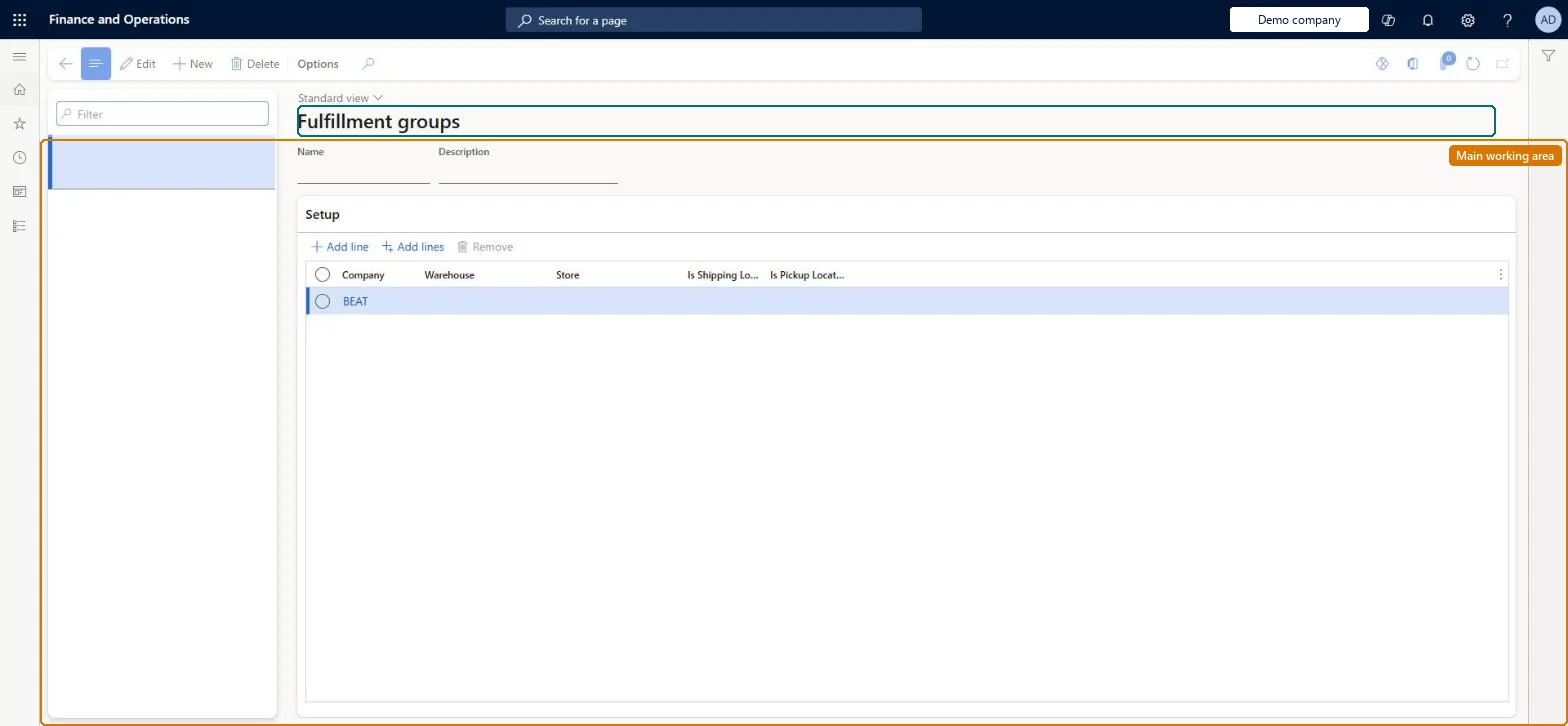
A setup page where you define groups of stores and warehouses that are allowed to fulfil customer orders, so that only those locations are offered as pickup or shipping options.
PAGE GUIDEWhat the page does and how to use it8 sections. Choose a role to highlight what matters to you.
Everyone
1What it is and why
What it is
A setup page where you define groups of stores and warehouses that are allowed to fulfil customer orders, so that only those locations are offered as pickup or shipping options.
What you do here
Use this page to create as many fulfillment groups as you need, then link each group to a store or online channel through Fulfillment group assignment on the channel's Set up tab.
Example
For example, a store that cannot ship orders is left out of the fulfillment group assigned to the POS stores, so cashiers never see it as a 'ship from' option.
The page in Dynamics 365. page title tab to open what to set or check
About the examples: Examples and screenshots in this guide use BEAT, a demo company in a Dynamics 365 test environment. Use your own company's codes and values instead of copying them.
Setup steps on this page
Set up Fulfillment groups
Use this page to create as many fulfillment groups as you need, then link each group to a store or online channel through Fulfillment group assignment on the channel's Set up tab.
Steps from Microsoft
Go to Retail and Commerce > Channel setup > Fulfillment groups.
Create as many fulfillment groups as required.
Open the store or online channel and, on the Set up tab of the Action Pane, select Fulfillment group assignment.
On the action pane, select New.
In the Fulfillment group drop-down list, select a fulfillment group.
One fulfillment group per set of locations that can really fulfil customer orders, with each location marked Shipping, Pickup or both, then link the group to each store through Fulfillment group assignmentFulfillment groups control which stores and warehouses POS users see as pickup or ship-from options. With the shipping/pickup feature on, each location can be limited to the role it can actually perform.
Reversible: You can add or remove locations and reassign groups to stores at any time. Orders already created keep their pickup store or ship-from warehouse; only new customer orders see the change. Microsoft Learn
If you change it later
A warehouse in a fulfillment group that is not a store can only be a shipping location, so adding it does not make it available for pickup orders in POS. Microsoft Learn
Technical architect
6Technical
Menu item
RetailStoreLocatorGroupChecked in Dynamics 365
Form
RetailStoreLocatorGroupChecked in Dynamics 365
Table
RetailStoreLocatorGroupShown as “RETAIL LOCATOR GROUPS” in Record infoKey field: NameChecked in Dynamics 365
PrivilegesMaintain store locator groups RetailStoreLocatorGroupMaintainDutiesMaintain store locator groups RetailStoreLocatorGroupMaintain2 security rolesRetail operations manager RetailOperationsManagerRetail service RetailServiceChecked in Dynamics 365
Roles to set it up and use it
To set it up or change itRetail service RetailServiceRetail operations manager RetailOperationsManagerGive people one of these roles. On this system, 2 roles can open this page.Checked in Dynamics 365
RetailStoreLocatorGroupEntity (Retail locator groups): shared by all companies, in Microsoft's default template 500 - Retail.Load order: Microsoft's default template 500 - Retail loads Retail locator groups at execution unit 1, level 30, sequence 10. Lower levels load first, and entities at the same level load in sequence order.Load first: the default templates at lower levels (System setup to General ledger)Microsoft Learn