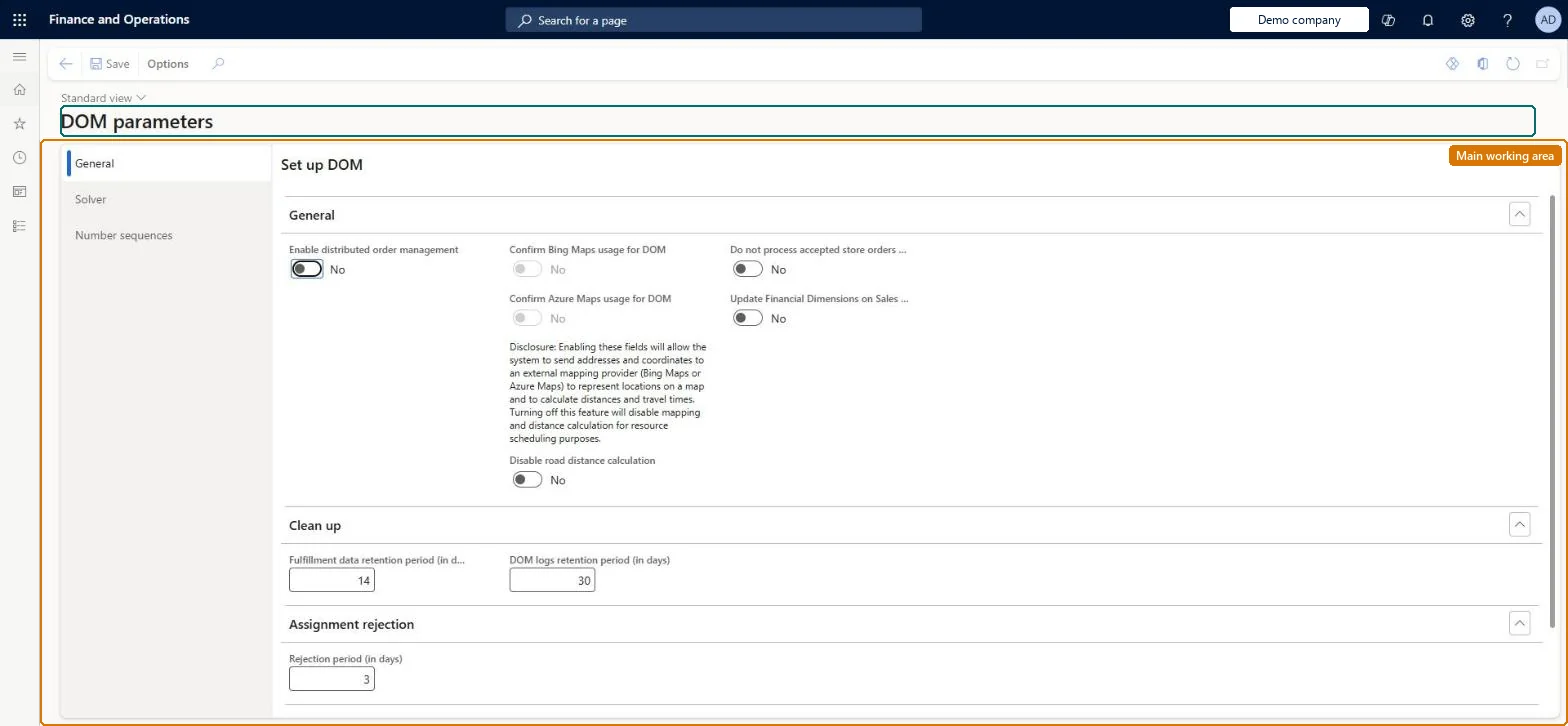
A parameters page where distributed order management is switched on and its map service, distance calculation, retention periods, rejection period, thread utilisation, solver settings and number sequences are set.
Retail and CommerceDistributed order managementSetup
DOMParameters
Used by
DOM administrator
Business process
Manage sales channels
Menu item
DOMParameters
Main table
DOMParameters
Setup steps
1 on this page
Show what matters for
PAGE GUIDEWhat the page does and how to use it8 sections. Choose a role to highlight what matters to you.
Everyone
1What it is and why
What it is
A parameters page where distributed order management is switched on and its map service, distance calculation, retention periods, rejection period, thread utilisation, solver settings and number sequences are set.
What you do here
Use this page to enable DOM, choose Azure Maps or Bing Maps for geocoding and road distance, set how long fulfilment plans and logs are kept, pick the solver type, and assign number sequences to DOM entities.
Example
For example, set Local store region radius to 100 so that every store or distribution center within 100 miles of the delivery address is treated as equally close.
The page in Dynamics 365. page title tab to open what to set or check
About the examples: Examples and screenshots in this guide use BEAT, a demo company in a Dynamics 365 test environment. Use your own company's codes and values instead of copying them.
Setup steps on this page
Set up DOM parameters
Use this page to enable DOM, choose Azure Maps or Bing Maps for geocoding and road distance, set how long fulfilment plans and logs are kept, pick the solver type, and assign number sequences to DOM entities.
Steps from Microsoft
Go to Retail and Commerce > Distributed order management > Setup > DOM parameters.
On the General tab, set Enable distributed order management to Yes.
Set Confirm Azure Maps usage for DOM or Confirm Bing Maps usage for DOM, and Disable road distance calculation.
Set the fulfillment data and DOM log retention periods, Rejection period and Thread utilization.
On the Solver tab, set Max auto-fulfillment attempts, Local store region radius and Solver type (Production Solver for production).
On the Number sequences tab, assign number sequences to the DOM entities.
Enable distributed order management = Yes, Solver type = Production Solver, and Azure Maps as the map serviceLearn says Production Solver must be selected on all machines that run DOM and the Simplified Solver shouldn't be used in production; Bing Maps for Enterprise is deprecated and Azure Maps is available from 10.0.43.
Reversible: Settings can be changed at any time. Shortening a retention period means the next DOM fulfillment data deletion job run removes older plans and logs. Microsoft Learn
If you change it later
Turning both map services off makes DOM fall back to the latitude and longitude stored on the warehouse or delivery address; choosing the Simplified Solver is not supported in production and the Partial orders rule needs the Production Solver. Microsoft Learn
Technical architect
6Technical
Menu item
DOMParametersChecked in Dynamics 365
Form
DOMParametersChecked in Dynamics 365
Table
DOMParametersShown as “DOM PARAMETERS” in Record infoChecked in Dynamics 365
Who can open it
PrivilegesMaintain DOM DOMMaintainDutiesMaintain DOM DOMMaintain1 security roleDOM administrator DOMAdministratorChecked in Dynamics 365
Roles to set it up and use it
To set it up or change itDOM administrator DOMAdministratorGive people one of these roles. On this system, 1 role can open this page.Checked in Dynamics 365