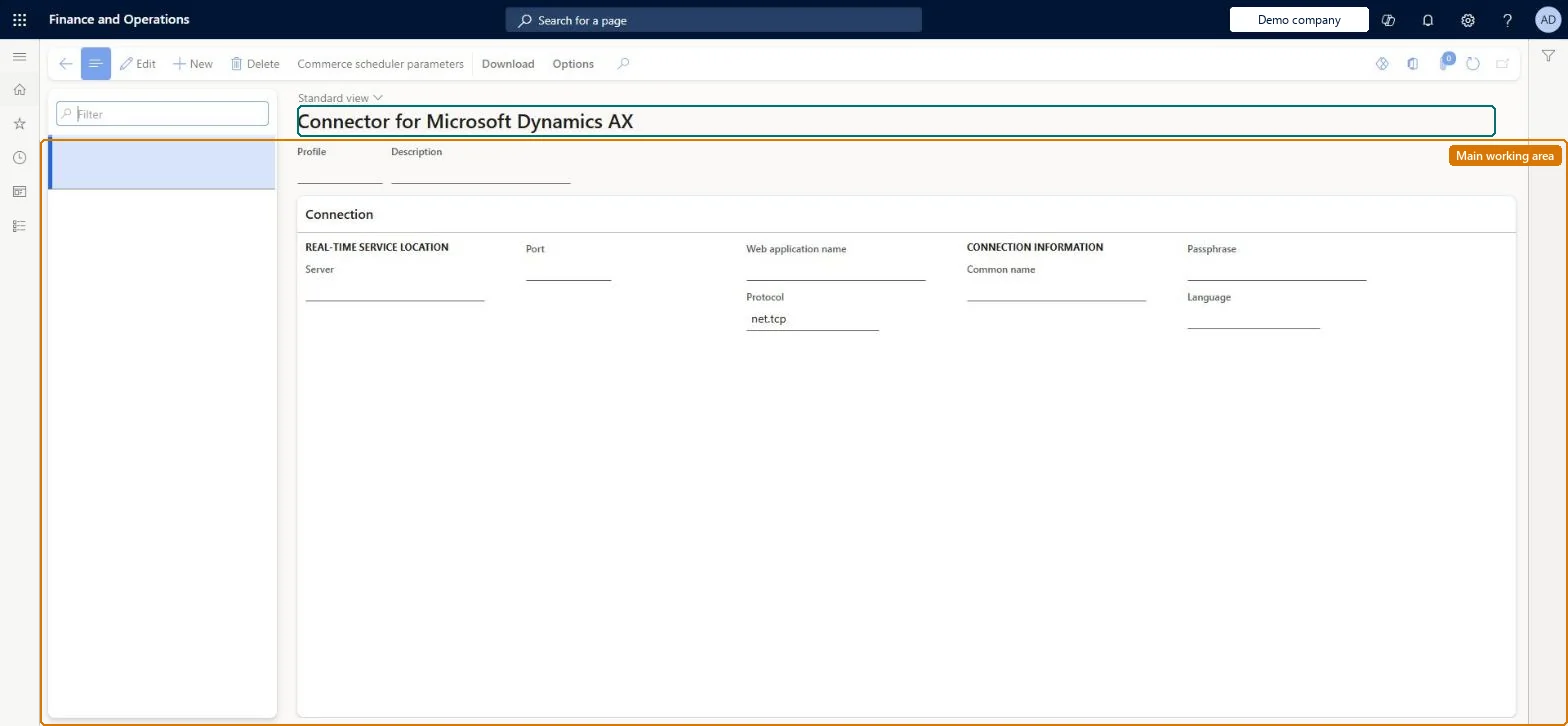
Setup step on the Connector for Microsoft Dynamics AX page · Retail and Commerce
Set up Connector for Microsoft Dynamics AX
Use this page to create one profile per AX 2012 R3 Real-time Service server (server, port, web application name, protocol, certificate name, passphrase and language), to download the N-1 installers and their configuration files, and to reset metadata synchronization at cutover.
Retail and CommerceHeadquarters setupCommerce schedulerSupport for AX 2012 R3
RetailTransactionServiceProfile
Used by
Retail operations manager, Retail service, Retail store IT and 2 more roles
Business process
Manage sales channels
Menu item
RetailTransactionServiceProfile
Main table
RetailTransactionServiceProfile
Data entity
RetailTransactionServiceProfileEntity
Setup steps
1 on this page
Show what matters for
SETUP GUIDEHow to set it up8 sections. Choose a role to highlight what matters to you.
Everyone
1What it is and why
What it is
A setup page where you define the N-1 profile that tells Commerce headquarters how to reach the Real-time Service installed in an AX 2012 R3 channel environment, and from which you download the Async Server Connector Service and Real-time Service installers.
What you do here
Use this page to create one profile per AX 2012 R3 Real-time Service server (server, port, web application name, protocol, certificate name, passphrase and language), to download the N-1 installers and their configuration files, and to reset metadata synchronization at cutover.
Example
For example, during a phased rollout you create a profile named AXConnect pointing at the store server that hosts the Real-time Service, then select it as the Real-time Service profile in Commerce shared parameters.
The page in Dynamics 365. page title tab to open what to set or check
About the examples: Examples and screenshots in this guide use BEAT, a demo company in a Dynamics 365 test environment. Use your own company's codes and values instead of copying them.
Setup steps on this page
Set up Connector for Microsoft Dynamics AX
Use this page to create one profile per AX 2012 R3 Real-time Service server (server, port, web application name, protocol, certificate name, passphrase and language), to download the N-1 installers and their configuration files, and to reset metadata synchronization at cutover.
Steps from Microsoft
Go to Retail and Commerce > Headquarters setup > Commerce scheduler > Support for AX 2012 R3 > Connector for Microsoft Dynamics AX.
On the action pane, select New.
Enter a Profile name and Description.
In the Connection section, enter the Server, Port, Web application name, Protocol, Common name and Passphrase of the N-1 Real-time Service.
Select the Language of the stores mapped to this service.
IIS application name for the N-1 Real-time Service.Microsoft Learn
ServerServiceName
Protocol
Protocol (for example https) the AX 2012 R3 Real-time Service uses.Microsoft Learn
protocol
Common name
Friendly name of the certificate used by the service.Microsoft Learn
ServerCertificateDNS
Language
Language of the stores mapped to this Real-time Service.Microsoft Learn
language
Common errors and fixes
Message
What to do
DA3122: Sorry, something went wrong with the encryption on your device. Contact your system administrator.
Check the Real-time Service profile in the CDX Backward compatibility section of the store; it must be the profile you created on this page. Microsoft Learn
Test checklist
Create the profile with server, port, web application name, protocol, common name and language.
Select it in Real-time Service profile on the Security tab of Commerce shared parameters.
Download the Async Server Connector service and Real-time service installers with their configuration files.
After installation, activate an AX 2012 R3 MPOS device and check sign-in works.
Don't set up on current versions: N-1 support ended with Commerce 10.0.40. Where still in use, one profile per AX 2012 R3 Real-time Service serverMicrosoft says to create one profile for each environment or server where the AX 2012 R3 Real-time Service is installed, and that N-1 support ends with the 10.0.40 release.
Selecting Reset metadata synchronization before the AX 2012 R3 Real-time Service is shut down. It resets HQMessageDB and belongs late in the cutover sequence.
Selecting Reset metadata synchronization on this page resets the AX 2012 R3 headquarters message database (HQMessageDB); Microsoft places this step after the AX 2012 R3 Real-time Service is shut down at cutover. Microsoft Learn
Technical architect
6Technical
Menu item
RetailTransactionServiceProfileChecked in Dynamics 365
Form
RetailTransactionServiceProfileChecked in Dynamics 365
Table
RetailTransactionServiceProfileShown as “CONNECTOR FOR MICROSOFT DYNAMICS AX” in Record infoKey field: profileIdChecked in Dynamics 365
Data entities
RetailTransactionServiceProfileEntityCommerce Data Exchange: Real-time Service profile Microsoft data model
Who can open it
PrivilegesMaintain retail service profile RetailServiceProfileMaintainView Connector for Microsoft Dynamics AX RetailTransactionServiceProfileViewDutiesMaintain retail channels RetailChannelsMaintainMaintain Commerce Data Exchange: Real-time Service profiles RetailTransactionServiceProfilesMaintain5 security rolesRetail operations manager RetailOperationsManagerRetail service RetailServiceRetail store IT RetailStoreITRetail store manager RetailStoreManagerInformation technology manager SysServerITManagerChecked in Dynamics 365
Roles to set it up and use it
To set it up or change itRetail operations manager RetailOperationsManagerInformation technology manager SysServerITManagerTo use itRetail service RetailServiceRetail store manager RetailStoreManagerRetail store IT RetailStoreITGive people one of these roles. On this system, 5 roles can open this page.Checked in Dynamics 365
Actions on the page
Download: Download, Download(Action Pane without tabs): Commerce scheduler parametersChecked in Dynamics 365
RetailTransactionServiceProfileEntity (Commerce Data Exchange: Real-time Service profile): shared by all companies, in Microsoft's default template 500 - Retail.Load order: Microsoft's default template 500 - Retail loads Commerce Data Exchange: Real-time Service profile at execution unit 1, level 30, sequence 10. Lower levels load first, and entities at the same level load in sequence order.Load first: the default templates at lower levels (System setup to General ledger)Microsoft Learn
Checked in a working Dynamics 365 system, version 10.0.49: the menu item, form, table and security, the page.
To cite this step: RC-CDX-090, Set up Connector for Microsoft Dynamics AX. Beyond ERP Atlas Hub, 2026-11-11. https://www.beyonderp.cloud/atlas/step/RC-CDX-090