About the examples: Examples and screenshots in this guide use BEAT, a demo company in a Dynamics 365 test environment. Use your own company's codes and values instead of copying them.
Setup steps on this page
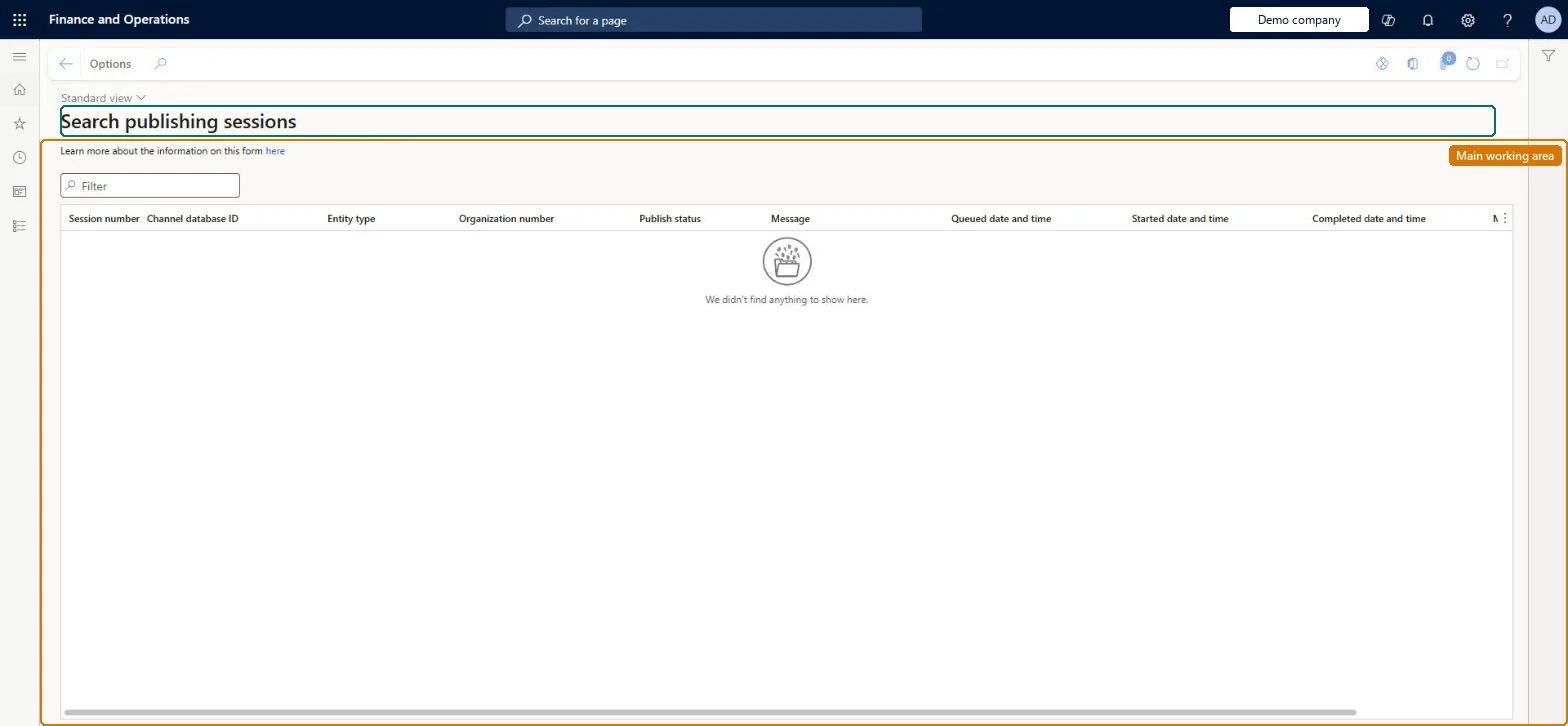
Set up Search publishing sessions
How to use it
Go to Retail and Commerce > Channel setup > Search publishing sessions.
Use the Filter box to find a session.
Review the Session number, Channel database ID, Entity type, Organization number, Publish status, Message, Queued date and time, Started date and time and Completed date and time columns.
Select the here link above the grid to read Microsoft's article on the page.
Source: Checked in Dynamics 365
Technical architect
4Technical
Menu item
RetailSearchPublishingSessionChecked in Dynamics 365
Form
RetailSearchPublishingSessionChecked in Dynamics 365
Table
RetailSearchPublishingSeShown as “AZURE SEARCH SERVICE PUBLISH SESSIONS” in Record infoChecked in Dynamics 365
Checked in a working Dynamics 365 system, version 10.0.49: the menu item, form, table and security, the page.
To cite this step: RC-CHANNEL-090, Set up Search publishing sessions. Beyond ERP Atlas Hub, 2026-11-11. https://www.beyonderp.cloud/atlas/step/RC-CHANNEL-090