BeyondERP.Newsletter
Menu

Setup step on the Variables page · Retail and Commerce

Set up Variables

Use this page to name the data elements (for example the customer account number or the order total) that fraud conditions compare and that fraud rules evaluate when call center orders are submitted.

Used by
Sales manager
Business process
Manage sales channels
Menu item
MCRFraudVariables
Main table
MCRUpSellVarSys
Data entity
MCRUpSellCrossSellVariableEntity
Setup steps
1 on this page
Show what matters for
SETUP GUIDEHow to set it up8 sections. Choose a role to highlight what matters to you.
Everyone

1What it is and why

What it isA setup page where you define fraud variables, each pointing to a table and field whose value from the sales order or customer is used by fraud conditions and rules.
What you do hereUse this page to name the data elements (for example the customer account number or the order total) that fraud conditions compare and that fraud rules evaluate when call center orders are submitted.
ExampleFor example, to build a rule about customer 1202, you create a variable on the CustTable table that uses the AccountNum field.
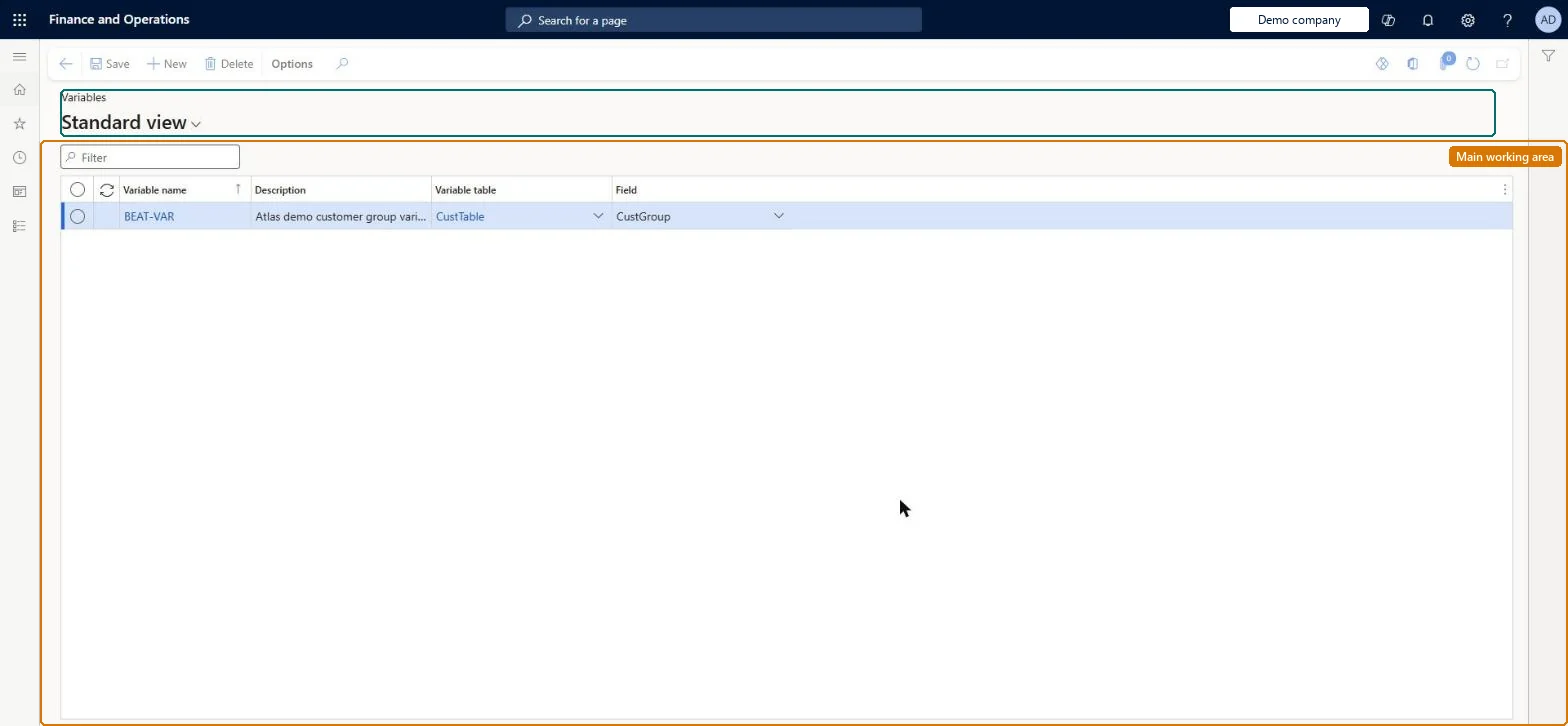
Variables page in Dynamics 365
The page in Dynamics 365. page title tab to open what to set or check
Functional consultant · Solution architect

2Where it fits

Business processDevelop sales policies › Manage sales channels
Menu pathRetail and Commerce › Channel setup › Call center setup › Fraud › Variables
Set up firstCall center parameters (Holds tab) Microsoft Learn
Used next byConditions Microsoft Learn Rules Microsoft Learn
Related pagesStatic fraud data Microsoft Learn
In this process Set up Button grids · Set up Connector for Microsoft Dynamics AX
End user · Functional consultant

3How to do it

About the examples: Examples and screenshots in this guide use BEAT, a demo company in a Dynamics 365 test environment. Use your own company's codes and values instead of copying them.

Setup steps on this page

Set up Variables

Use this page to name the data elements (for example the customer account number or the order total) that fraud conditions compare and that fraud rules evaluate when call center orders are submitted.

Steps from Microsoft

  1. Go to Retail and Commerce > Channel setup > Call center setup > Fraud > Variables.
  2. Select New and enter a name.
  3. Enter a brief description of the variable.
  4. In the Variable table field, select the table that contains the field.
  5. In the Field field, select the field whose value is used as the variable.
  6. Repeat for each variable you need.

Source: Microsoft Learn

Fields on the page

FieldWhat it meansTable column
NameThe name of the variable.Microsoft Learn
DescriptionA short description of the field variable.Microsoft Learn Description
Variable tableThe table that holds the field used as the variable (for example CustTable).Microsoft Learn VariableTable
FieldThe field whose value is used as the variable.Microsoft Learn VariableField

Test checklist

  1. Create a variable for the field you want to test, for example the customer group on the customer.
  2. Use it in a condition and an active rule whose score is above the Minimum score in Call center parameters.
  3. Submit a call center order that meets the condition and check that it goes on Fraud hold.
  4. Check on Order holds that the Fraud details FastTab shows the rule and its score.

Source: Microsoft Learn

Functional consultant

4Setup decisions

Setup stepRecommended value and whyDecision, common mistake and test
Set up VariablesBuilding many variables to feed complex rule sets. Every active rule is evaluated against the header and all lines when the user selects Submit, so rule complexity directly slows order submission.
Solution architect

5Design impact

Shared or per companyPer company: each legal entity has its own records. Microsoft data model
Can it be undoneReversible: Variables are only used by fraud rules when an order is submitted. Changes affect orders submitted afterwards.
Technical architect

6Technical

Menu itemMCRFraudVariables Checked in Dynamics 365
FormMCRFraudVarSys Checked in Dynamics 365
TableMCRUpSellVarSysShown as “UP-SELL/CROSS-SELL VARIABLES” in Record infoChecked in Dynamics 365
Data entitiesMCRUpSellCrossSellVariableEntityUp-sell/cross-sell variables Microsoft data model
Who can open itPrivilegesMaintain fraud variables MCRFraudVariablesMaintainDutiesMaintain fraud setup MCRFraudMaintain
1 security roleSales manager TradeSalesManager
Checked in Dynamics 365
Roles to set it up and use itTo set it up or change itSales manager TradeSalesManagerGive people one of these roles. On this system, 1 role can open this page.Checked in Dynamics 365
Developer

7Developer

Open it by URLhttps://<your-environment>/?mi=MCRFraudVariables
Integrate withMCRUpSellCrossSellVariableEntity data entity Microsoft data model
Data migrationMCRUpSellCrossSellVariableEntity (Up-sell/cross-sell variables): loaded for each company.Microsoft Learn
Table definitionMCRUpSellVarSys columns and relations Microsoft data model
Everyone

8Sources

To cite this step: RC-CC-090, Set up Variables. Beyond ERP Atlas Hub, 2026-11-11. https://www.beyonderp.cloud/atlas/step/RC-CC-090