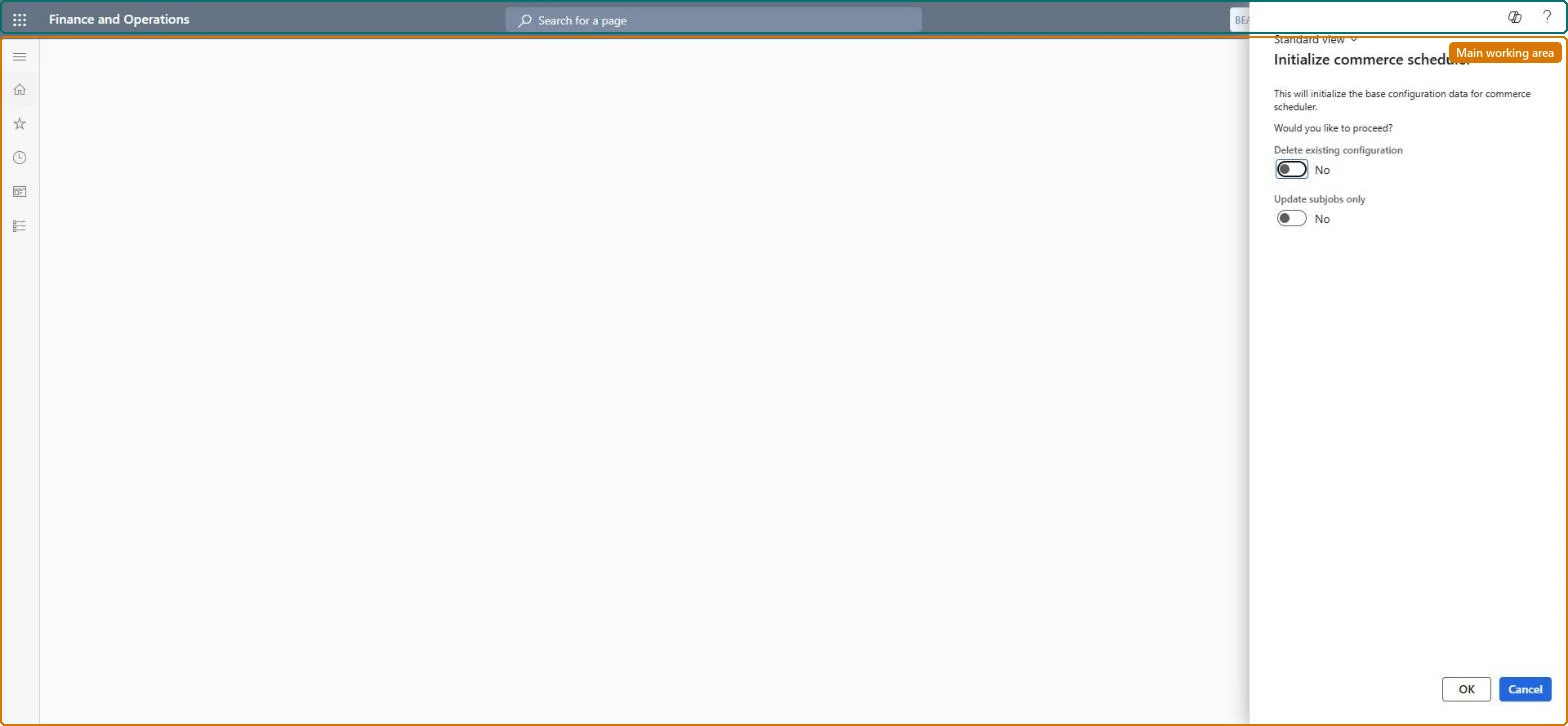
Setup step on the Initialize commerce scheduler page · Retail and Commerce
Set up Initialize commerce scheduler
Use this page after every service update, after enabling a Commerce feature that affects a configuration key, or after deploying a CDX extension, so that configuration data for new tables and columns is set correctly.
Retail and CommerceHeadquarters setupCommerce scheduler
RetailCDXInitializeMenuItem
Business process
Manage sales channels
Menu item
RetailCDXInitializeMenuItem
Setup steps
1 on this page
Show what matters for
SETUP GUIDEHow to set it up8 sections. Choose a role to highlight what matters to you.
Everyone
1What it is and why
What it is
A dialog page that creates or refreshes the base Commerce Data Exchange configuration data (scheduler jobs, subjobs, channel schema and distribution schedules), with an option to delete the existing configuration first.
What you do here
Use this page after every service update, after enabling a Commerce feature that affects a configuration key, or after deploying a CDX extension, so that configuration data for new tables and columns is set correctly.
Example
For example, after an extension registers a custom job in a resource file, running this initialization creates the custom job and subjobs in CDX automatically.
The page in Dynamics 365. page title tab to open what to set or check
About the examples: Examples and screenshots in this guide use BEAT, a demo company in a Dynamics 365 test environment. Use your own company's codes and values instead of copying them.
Setup steps on this page
Set up Initialize commerce scheduler
Use this page after every service update, after enabling a Commerce feature that affects a configuration key, or after deploying a CDX extension, so that configuration data for new tables and columns is set correctly.
Steps from Microsoft
Go to Retail and Commerce > Headquarters setup > Commerce scheduler > Initialize commerce scheduler.
Leave Delete existing configuration set to No unless you have been told to delete it or are in a non-production environment.
Select OK.
Confirm the prompt to initialize the base configuration data.
Run after every service update and after enabling a Commerce feature that affects a configuration key, with Delete existing configuration = NoRunning it after every update sets the configuration data for new tables and columns correctly. Microsoft says to leave Delete existing configuration at No unless explicitly instructed, or on a non-production environment where losing the configuration has no impact.
Setting Delete existing configuration to Yes in production. The existing scheduler configuration is deleted.
Feature management and licence
Feature to turn on
Run "Initialize commerce scheduler" after Headquarters is updated (Optional)
One-way: Warning: running with Delete existing configuration = Yes deletes the existing Commerce scheduler configuration. Microsoft reserves this for explicit instruction or non-production environments where the loss doesn't matter. Running with No is safe to repeat.
If you change it later
Running it with Delete existing configuration set to Yes wipes the current scheduler configuration; Microsoft reserves that for sandbox troubleshooting or when explicitly instructed. Microsoft Learn
Technical architect
6Technical
Menu item
RetailCDXInitializeMenuItemChecked in Dynamics 365
Form
RetailCDXInitializeDialogChecked in Dynamics 365
Roles to set it up and use it
To set it up or change itRetail service RetailServiceRetail operations manager RetailOperationsManagerRetail store manager RetailStoreManagerRetail store IT RetailStoreITGive people one of these roles. On this system, 4 roles can open this page.Checked in Dynamics 365
Checked in a working Dynamics 365 system, version 10.0.49: the menu item, form, table and security, the page.
To cite this step: RC-CDX-040, Set up Initialize commerce scheduler. Beyond ERP Atlas Hub, 2026-11-11. https://www.beyonderp.cloud/atlas/step/RC-CDX-040