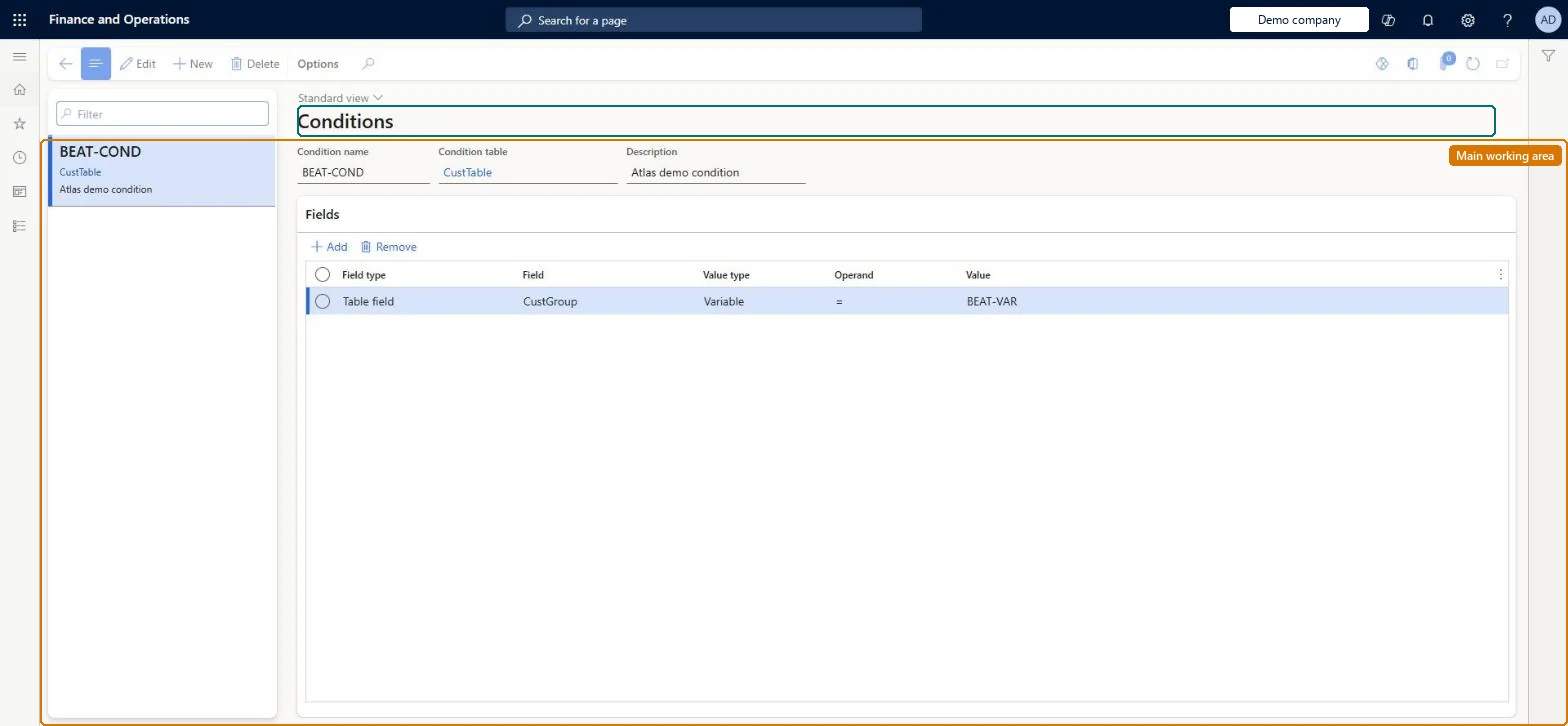
Setup step on the Conditions page · Retail and Commerce
Set up Conditions
Use this page to express the tests that a sales order or customer must meet, such as a customer account equal to a given number or an order total at or above an amount, so that rules can evaluate them with AND or OR logic.
Retail and CommerceChannel setupCall center setupFraud
MCRFraudConditions
Used by
Sales manager
Business process
Manage sales channels
Menu item
MCRFraudConditions
Main table
MCRUpSellVarCondition
Setup steps
1 on this page
Show what matters for
SETUP GUIDEHow to set it up8 sections. Choose a role to highlight what matters to you.
Everyone
1What it is and why
What it is
A setup page where you define fraud conditions, each based on a table and one or more field comparisons (a field, an operand, and a value or variable), that fraud rules combine to decide whether an order is put on hold.
What you do here
Use this page to express the tests that a sales order or customer must meet, such as a customer account equal to a given number or an order total at or above an amount, so that rules can evaluate them with AND or OR logic.
Example
For example, a condition that applies to customer 1202 uses Field type Table field, Field AcctNum, Value type Value, Operand = and Value 1202.
The page in Dynamics 365. page title tab to open what to set or check
About the examples: Examples and screenshots in this guide use BEAT, a demo company in a Dynamics 365 test environment. Use your own company's codes and values instead of copying them.
Setup steps on this page
Set up Conditions
Use this page to express the tests that a sales order or customer must meet, such as a customer account equal to a given number or an order total at or above an amount, so that rules can evaluate them with AND or OR logic.
Steps from Microsoft
Go to Retail and Commerce > Channel setup > Call center setup > Fraud > Conditions.
Select New.
Enter a name and description and select the table the condition is based on.
On the Fields FastTab, select Add.
Select the Field type (method or table field) and the Field.
In Value type, choose Variable or Value, then select the operand.
Writing conditions that are evaluated on every line of large orders. Rules and their conditions are checked against the order header and all lines at Submit, so complex conditions slow order submission.
To set it up or change itSales manager TradeSalesManagerGive people one of these roles. On this system, 1 role can open this page.Checked in Dynamics 365