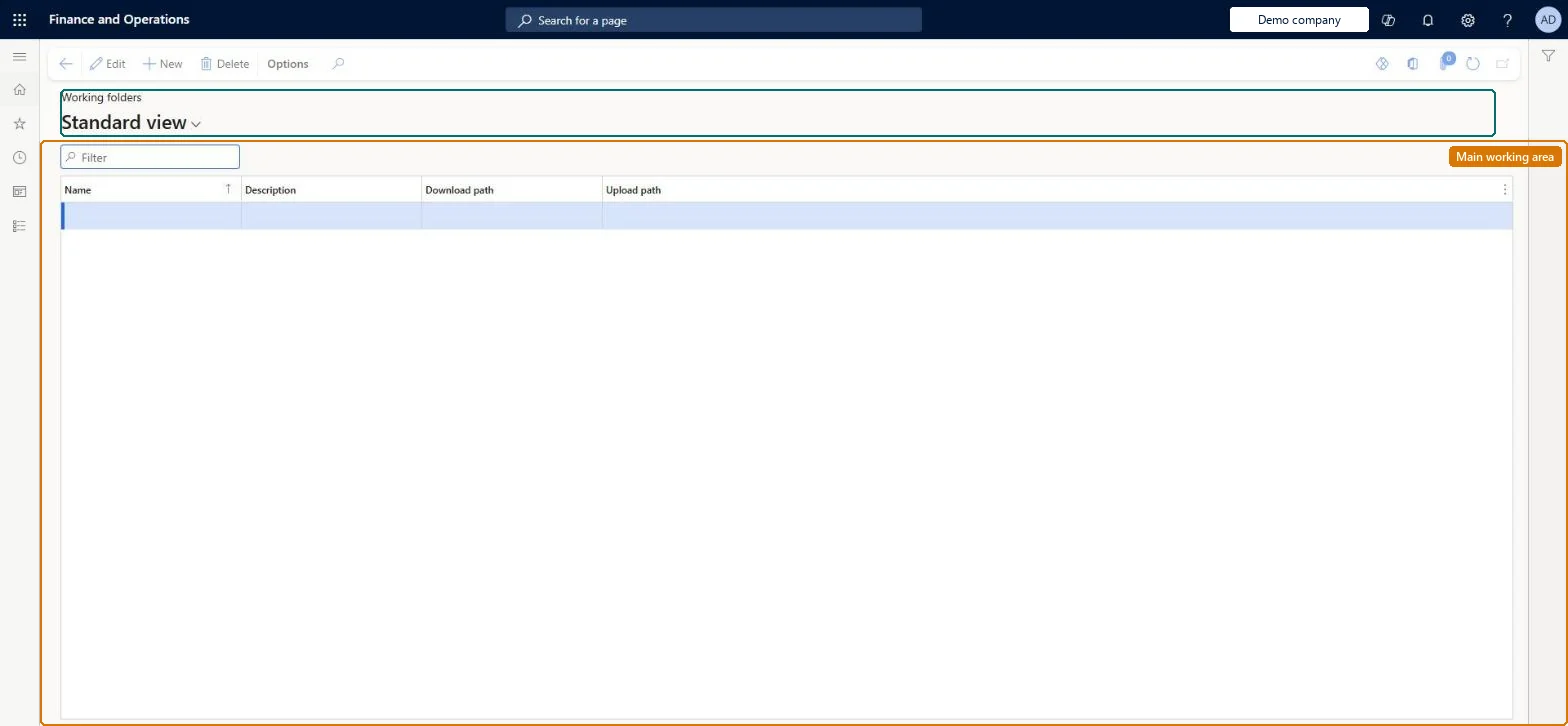
Setup step on the Working folders page · Retail and Commerce
Set up Working folders
Use this page to verify or set the download path and upload path that the N-1 Async Server Connector Service uses, which the channel database groups on the AX2012R3 schema reference in their Working folders field.
Retail and CommerceHeadquarters setupCommerce schedulerSupport for AX 2012 R3
RetailCDXFileStorageProvider
Used by
Retail operations manager, Retail service, Retail store IT and 1 more role
Business process
Manage sales channels
Menu item
RetailCDXFileStorageProvider
Main table
RetailCDXFileStorageProvider
Data entity
RetailCdxFileStorageProviderEntity
Setup steps
1 on this page
Show what matters for
SETUP GUIDEHow to set it up8 sections. Choose a role to highlight what matters to you.
Everyone
1What it is and why
What it is
A setup page listing the network folders in which Commerce Data Exchange download and upload packages for an AX 2012 R3 (N-1) channel environment are stored.
What you do here
Use this page to verify or set the download path and upload path that the N-1 Async Server Connector Service uses, which the channel database groups on the AX2012R3 schema reference in their Working folders field.
Example
For example, the default record File storage for N-1 points download packages to a \\server\Download share and upload packages to a \\server\Upload share.
The page in Dynamics 365. page title tab to open what to set or check
About the examples: Examples and screenshots in this guide use BEAT, a demo company in a Dynamics 365 test environment. Use your own company's codes and values instead of copying them.
Setup steps on this page
Set up Working folders
Use this page to verify or set the download path and upload path that the N-1 Async Server Connector Service uses, which the channel database groups on the AX2012R3 schema reference in their Working folders field.
Steps from Microsoft
Go to Retail and Commerce > Headquarters setup > Commerce scheduler > Support for AX 2012 R3 > Working folders.
Check the Name and Description of the working folder record (default: File storage for N-1).
Check that Download path points to the network share for CDX download packages.
Check that Upload path points to the network share for CDX upload packages.
Network share where AX 2012 R3 CDX download packages are placed.Microsoft Learn
ShareDownloadPath
Upload path
Network share where AX 2012 R3 CDX upload packages are placed.Microsoft Learn
ShareUploadPath
Common errors and fixes
Message
What to do
Unable to communicate with server for download. Check the username/password, and the server and database connections.
Align the channel database ID, user name and password in the Async client configuration utility with the N-1 channel database, select Reset metadata synchronization, and check that Working folders are set for all channel database groups linked to the AX2012R3 schema. Microsoft Learn
Test checklist
Check that the record has Download path and Upload path pointing to reachable network shares.
On Channel database group, check every group on the AX2012R3 schema references this record in Working folders.
Run an AX63 download job and check that packages appear in the download share.
Check on Download sessions that the session moves from Available to Applied.
Verify the values set by the upgrade: download and upload network paths for the AX 2012 R3 CDX packagesMicrosoft says the values are defaults set automatically on upgrade and should be verified, and that working folders must be specified for every channel database group linked to the AX2012R3 schema.
A channel database group on the AX2012R3 schema without working folders. Downloaded CDX jobs are then not applied.
Solution architect
5Design impact
If you change it later
If working folders are missing for a channel database group on the AX2012R3 schema, the N-1 Async Server Connector Service cannot exchange packages and downloaded CDX jobs are not applied. Microsoft Learn
Technical architect
6Technical
Menu item
RetailCDXFileStorageProviderChecked in Dynamics 365
Form
RetailCDXFileStorageProviderChecked in Dynamics 365
Table
RetailCDXFileStorageProviderShown as “FILE STORAGE PROVIDER” in Record infoKey field: NameChecked in Dynamics 365
Data entities
RetailCdxFileStorageProviderEntityFile storage provider Checked in Dynamics 365
Who can open it
PrivilegesMaintain Retail Commerce Data Exchange RetailCDXMaintainDutiesManage Commerce Data Exchange: Synch Service RetailCDXMaintain4 security rolesRetail operations manager RetailOperationsManagerRetail service RetailServiceRetail store IT RetailStoreITRetail store manager RetailStoreManagerChecked in Dynamics 365
Roles to set it up and use it
To set it up or change itRetail service RetailServiceRetail operations manager RetailOperationsManagerRetail store manager RetailStoreManagerRetail store IT RetailStoreITGive people one of these roles. On this system, 4 roles can open this page.Checked in Dynamics 365